

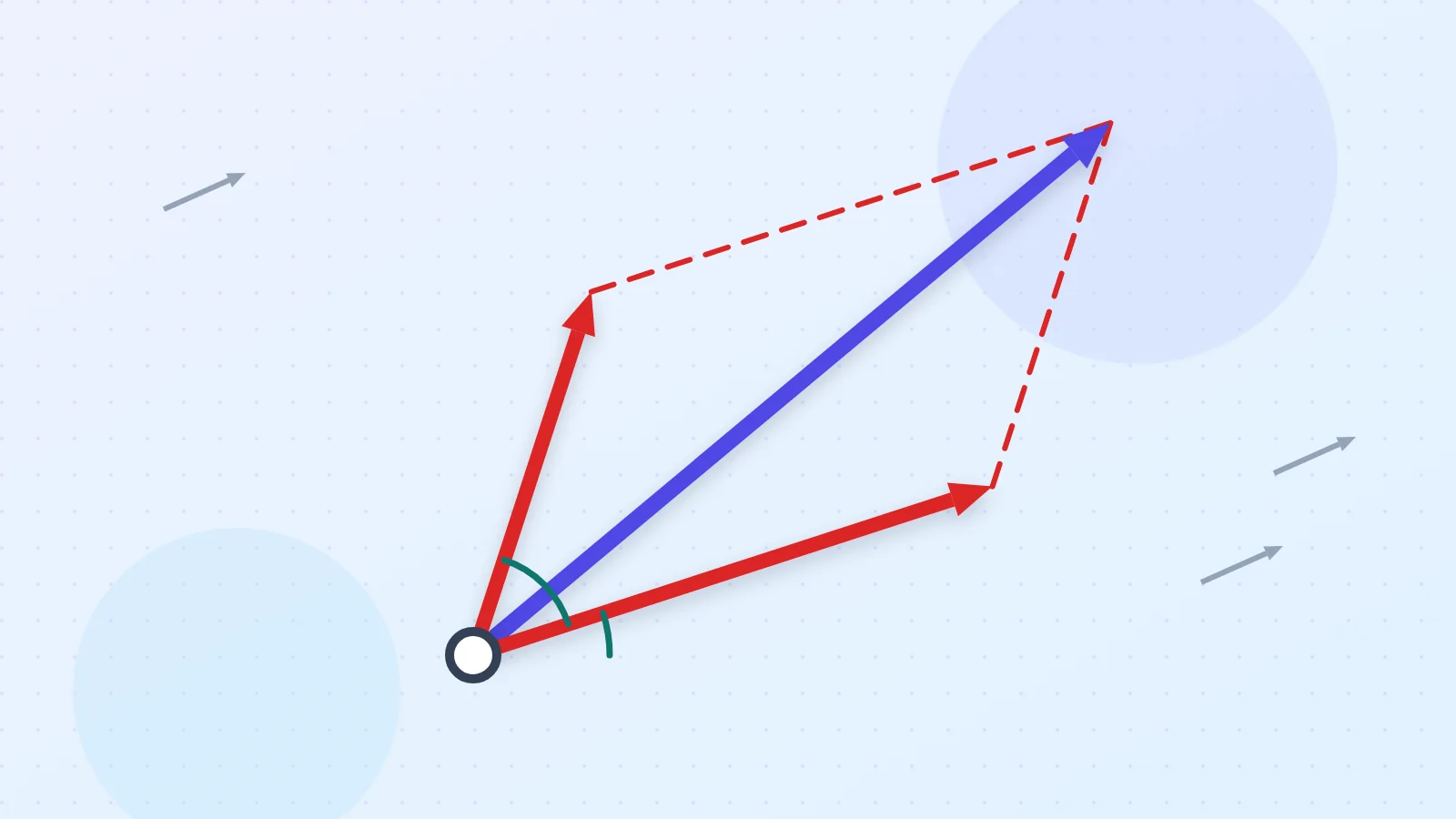
Force Addition Lab shows how forces that act at one point add up. Drag the tips of the forces or type their magnitudes and angles, and the resultant appears by the parallelogram law, the triangle rule or the force polygon, with the law of cosines and the law of sines worked out step by step.
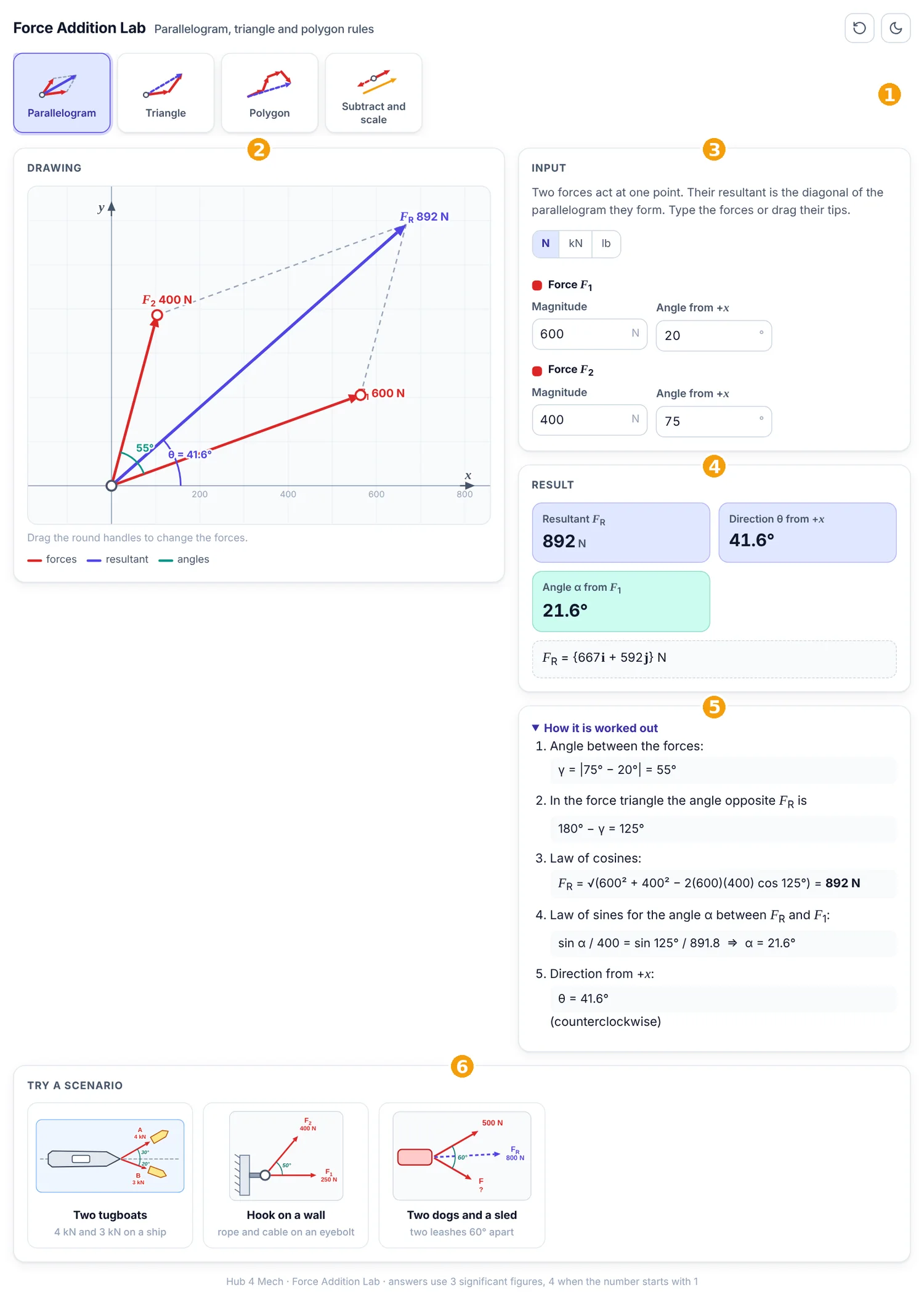
The numbered parts in Figure 1 are:
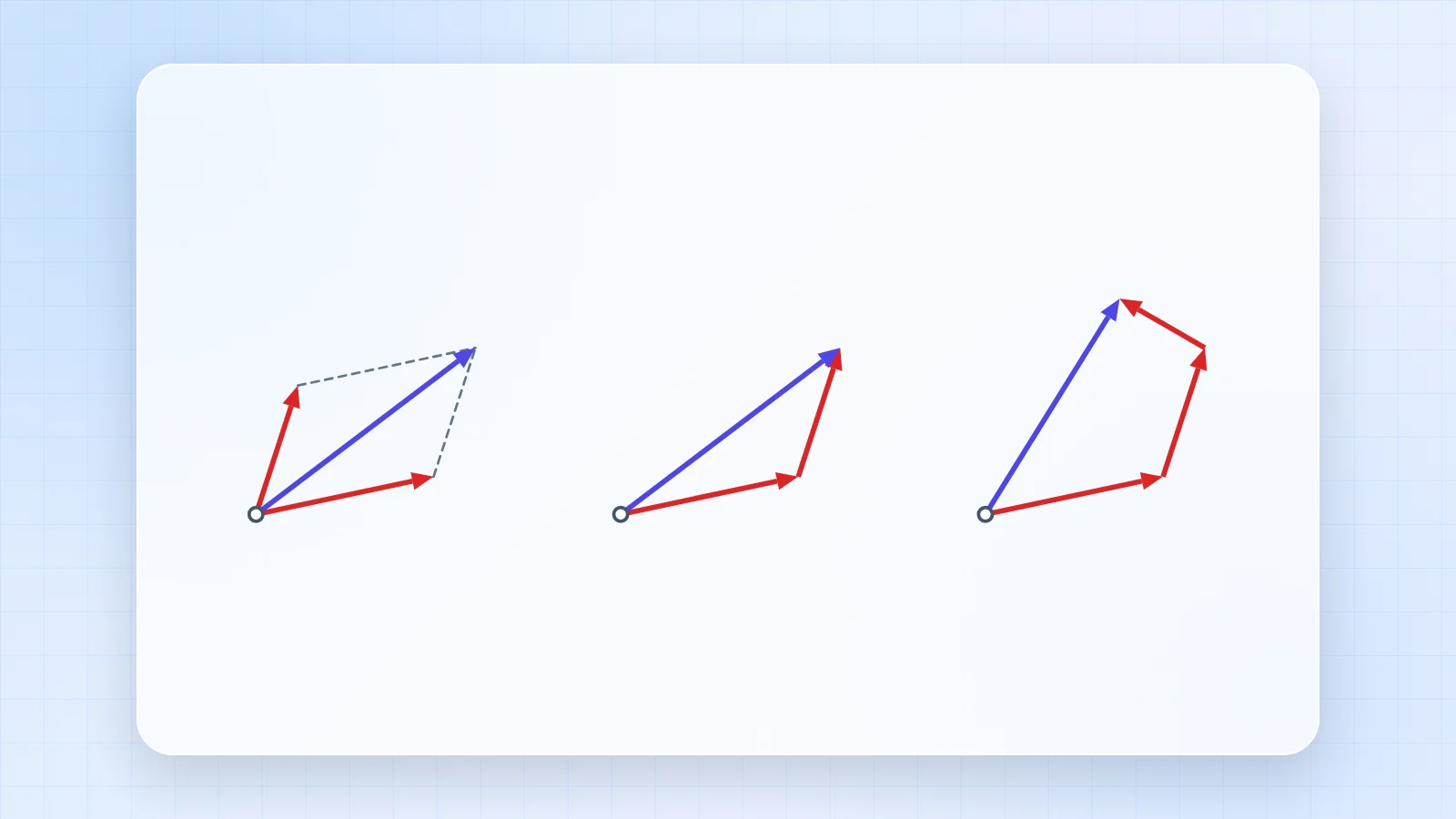
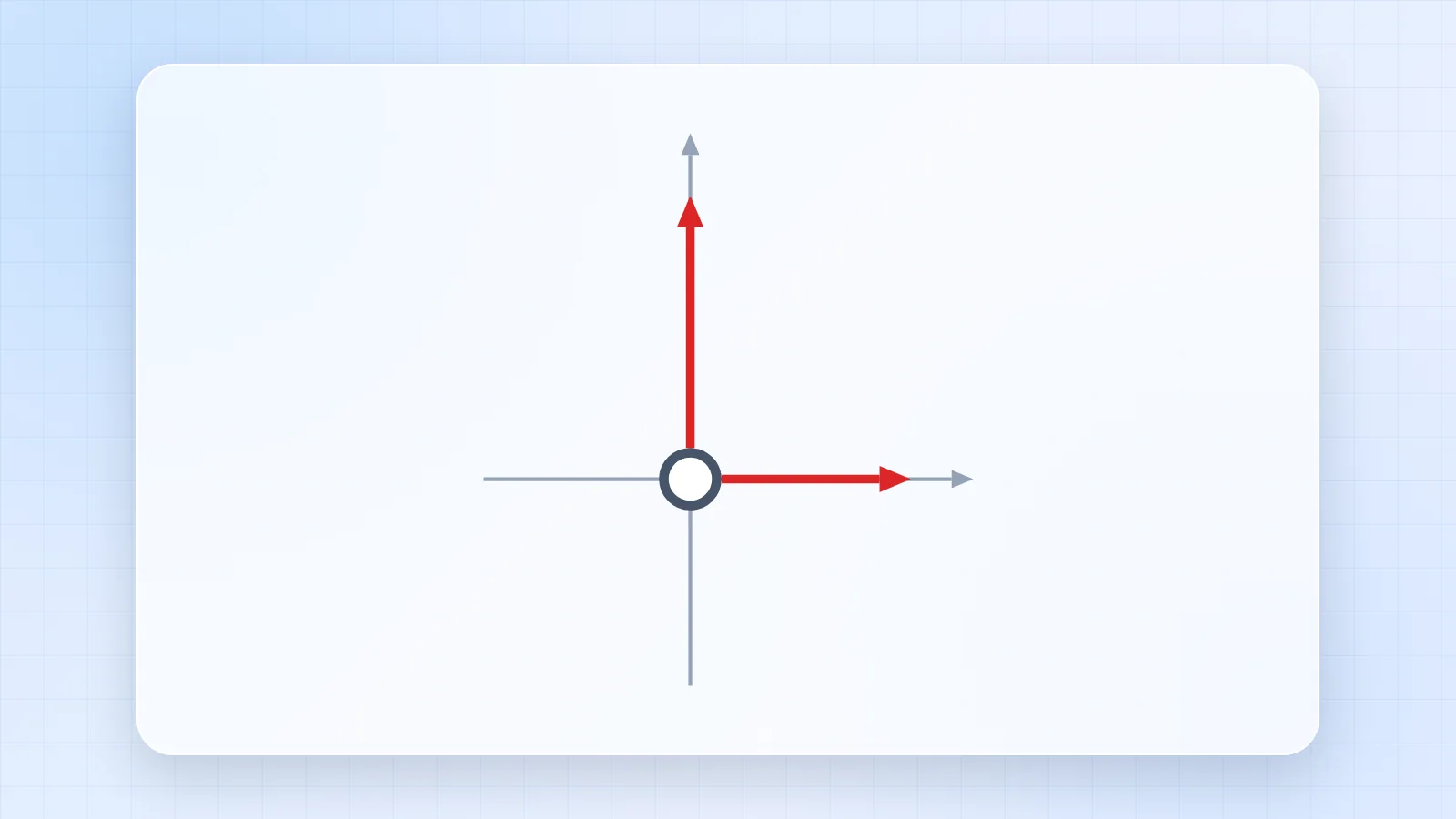
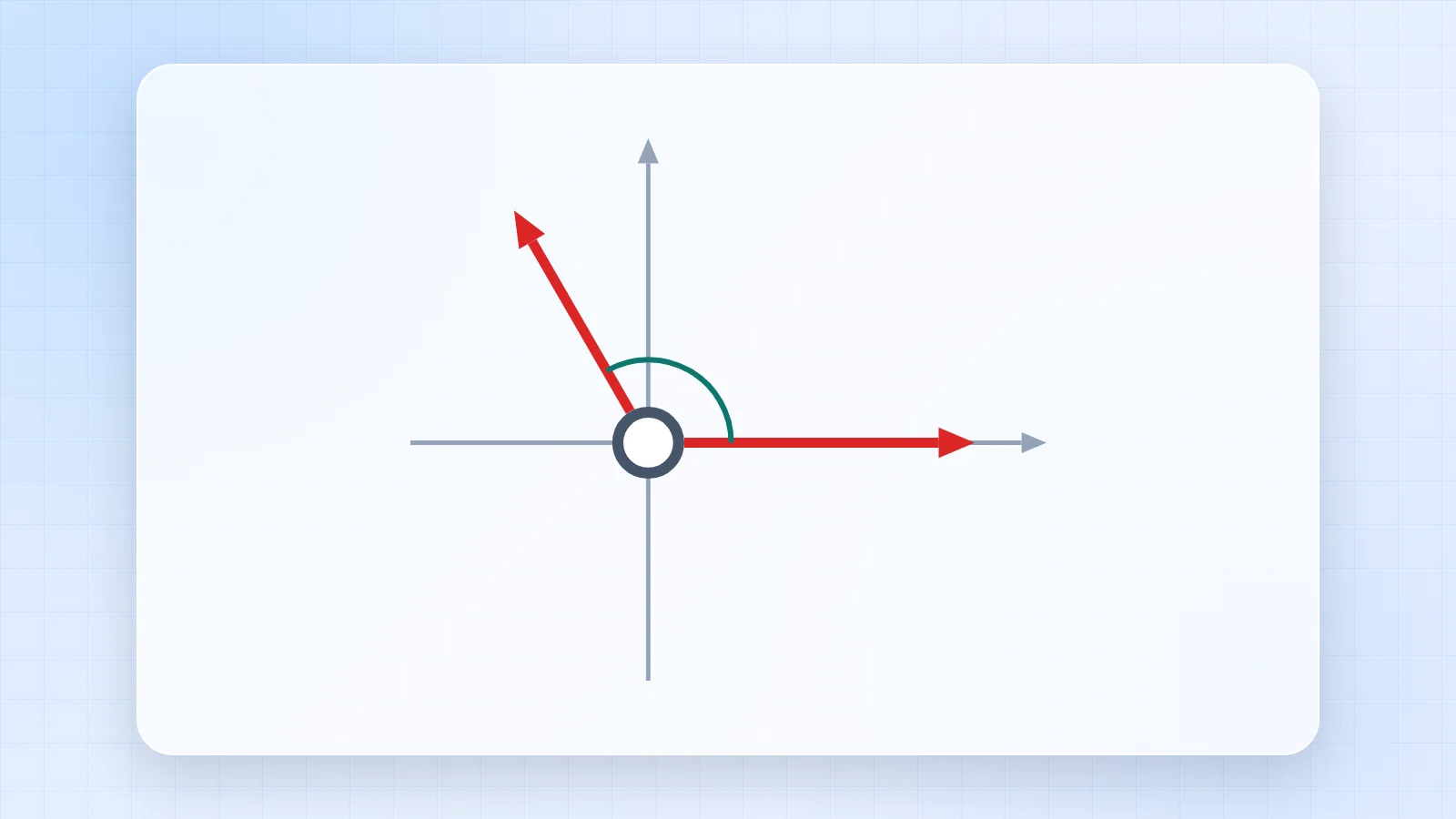
- Picture tabs: each tab is one task; the picture on it shows what the task draws.
- Drawing: the forces, drawn to scale and updated as you type.
- Input: the values of the task. Units can be N, kN or lb.
- Result: the answers, rounded to three significant figures (four when the number starts with 1).
- How it is worked out: every step of the calculation with your numbers.
- Scenarios: ready-made real situations; one click fills in the values.
1. Parallelogram
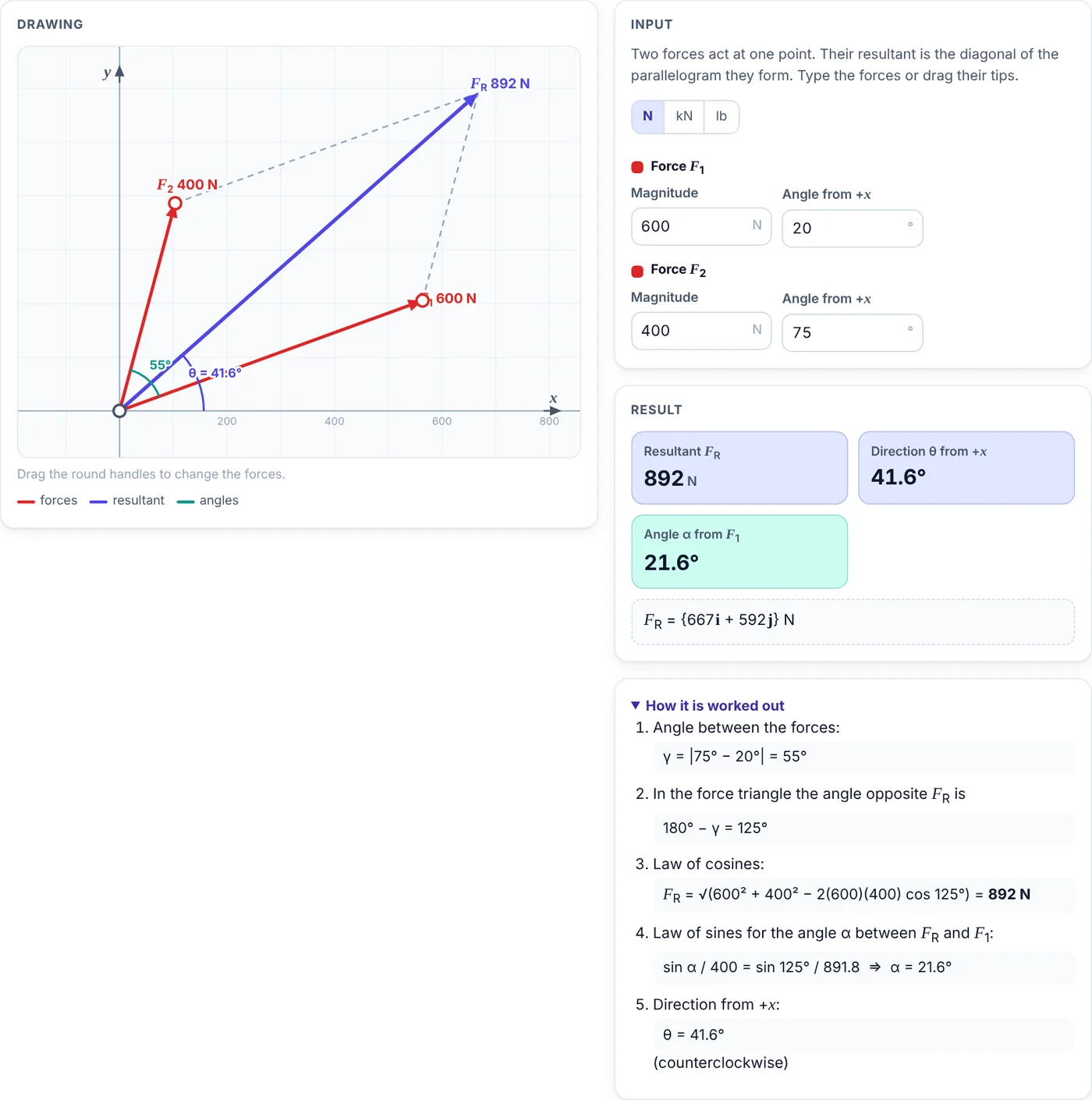
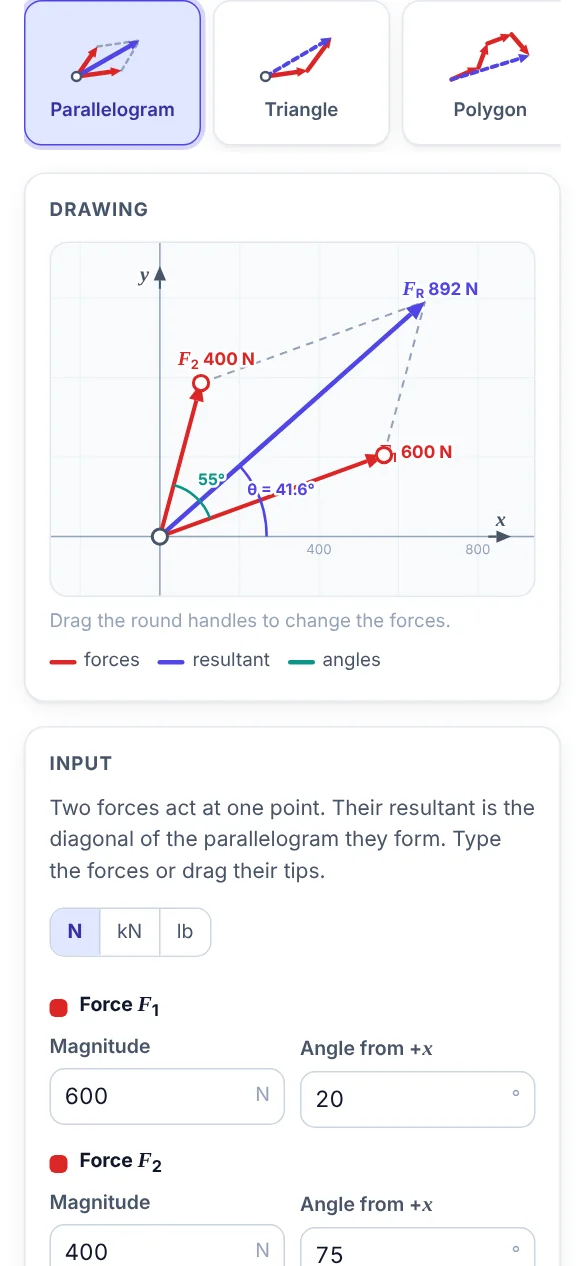
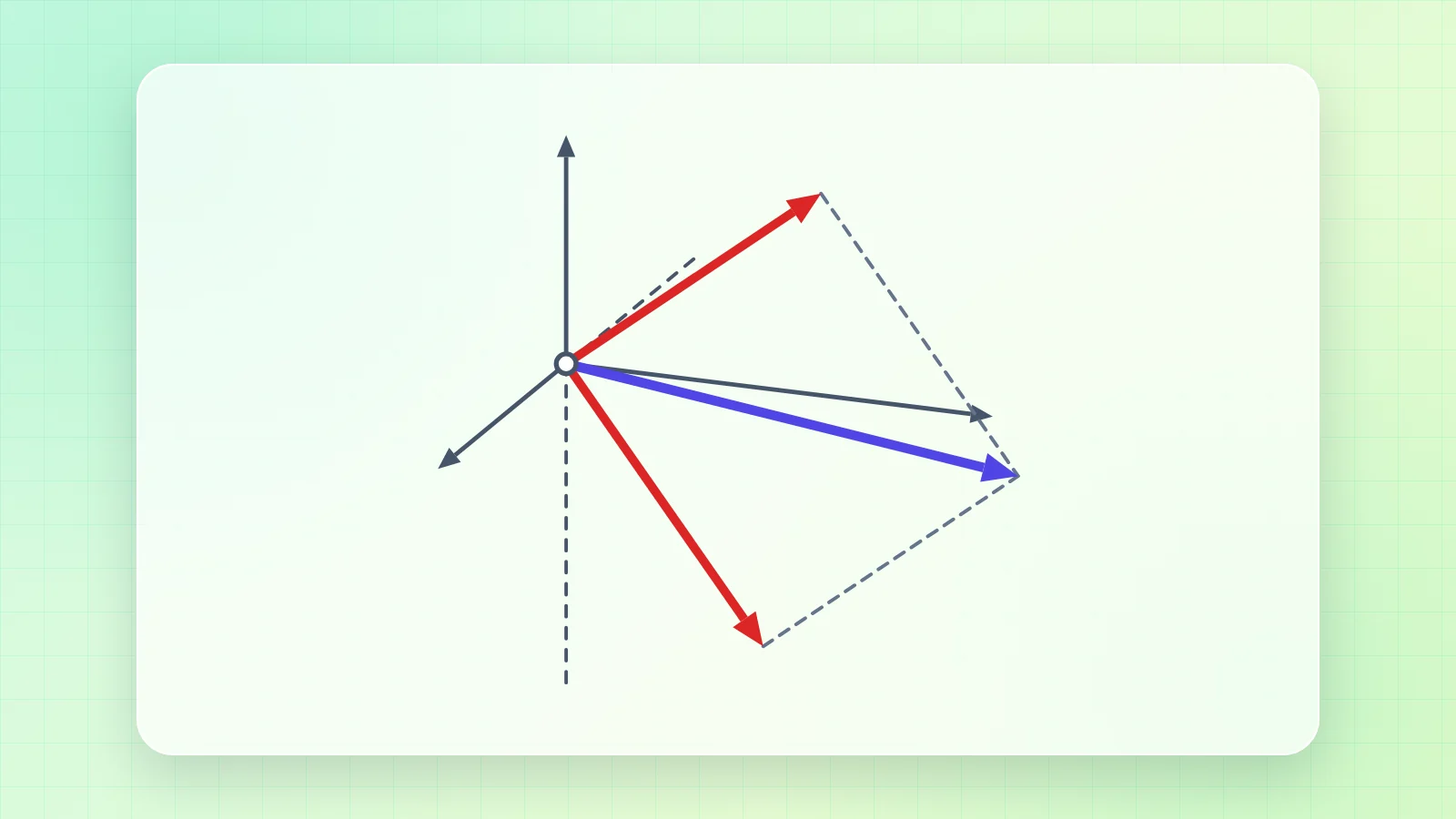
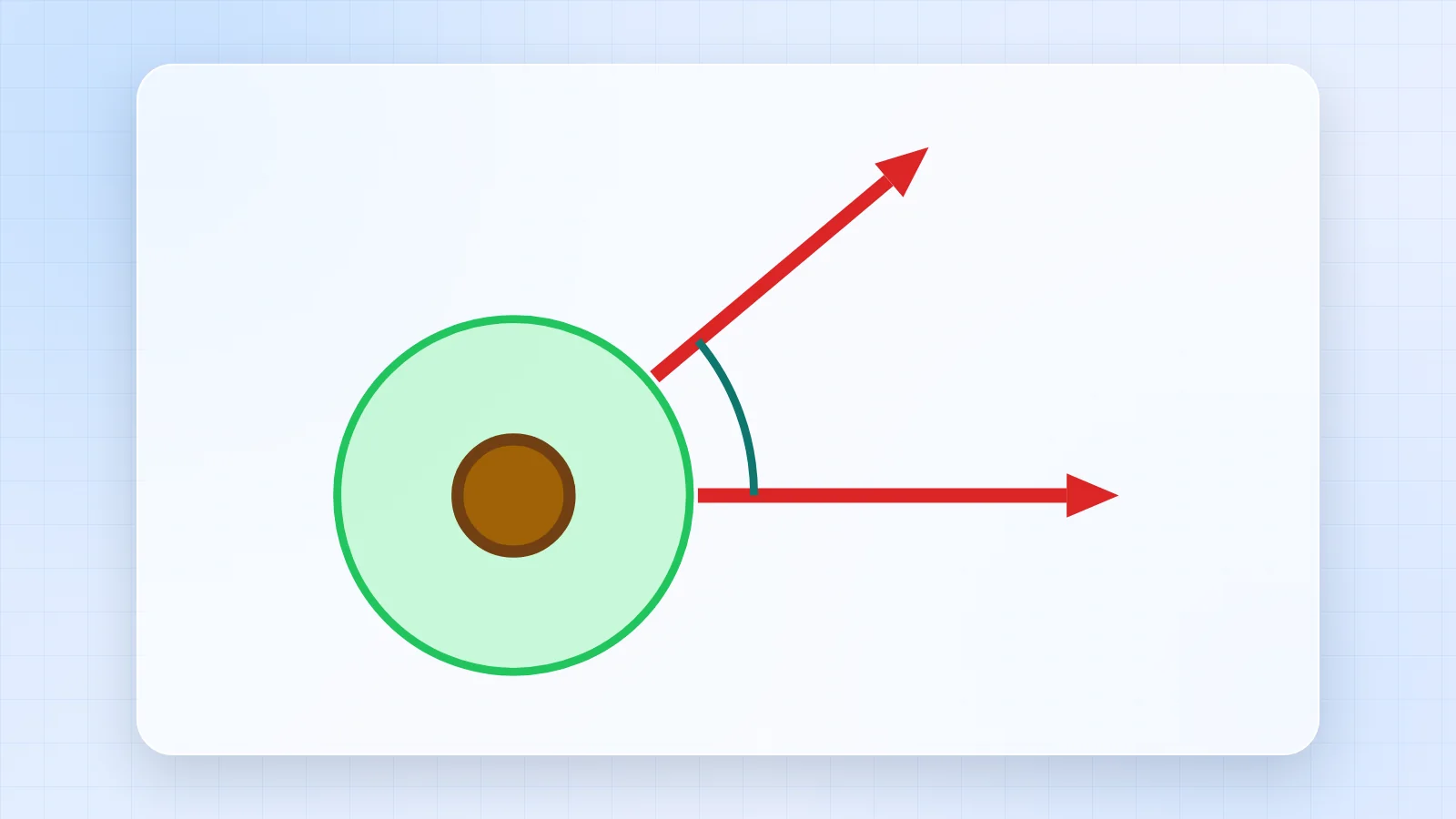
Two forces start at the same point. The dashed lines complete the parallelogram, and its diagonal is the resultant.
- Type the magnitude and the angle of F1 and F2, or drag the round handles at their tips.
- Read FR and its direction θ in the Result box; α is the angle between FR and F1.
- Open How it is worked out to follow the law of cosines and the law of sines.
2. Triangle
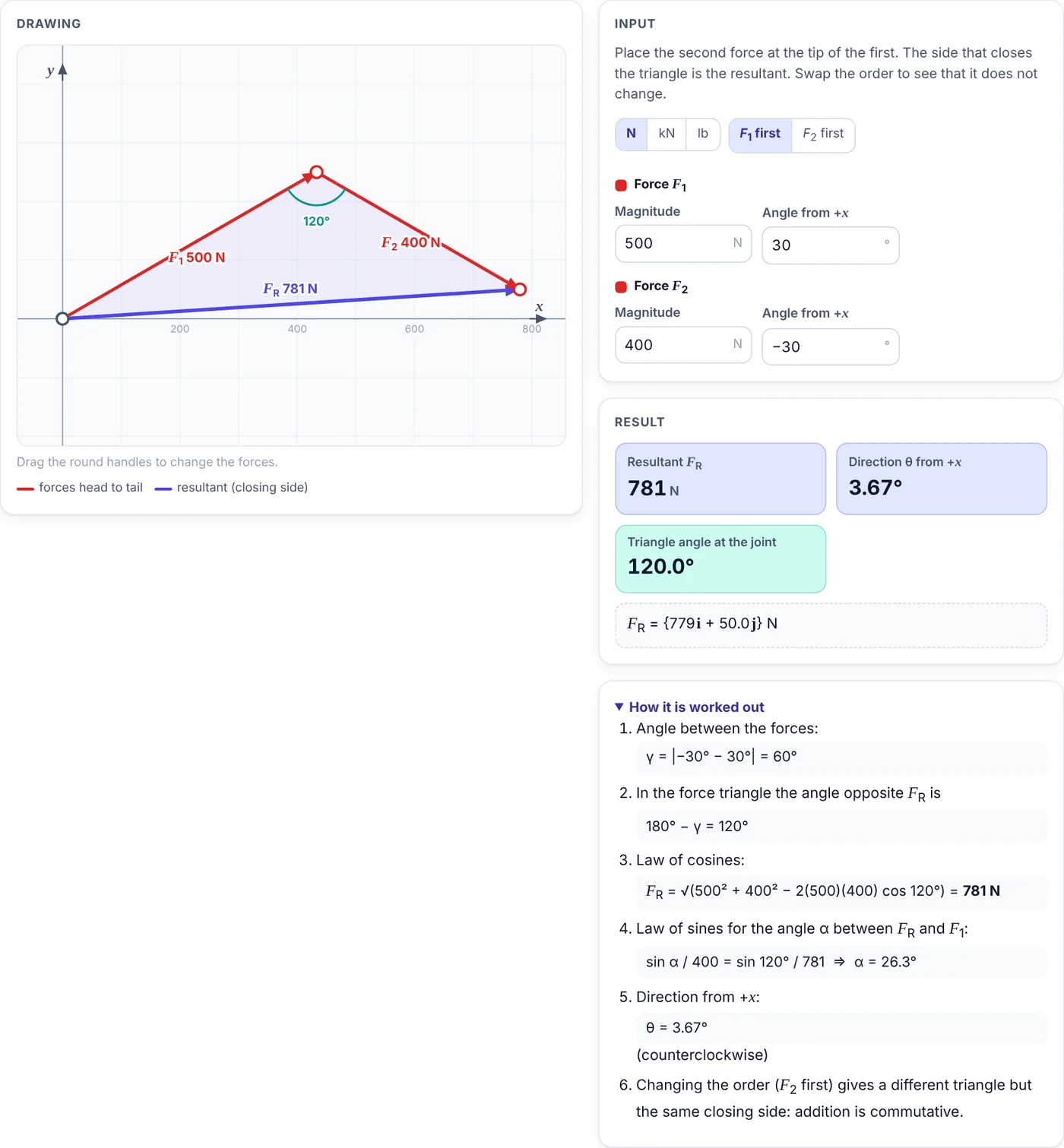
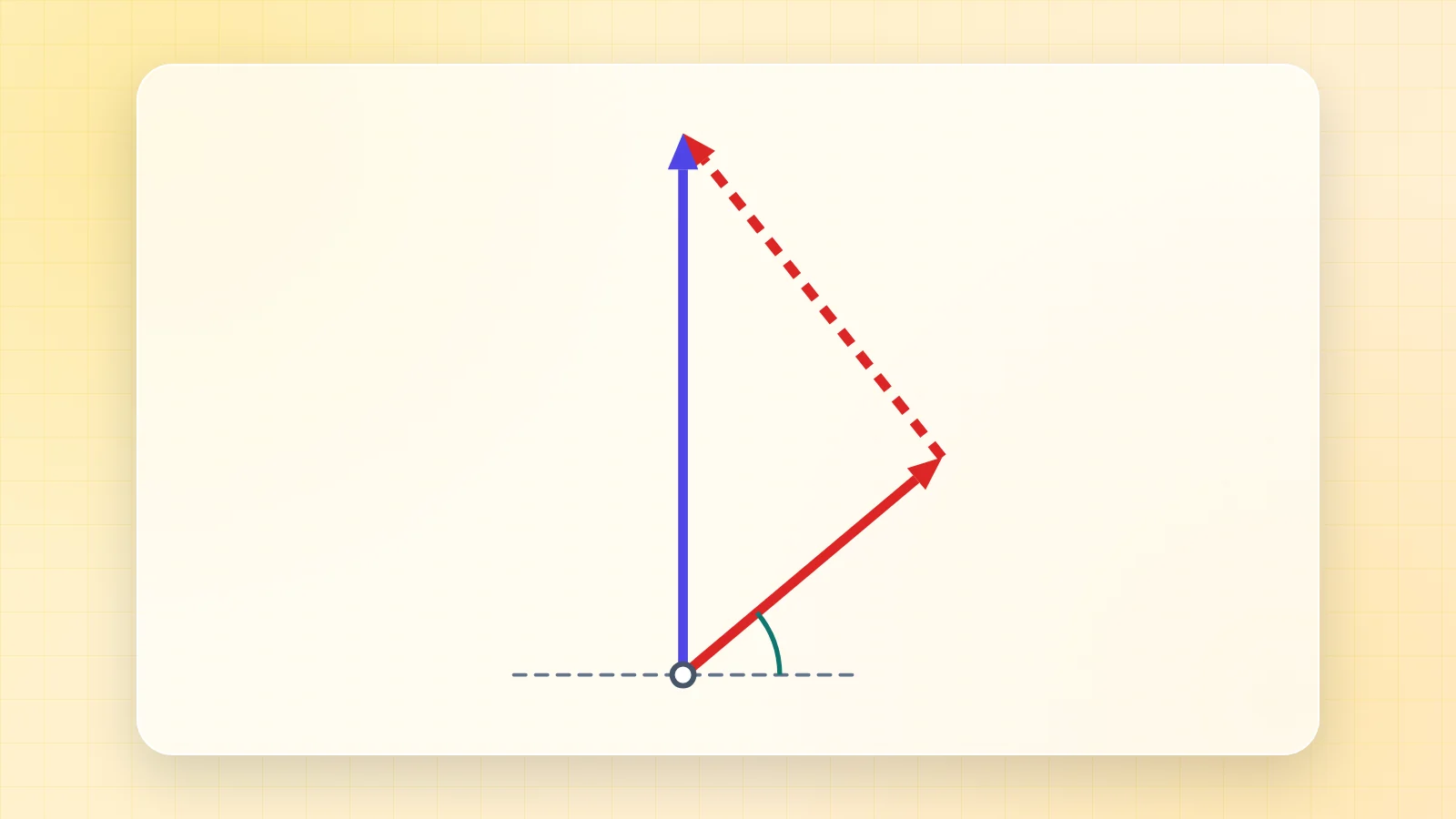
The second force is placed at the tip of the first. The side that closes the triangle is the resultant.
- Enter the two forces as in the parallelogram tab.
- Choose F1 first or F2 first: the triangle changes, the resultant does not.
- The angle of the triangle at the joint (180° minus the angle between the forces) is marked on the drawing.
3. Polygon
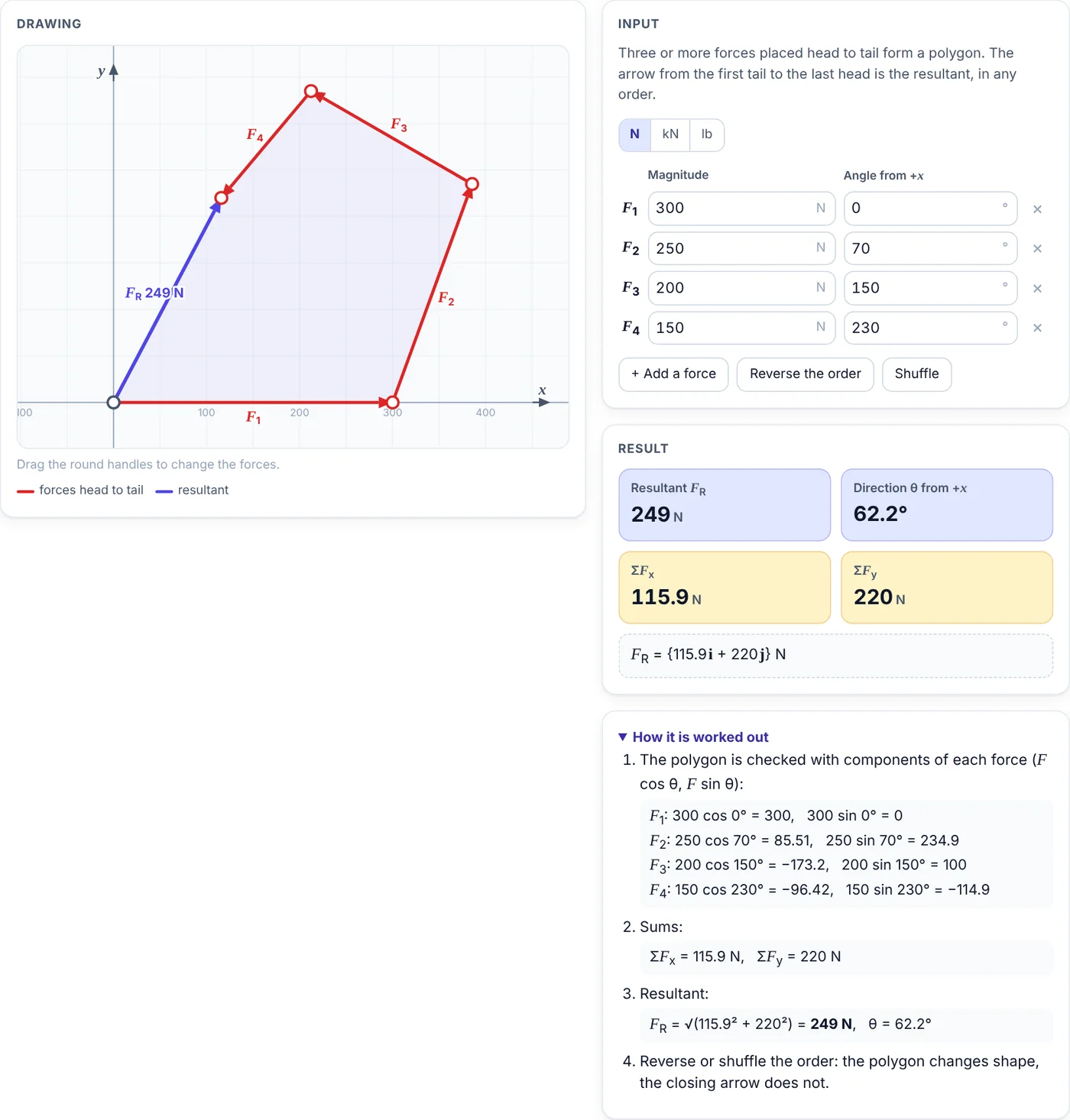
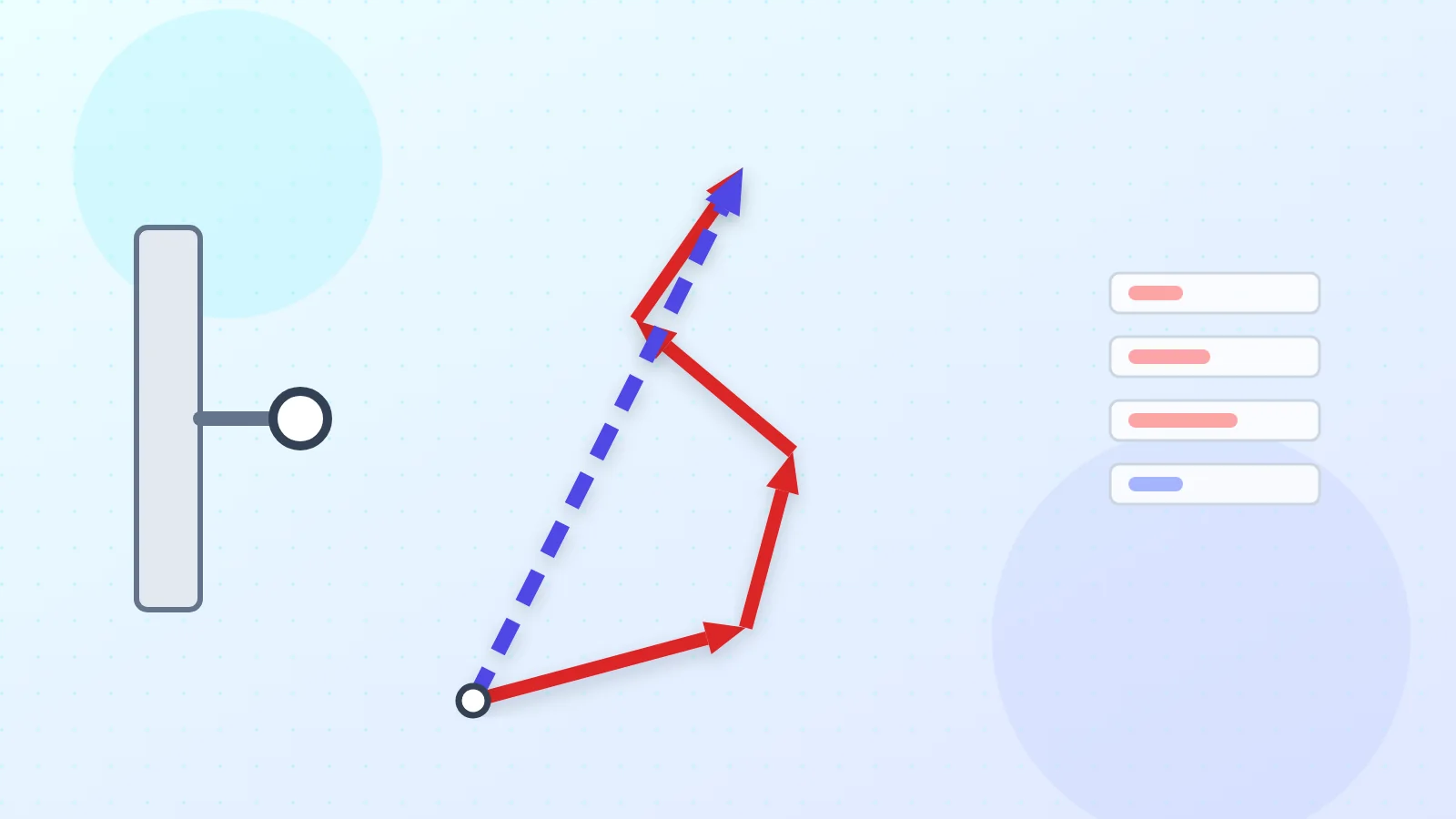
Three to six forces are placed head to tail. The arrow from the first tail to the last head is the resultant.
- Edit the table of forces, add a force with + Add a force or remove one with ×.
- Drag any tip to change that force; press Reverse the order or Shuffle to see that the resultant stays the same.
- The steps add the x and y components of all forces.
4. Subtract and scale
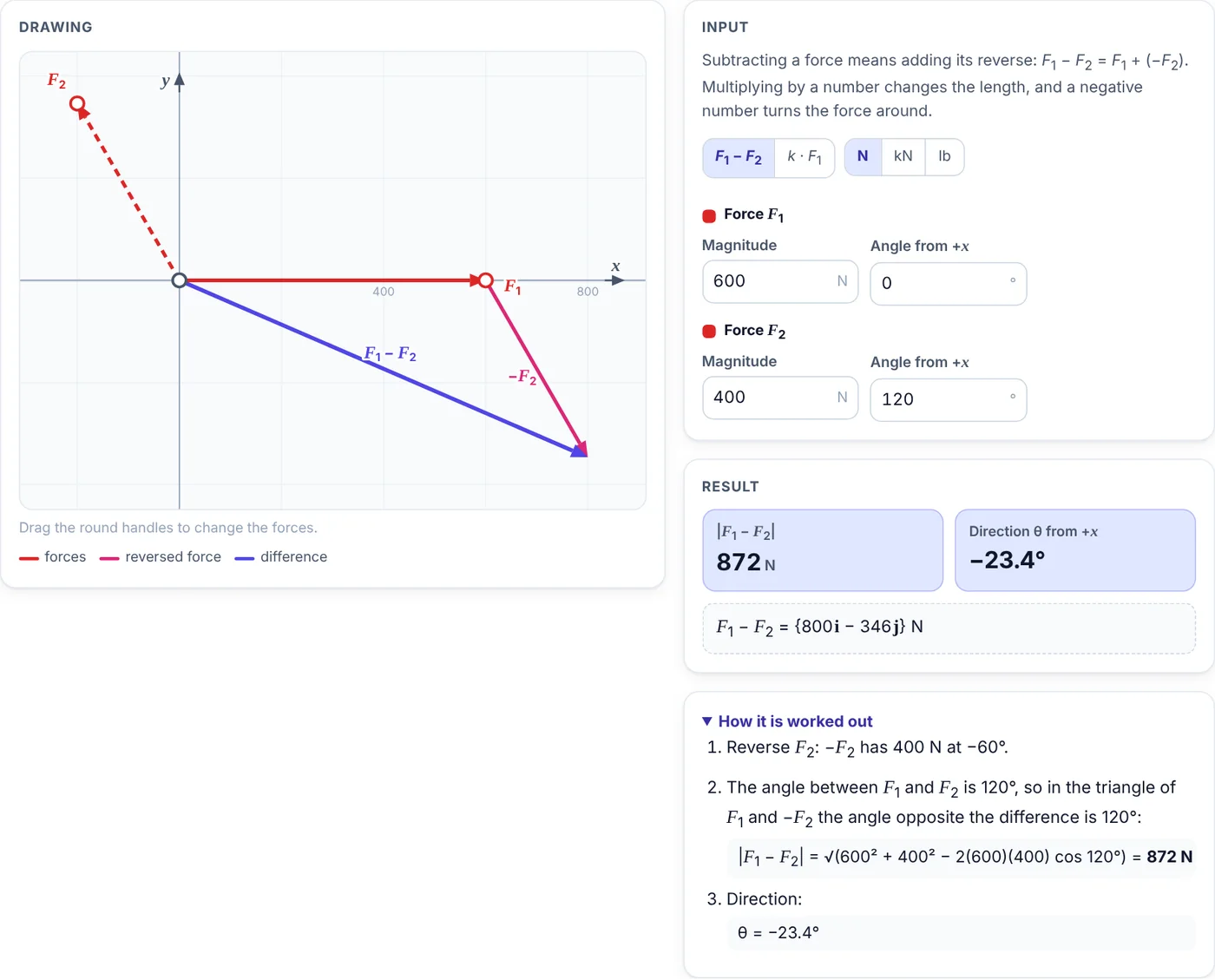
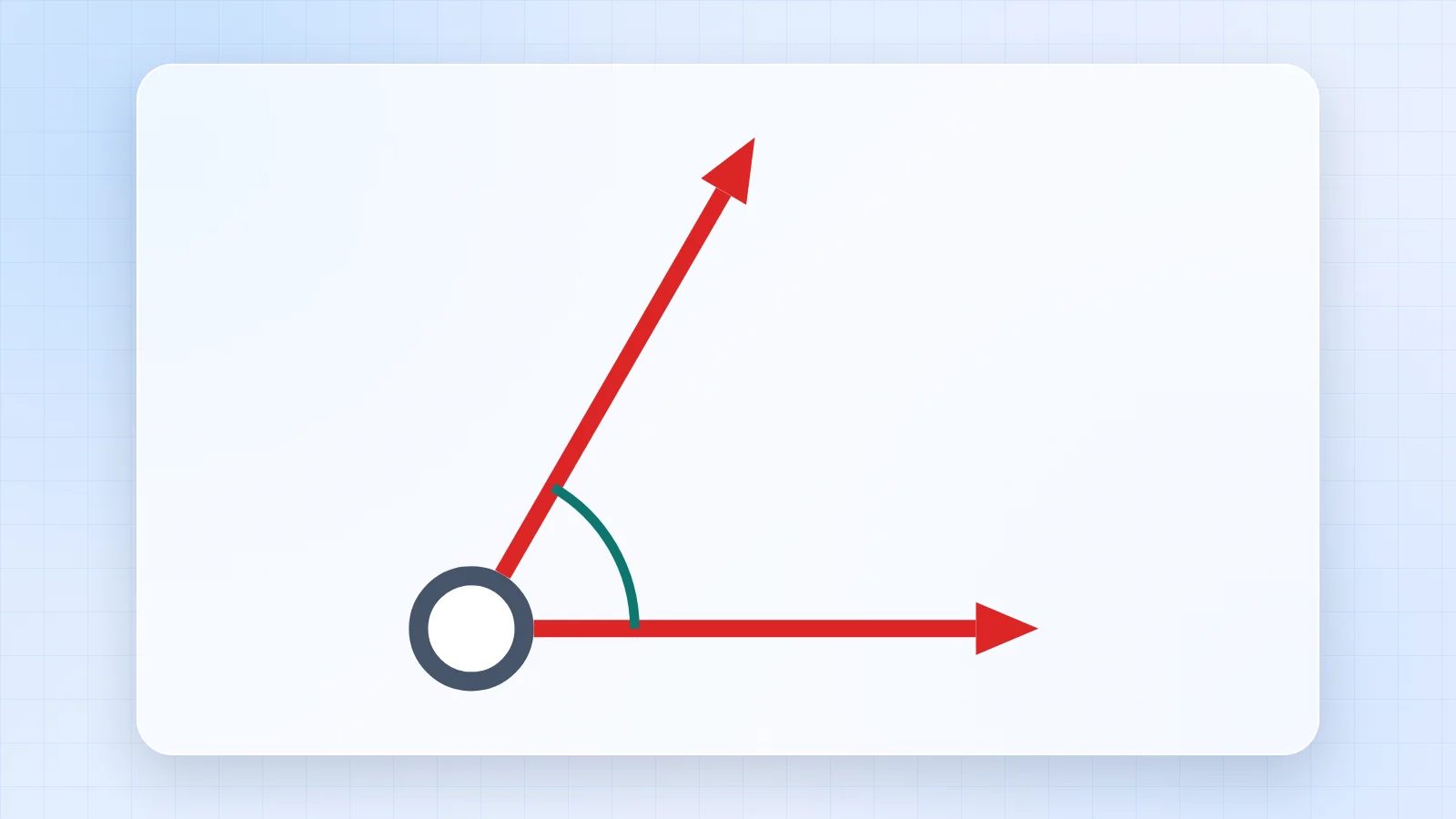
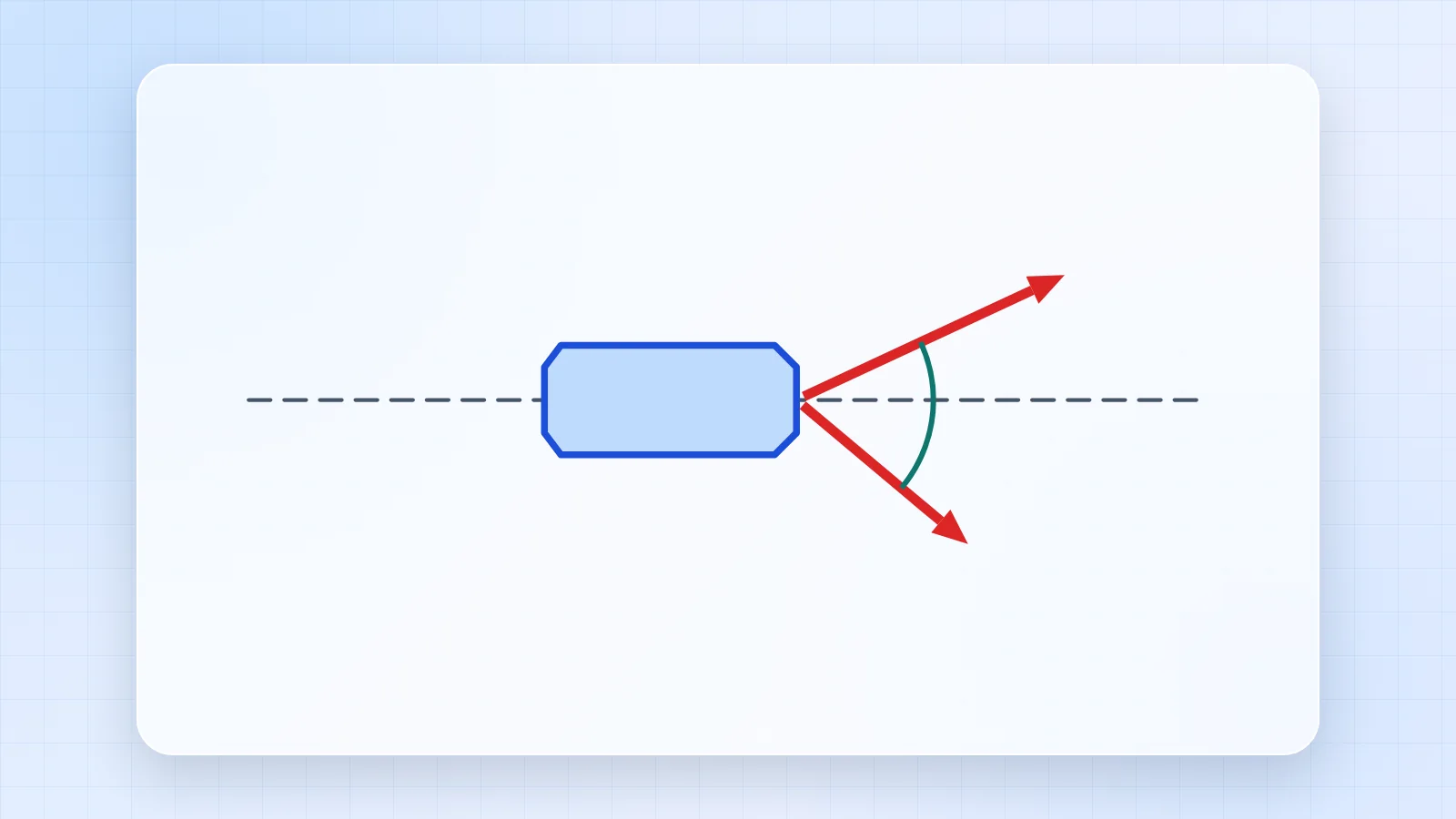
Subtracting a force adds its reverse, and multiplying by a number changes its length; a negative number also turns it around.
- Choose F1 − F2 to see −F2 (pink) added to F1.
- Choose k · F1 and move the slider from −3 to 3.
- The Result box gives the magnitude and direction of the new force.
5. Scenarios and phones
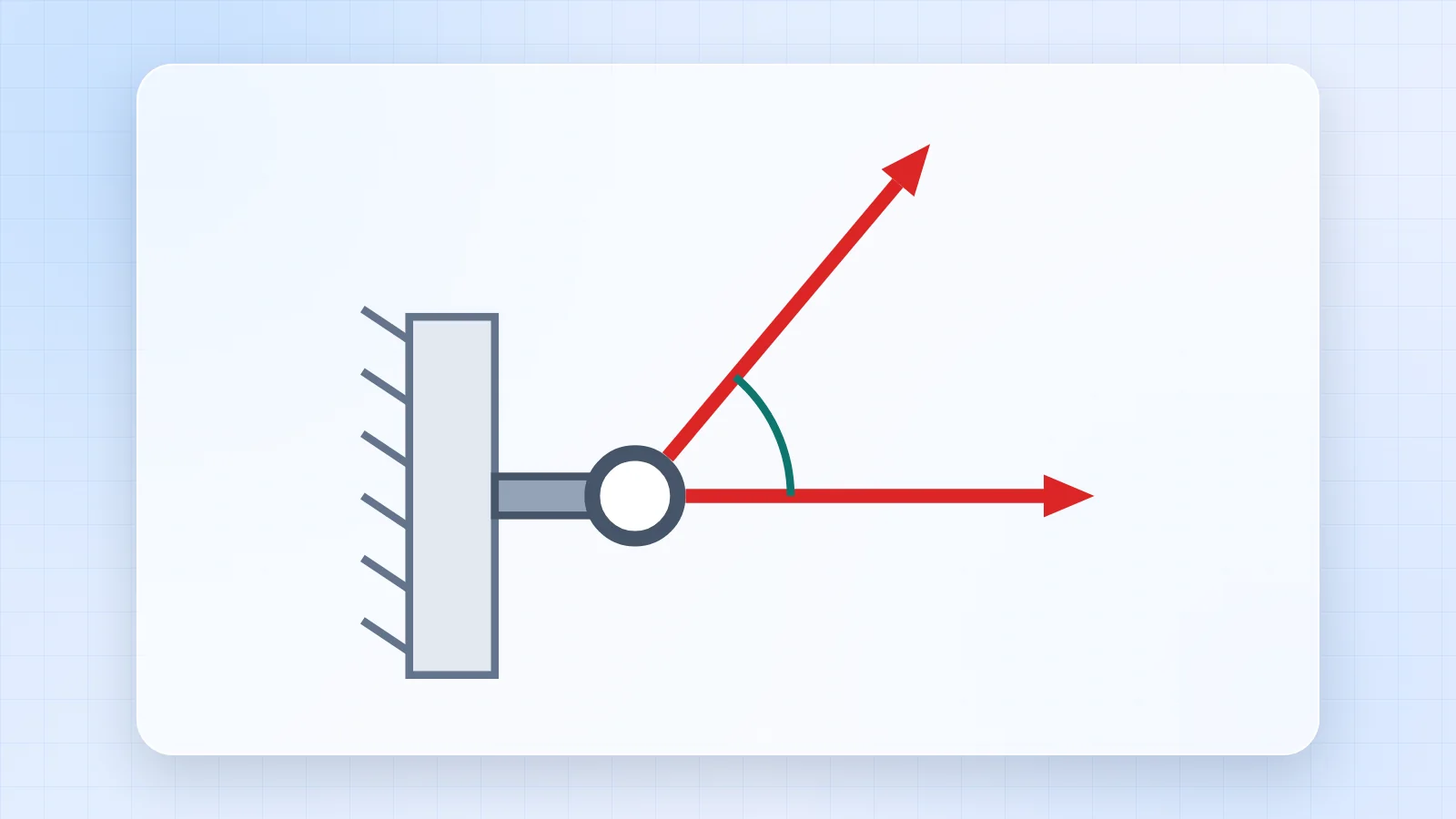
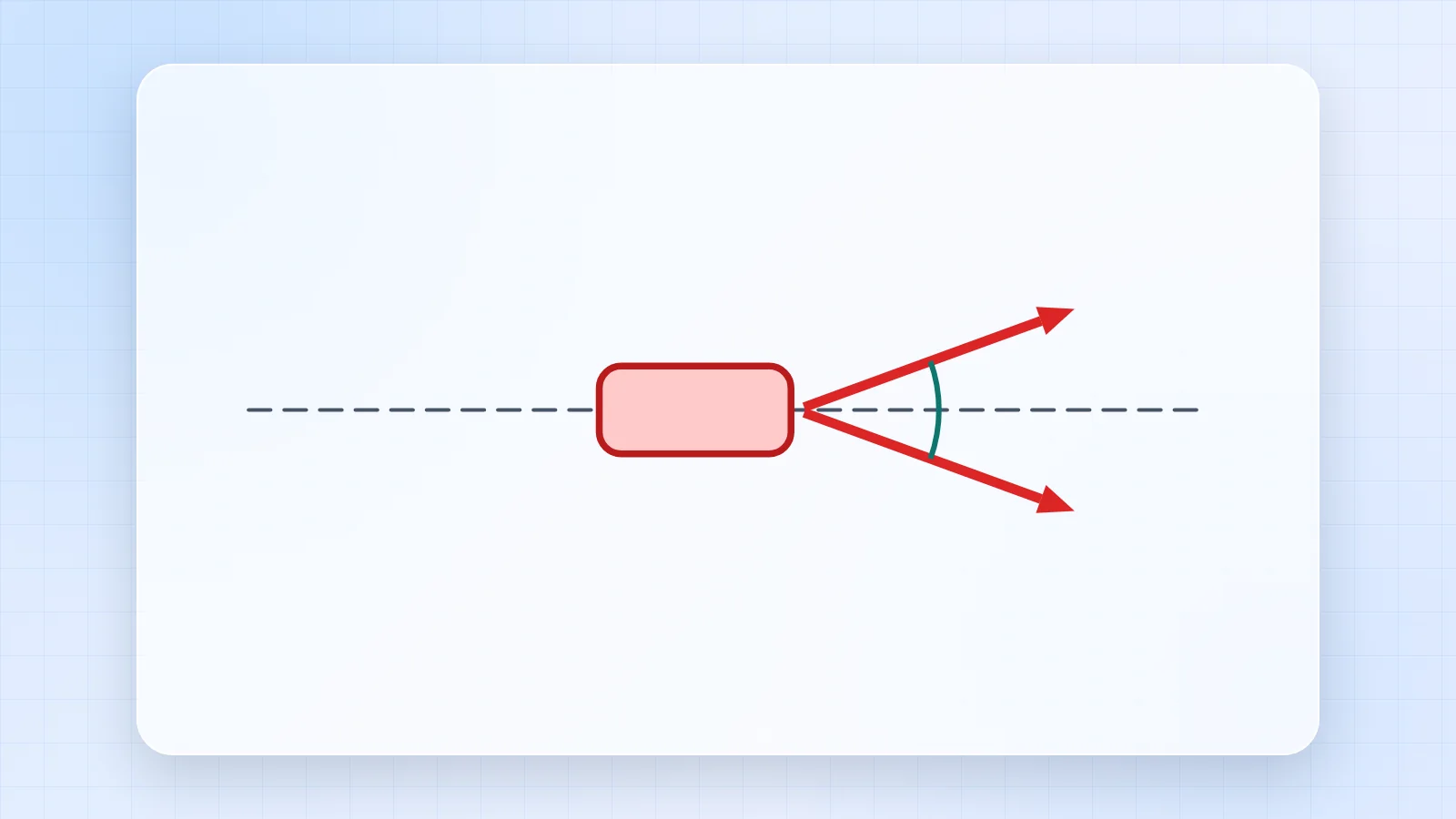
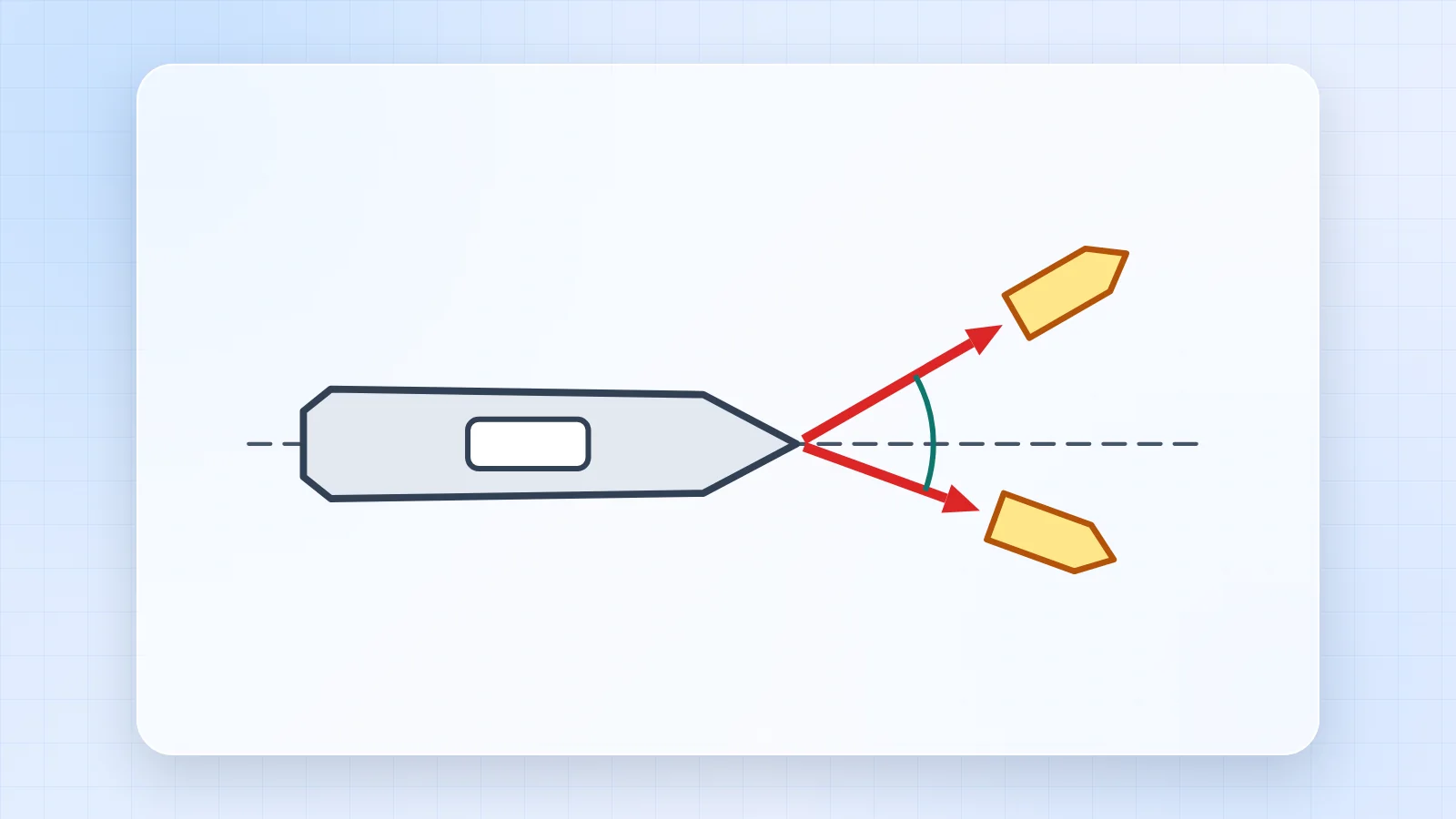
The scenarios load two tugboats pulling a ship, a rope and a cable on a wall eyebolt, and two dogs pulling a sled. Each scenario opens the right tab and fills in the values, so you can change them and see what happens.
On a phone the drawing comes first and the input, result and steps follow below it. Swipe the picture tabs sideways to see all of them.
6. Tips
- The button with the circular arrow resets the open tab to its starting values; the moon or sun button switches between the light and dark themes.
- Your last values stay in the browser, so the app opens where you left it.
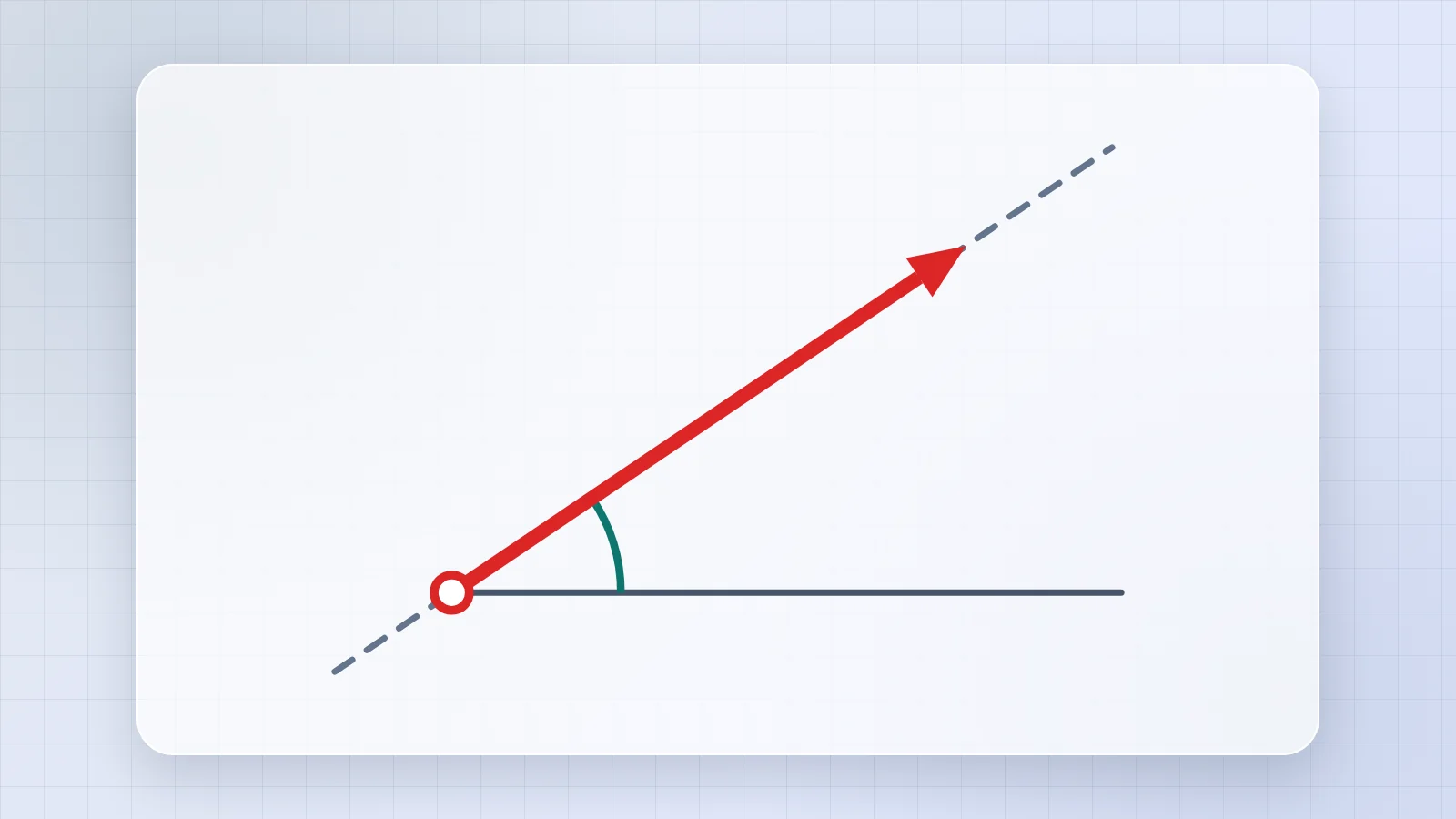
- Angles are measured counterclockwise from +x unless a tab says otherwise.















Comments 0
Ask how to use this app, report an issue or suggest an improvement.
Join the discussion
Log in to comment, reply and vote. It is free.
No comments yet
Ask a question, share a tip or say thanks. Be the first!