

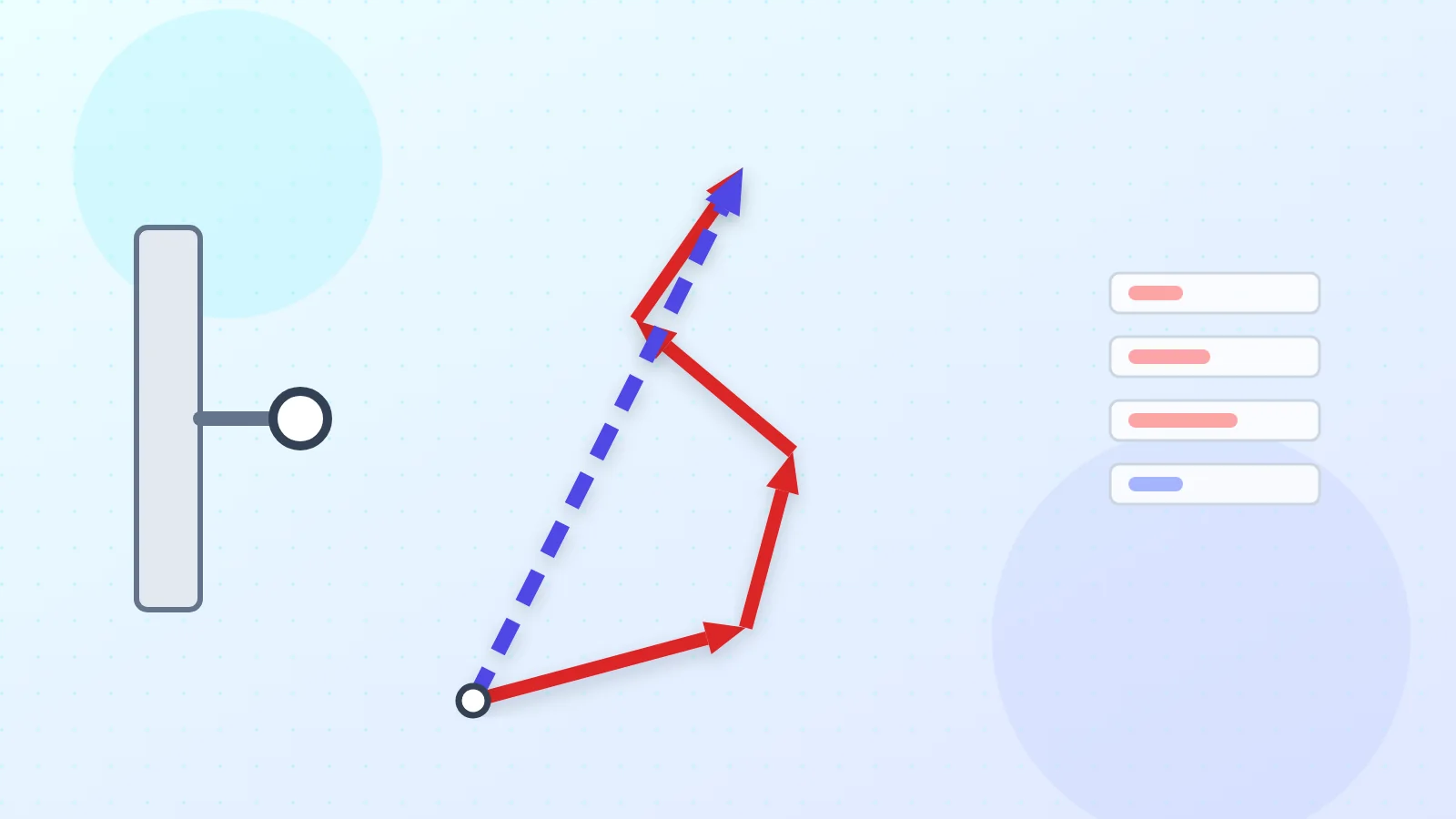
Coplanar Force Resultant adds any number of forces in a plane with a clear component table, and draws the forces at the point or as a force polygon. Every force and the resultant can be dragged by its tip on the drawing. It also finds the force that is missing for a wanted resultant, the force that balances all others, and the direction a force must have so that the resultant lies on a chosen line.
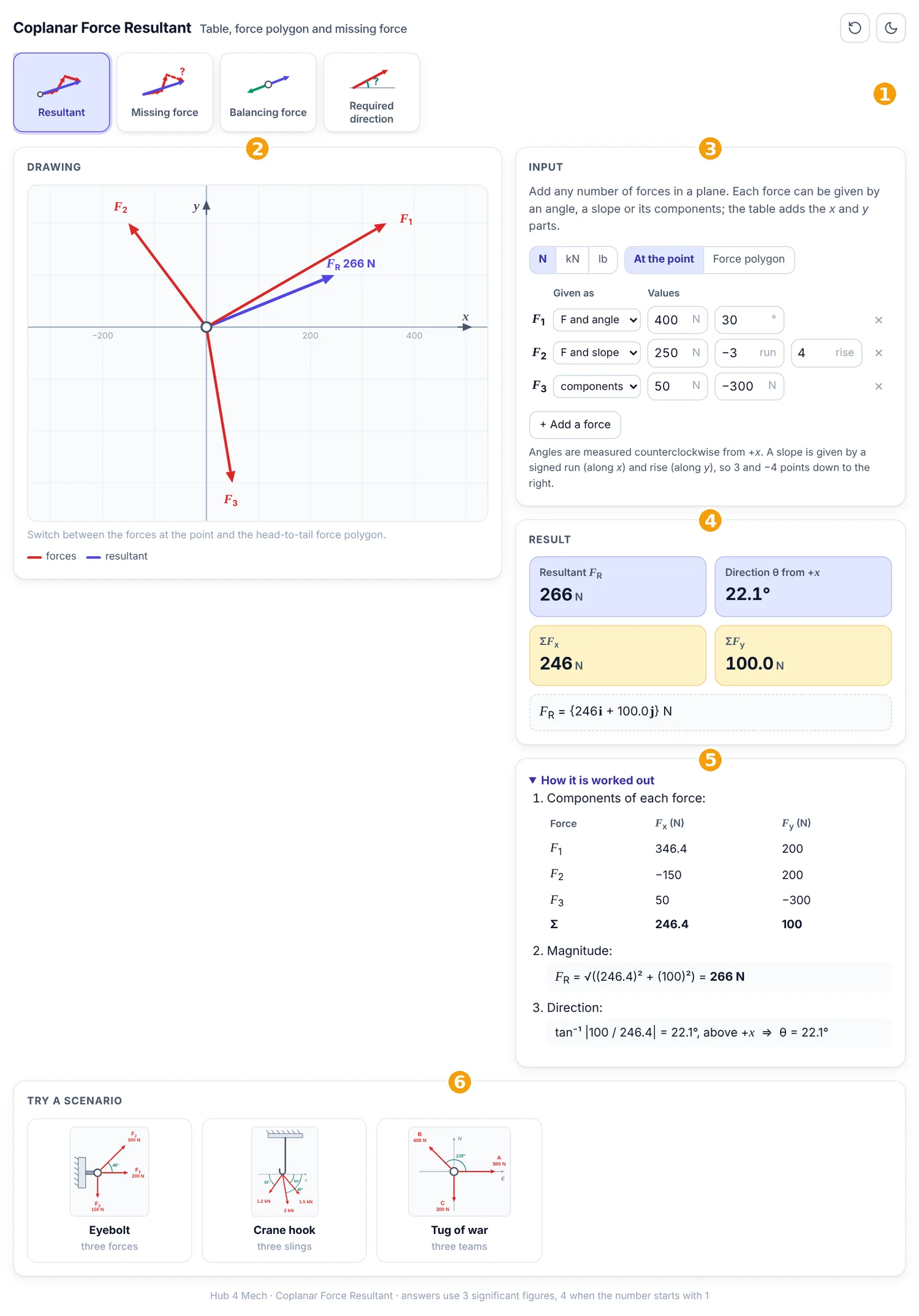
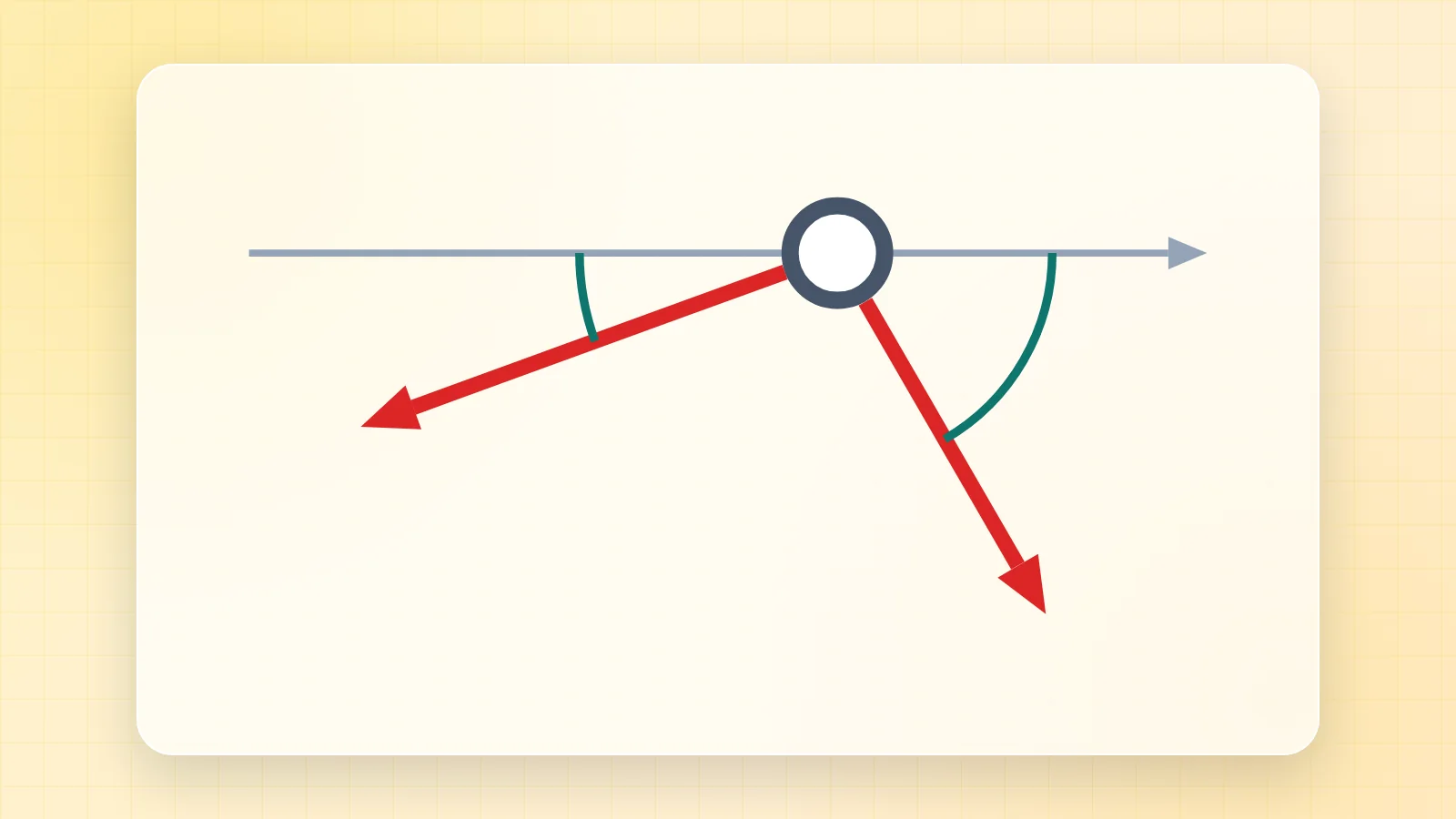
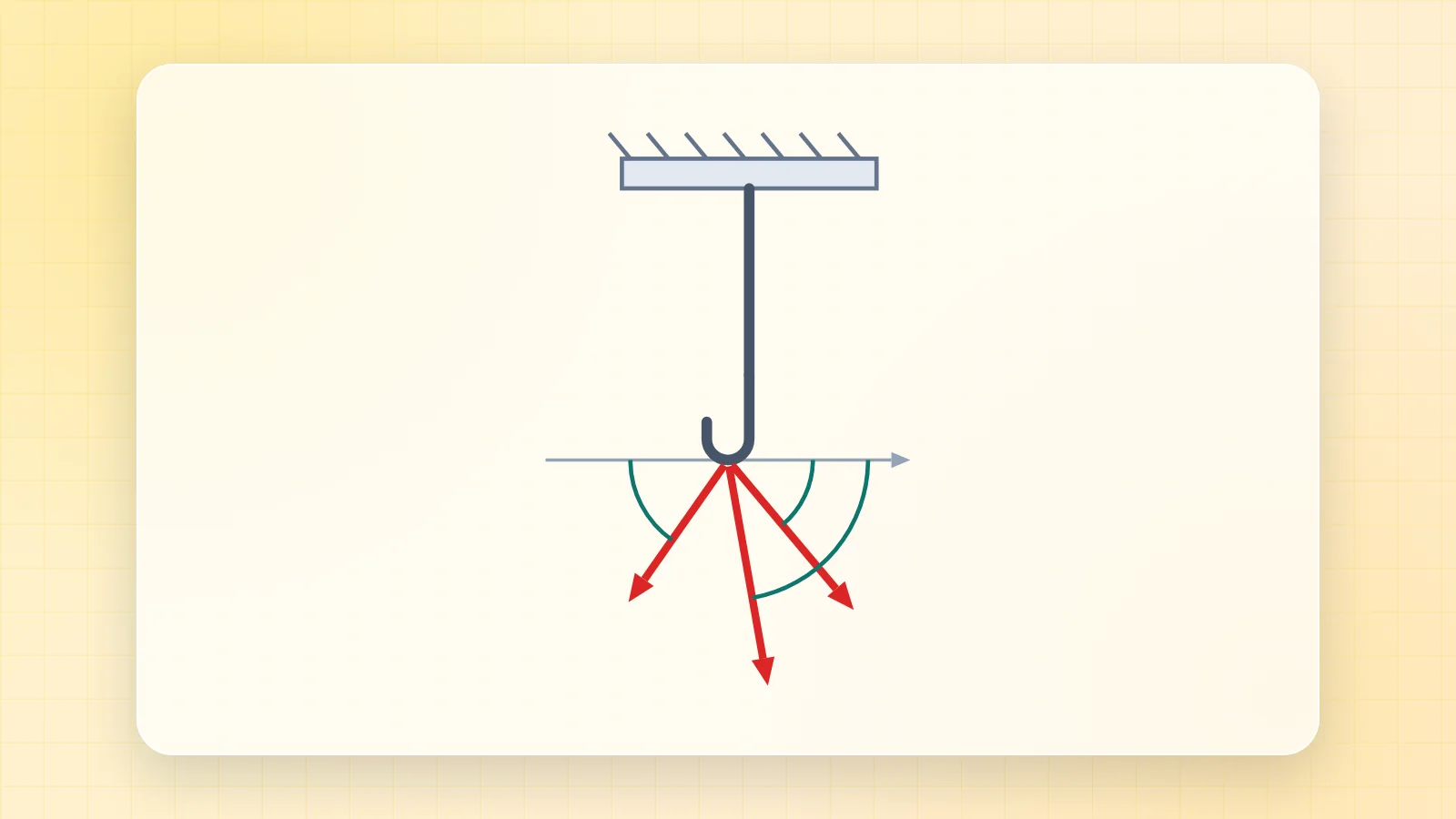
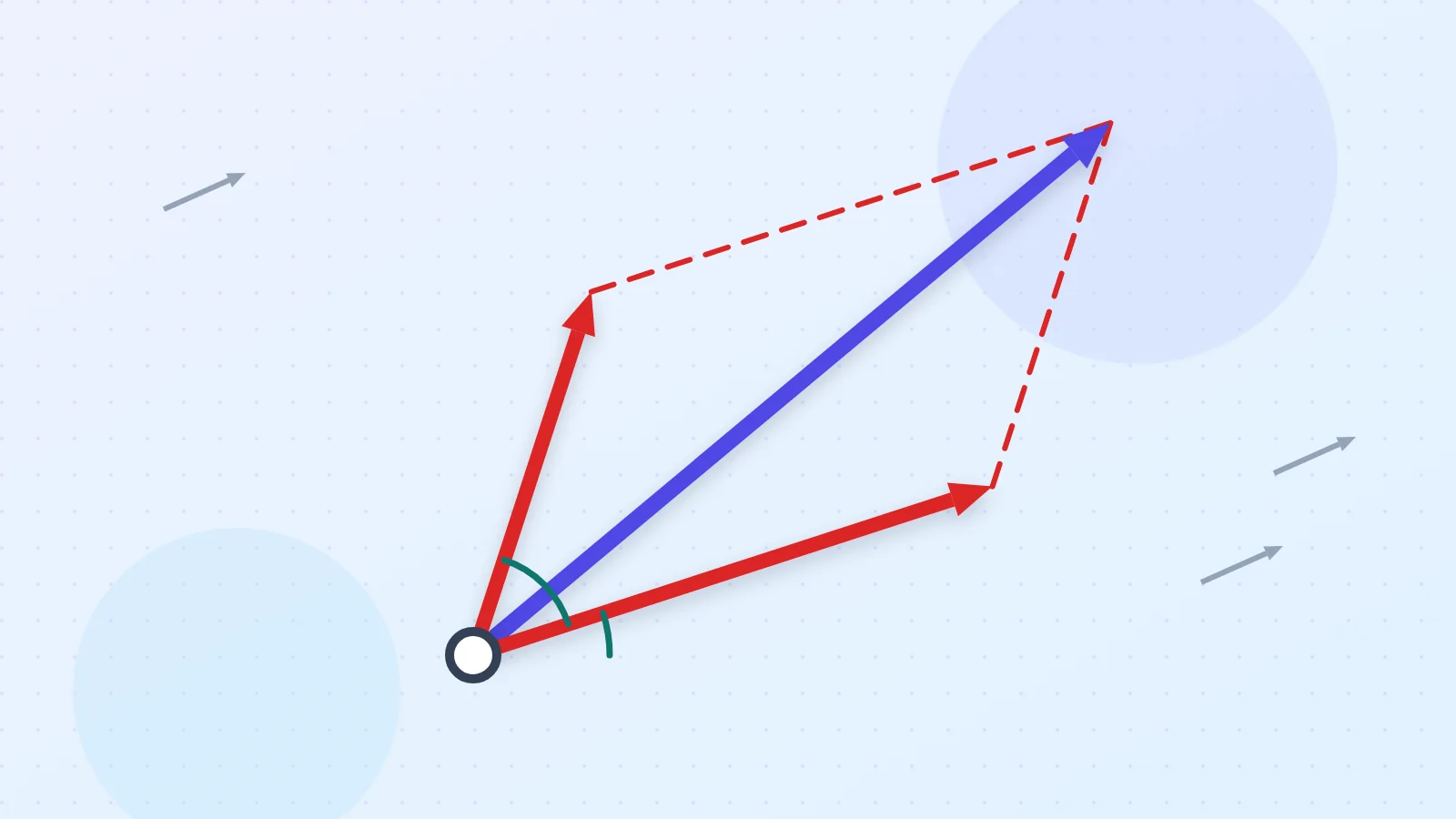
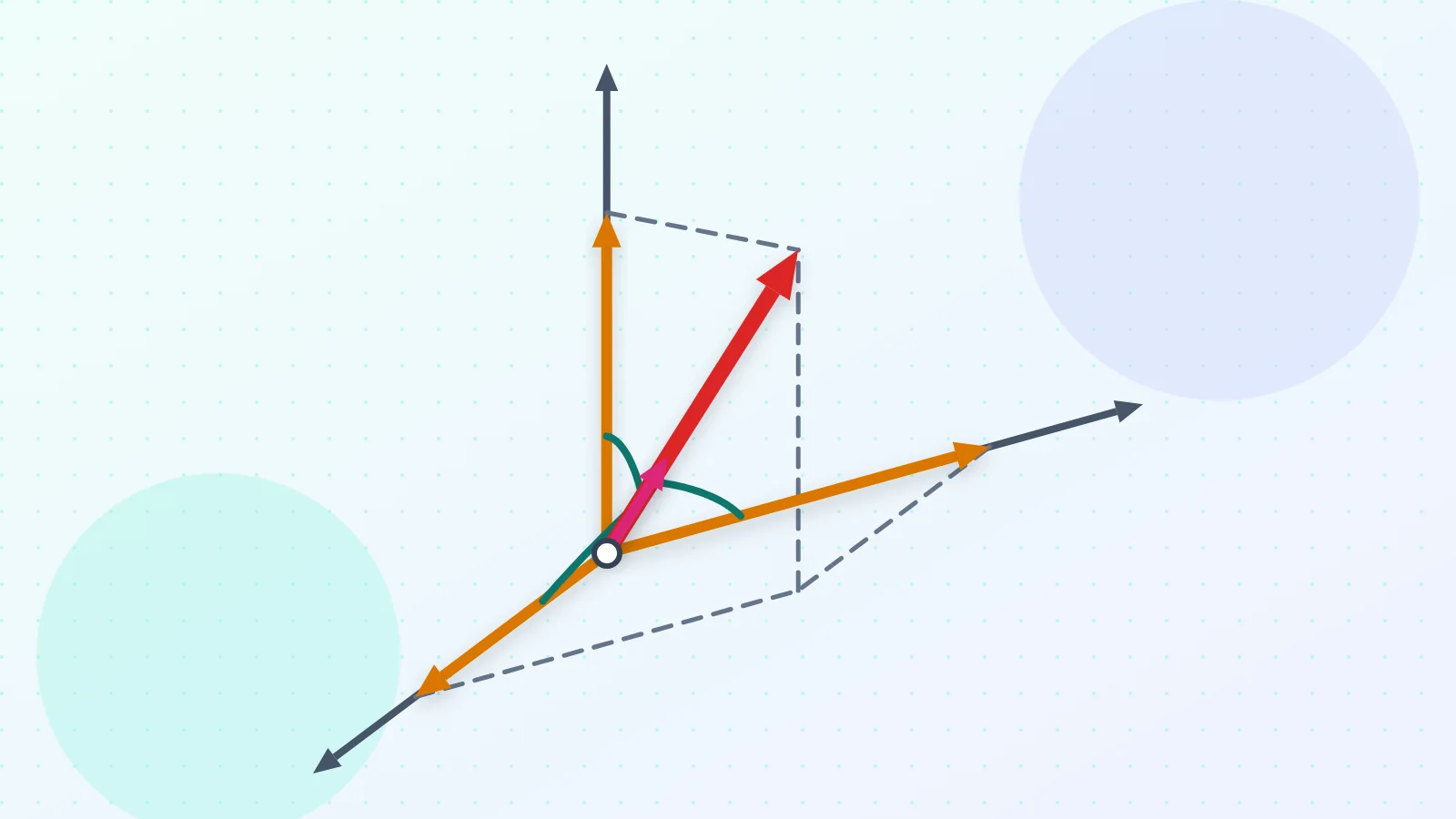
The numbered parts in Figure 1 are:
- Picture tabs: each tab is one task; the picture on it shows what the task draws.
- Drawing: the forces, drawn to scale and updated as you type.
- Input: the values of the task. Units can be N, kN or lb.
- Result: the answers, rounded to three significant figures (four when the number starts with 1).
- How it is worked out: every step of the calculation with your numbers.
- Scenarios: ready-made real situations; one click fills in the values.
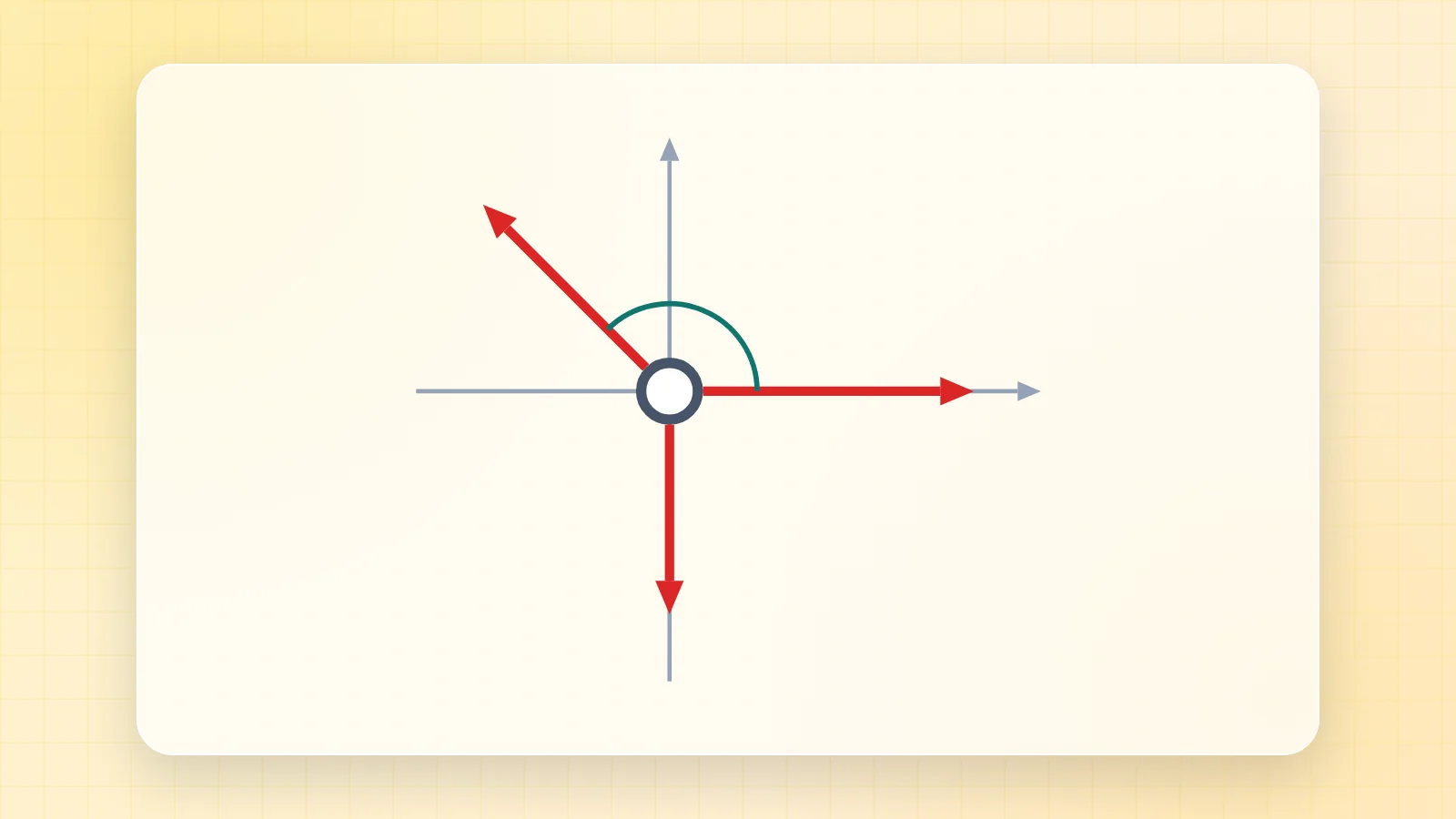
1. Resultant
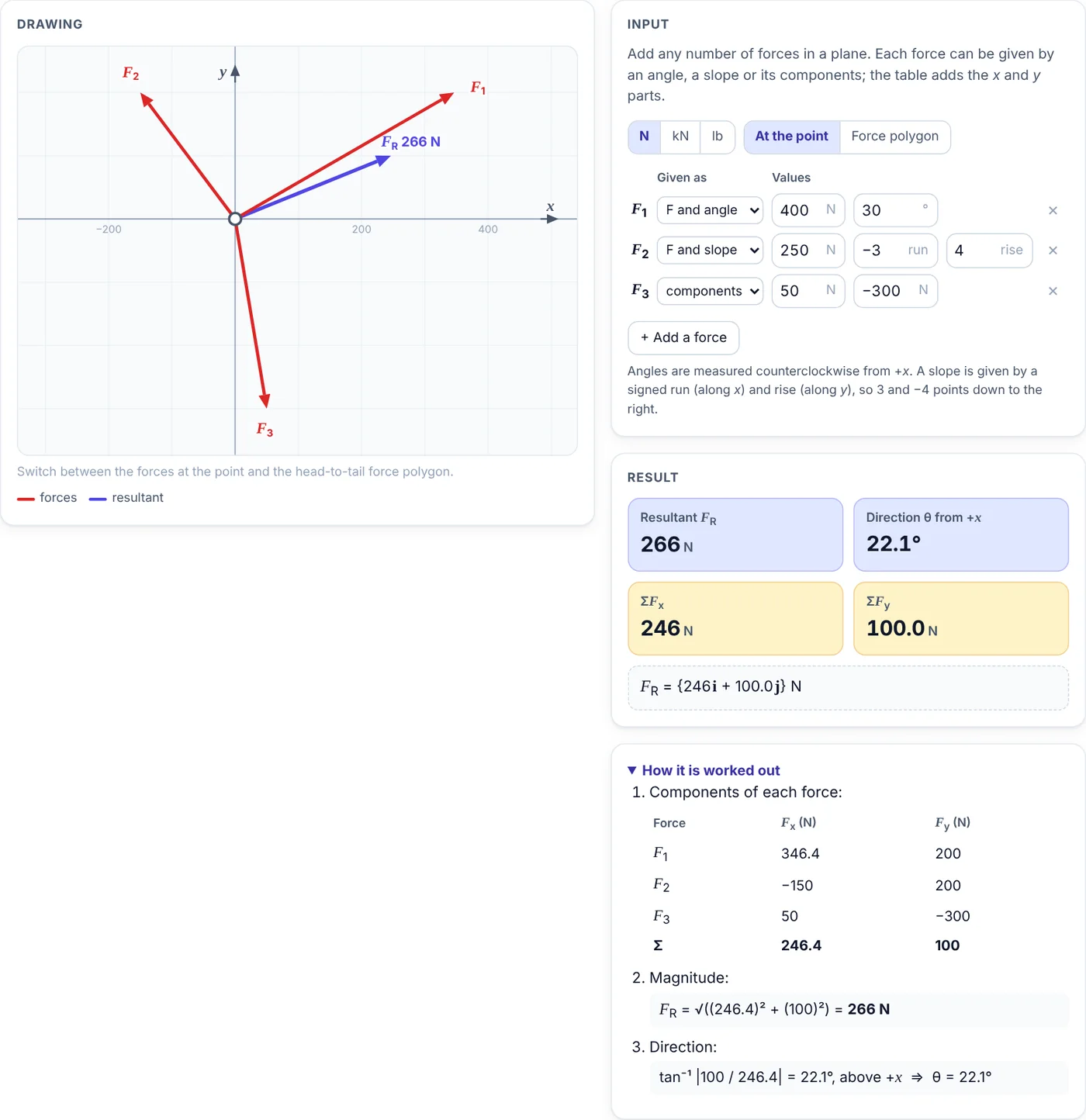
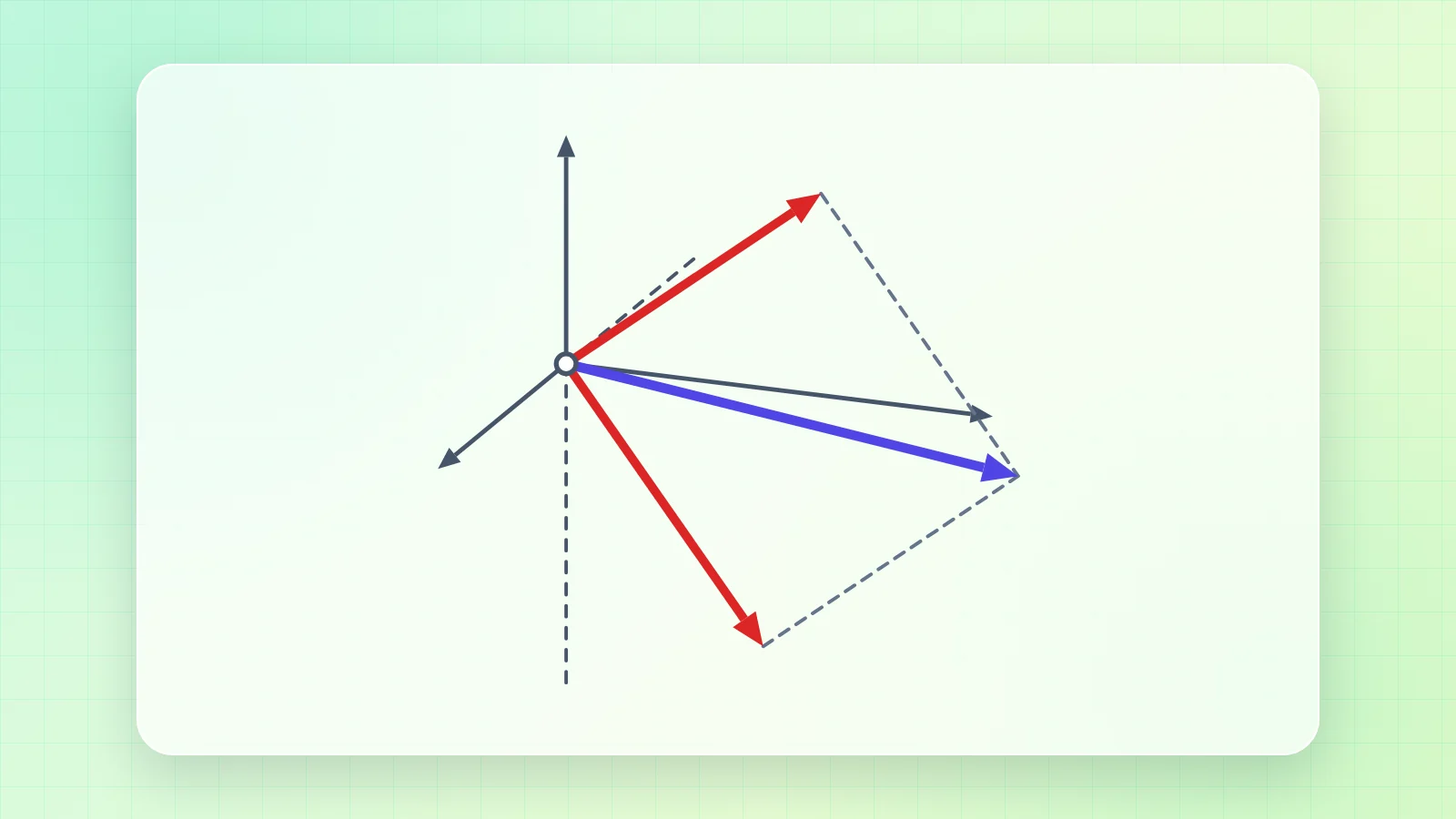
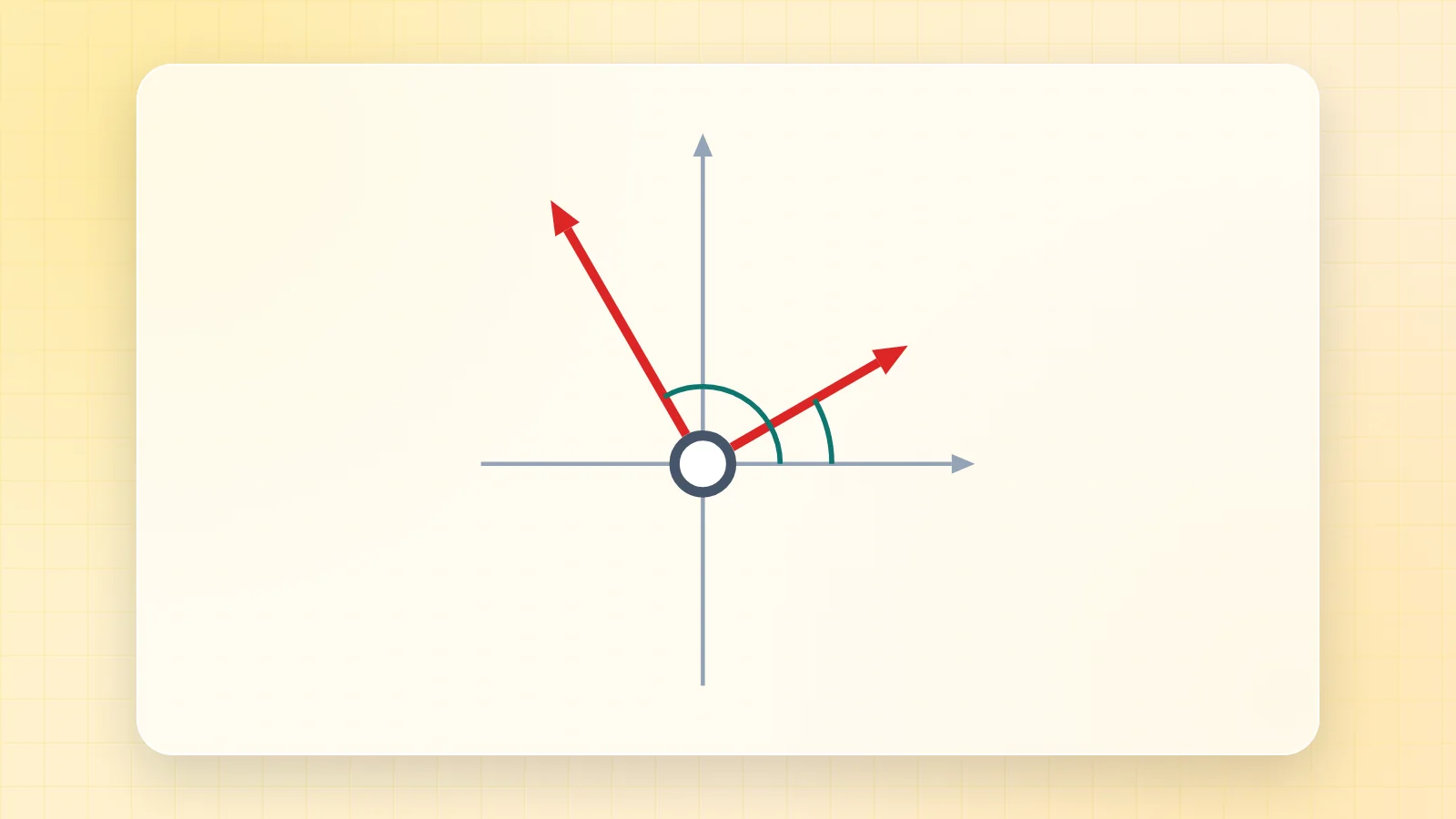
Each force can be given by its magnitude and angle, by its magnitude and a signed slope, or by its components.
- Fill in the table; choose how each force is given in its first column.
- Or drag the round handle at the tip of any force on the drawing; the table follows. Dragging the tip of the resultant changes the last force.
- Switch the drawing between At the point and Force polygon; the handles work in both.
- The steps show the table of x and y parts, their sums, and FR with its angle.
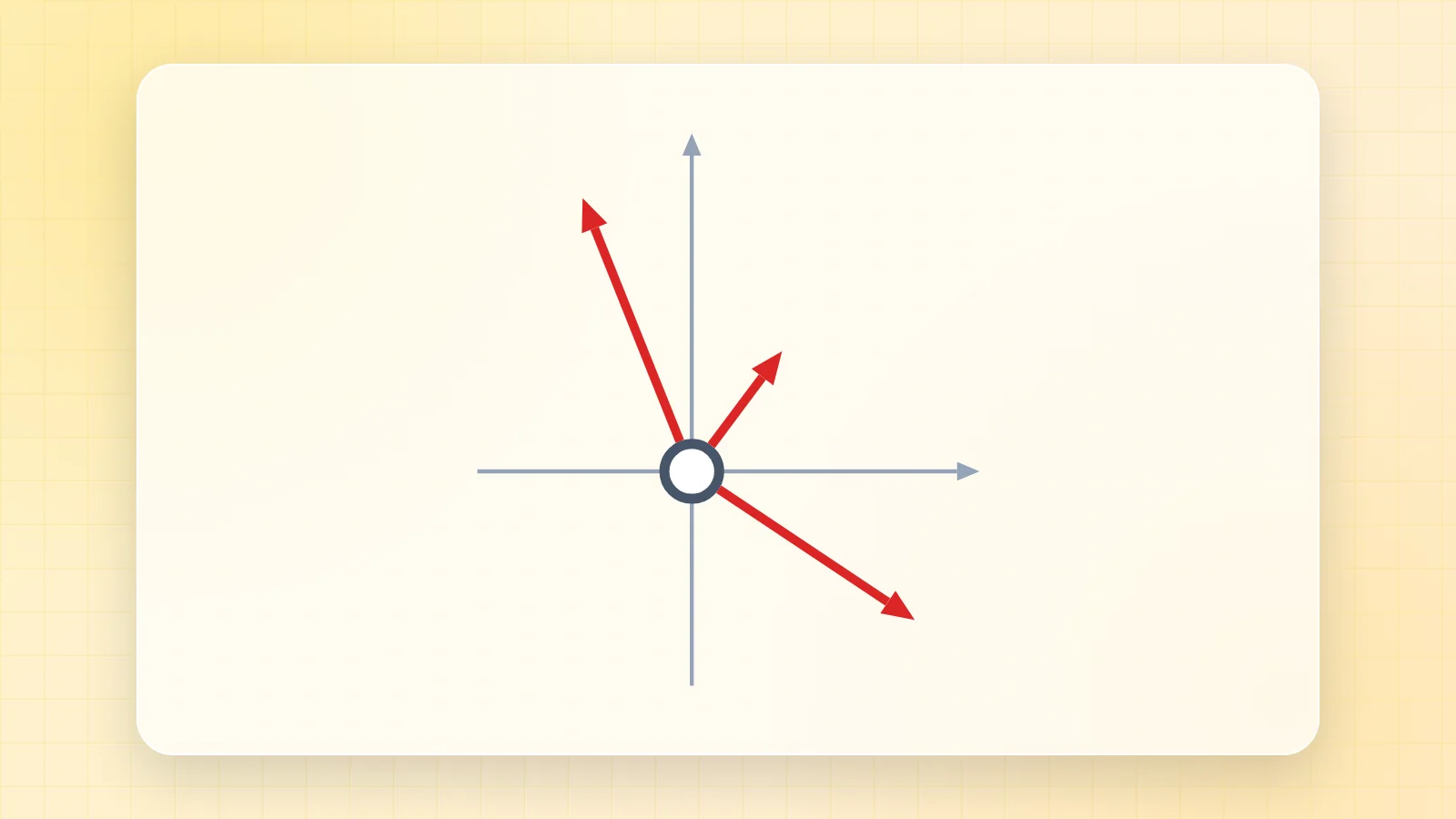
2. Missing force

Some forces and the wanted resultant are known. The missing force is the resultant minus the sum of the known forces.
- Type the wanted resultant (magnitude and angle), or drag its tip on the drawing.
- Enter the known forces, or drag their tips.
- Read the missing force and its angle; in the polygon it is the pink arrow that closes on the resultant.
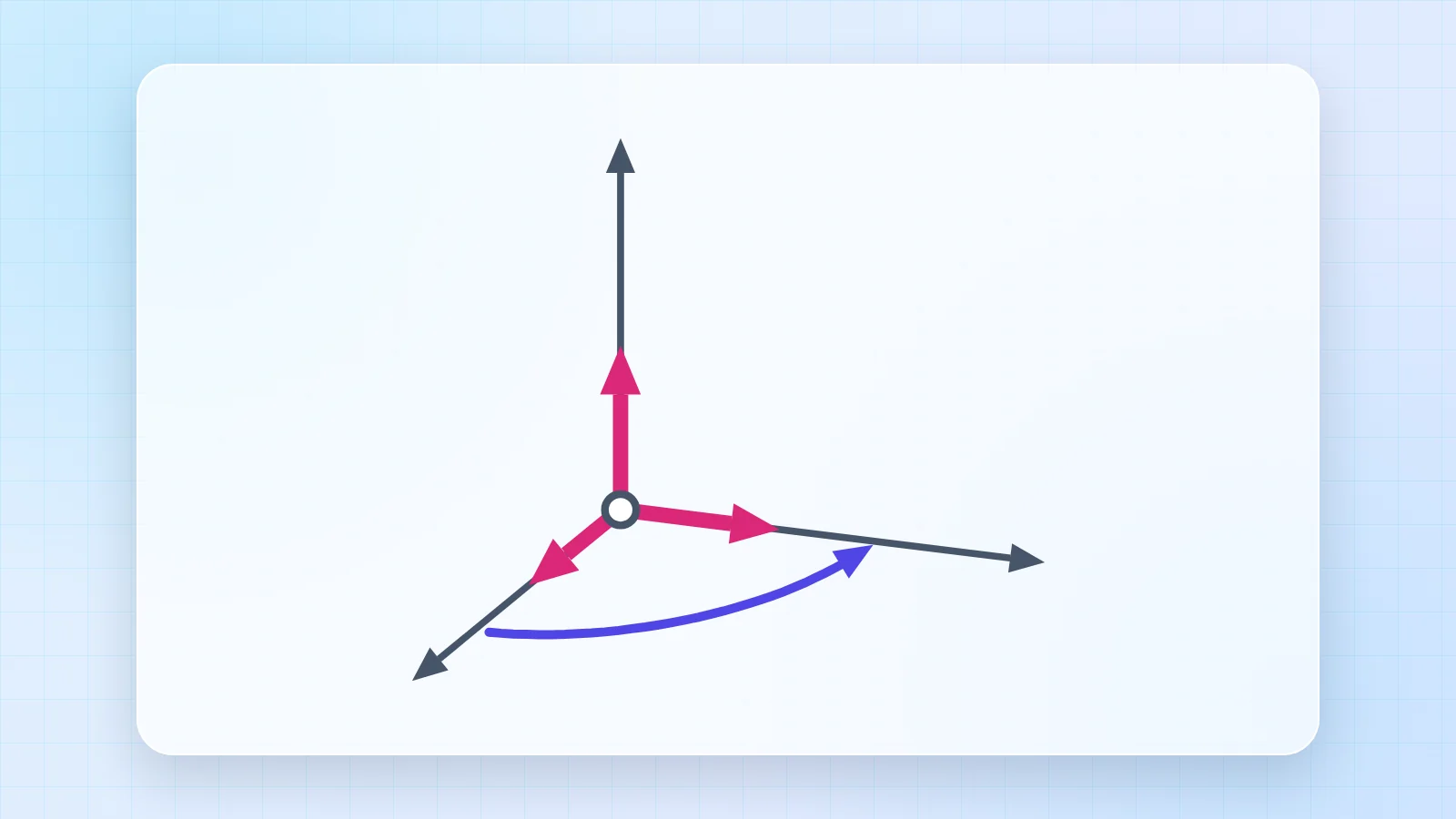
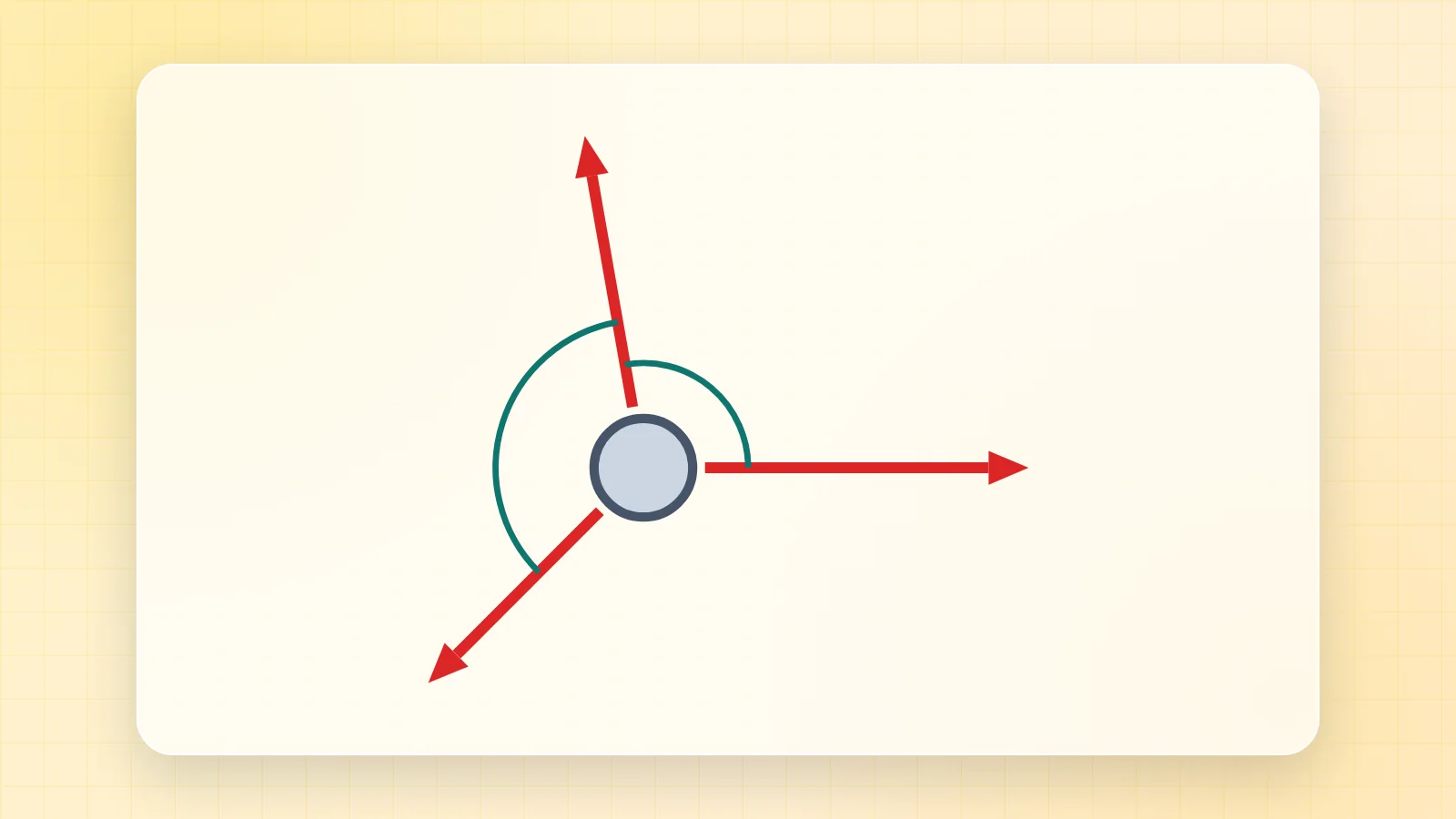
3. Balancing force
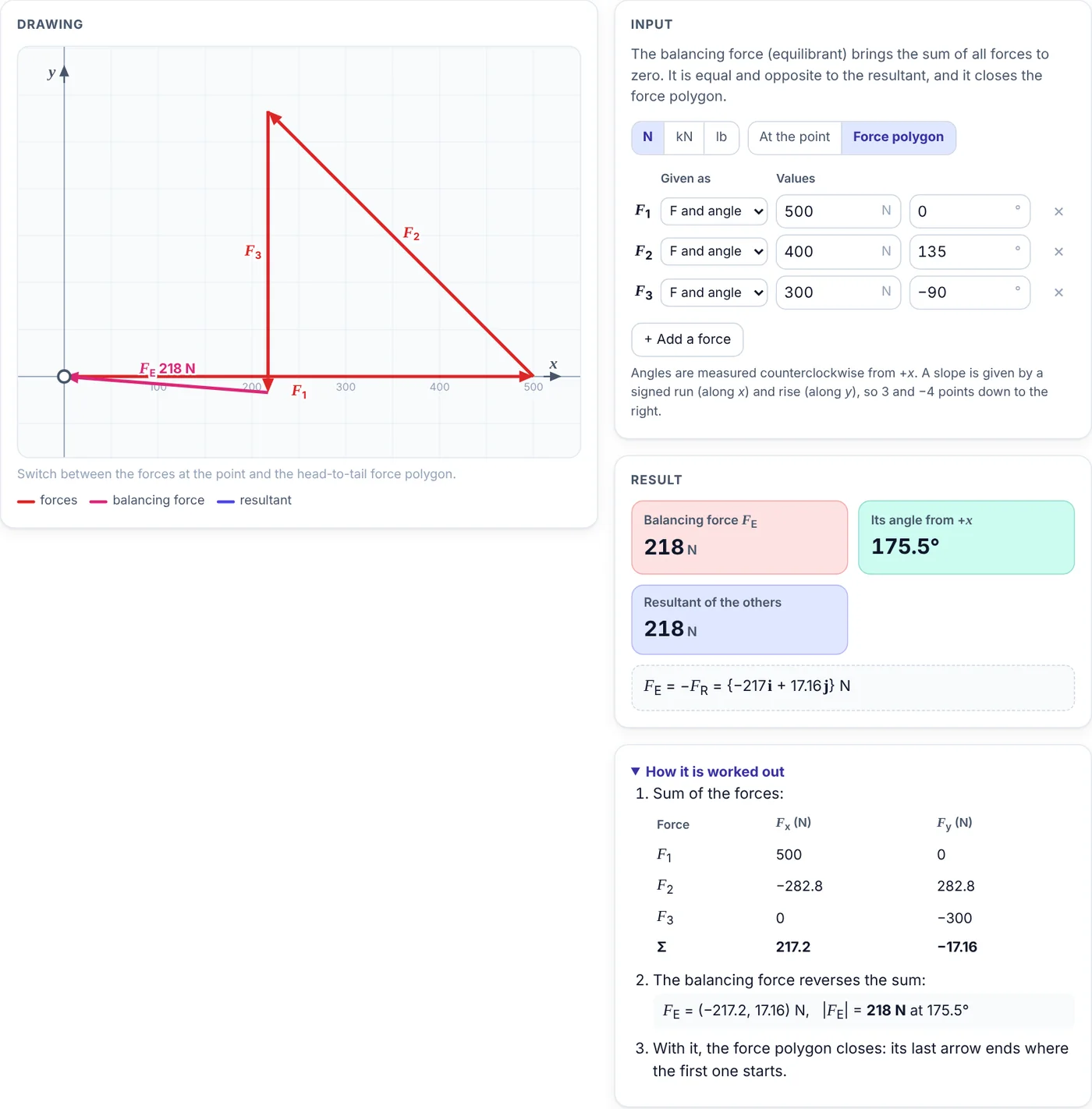
The balancing force (equilibrant) is equal and opposite to the resultant; with it the force polygon closes.
- Enter the forces, or drag their tips on the drawing.
- Read FE and its angle. In the view at the point you can also drag the tip of FE or of the resultant; the last force changes to match.
- In the polygon view, the pink arrow ends where the first force starts.
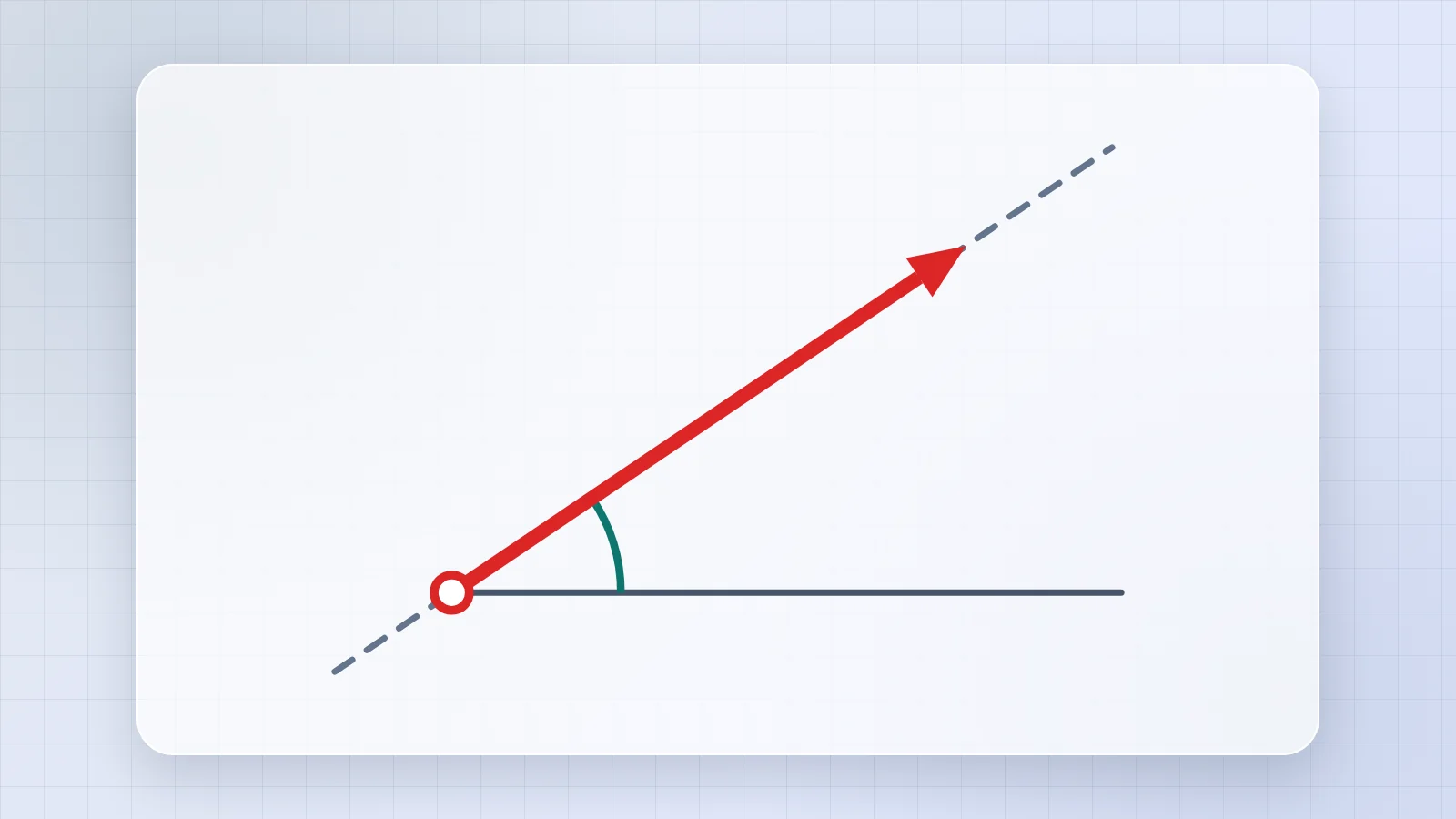
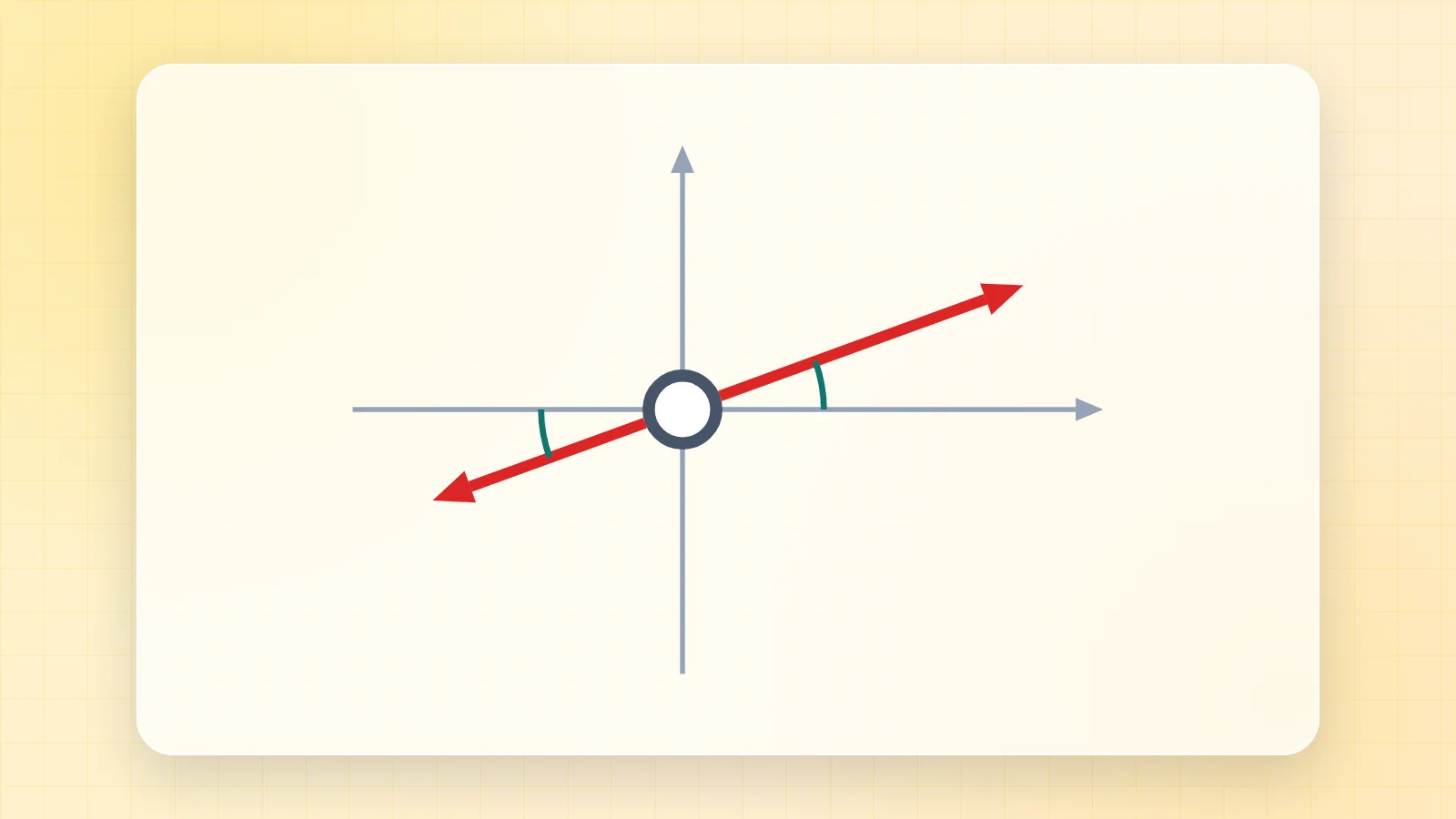
4. Required direction
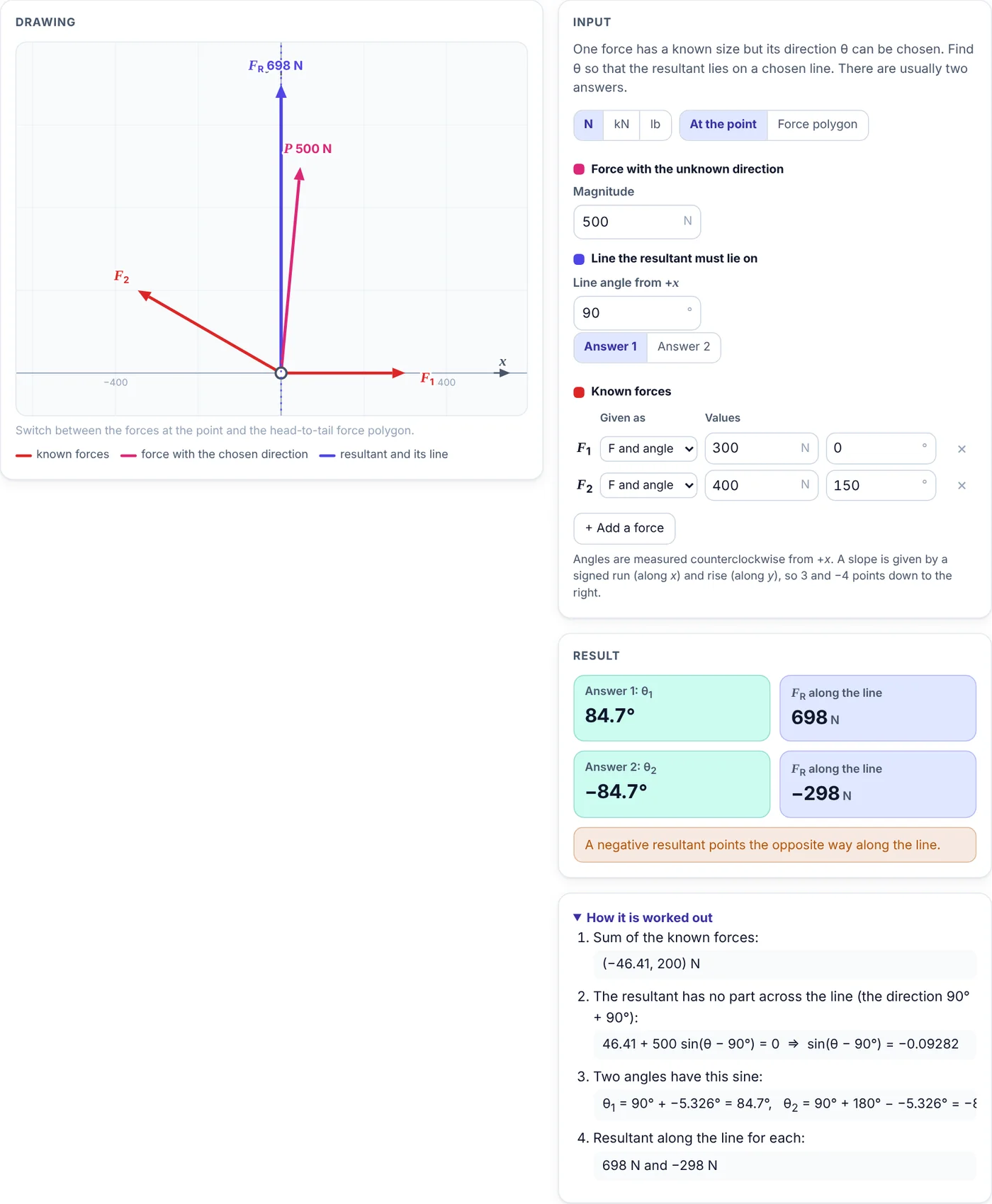
One force has a known size but its direction can be chosen. The app finds the angles for which the resultant lies on a chosen line; usually there are two.
- Type the size of that force and the angle of the line (90° for a vertical resultant, 0° for a horizontal one), or drag: the tip of the resultant turns the line and the tip of P changes its size.
- Enter the known forces.
- Read both answers; switch between Answer 1 and Answer 2 to draw each.
5. Scenarios and phones
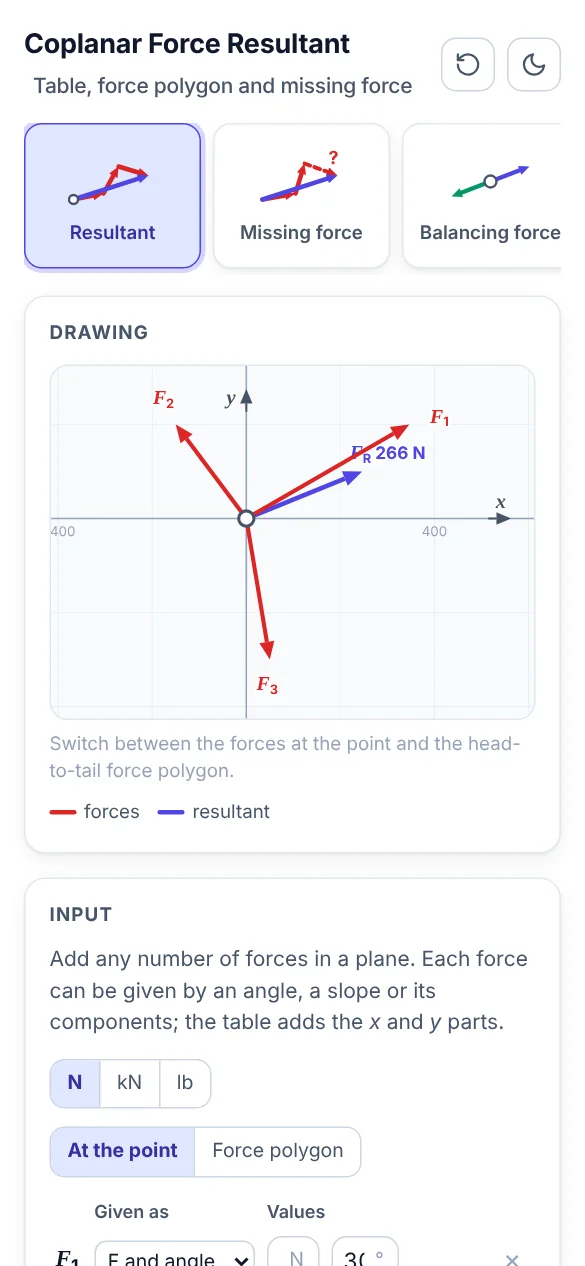
The scenarios load an eyebolt with three forces, three slings on a crane hook and a three-team tug of war. Each scenario opens the right tab and fills in the values, so you can change them and see what happens.
On a phone the drawing comes first and the input, result and steps follow below it. Swipe the picture tabs sideways to see all of them.
6. Tips
- The button with the circular arrow resets the open tab to its starting values; the moon or sun button switches between the light and dark themes.
- Your last values stay in the browser, so the app opens where you left it.
- Angles are measured counterclockwise from +x unless a tab says otherwise.














Comments 0
Ask how to use this app, report an issue or suggest an improvement.
Join the discussion
Log in to comment, reply and vote. It is free.
No comments yet
Ask a question, share a tip or say thanks. Be the first!