

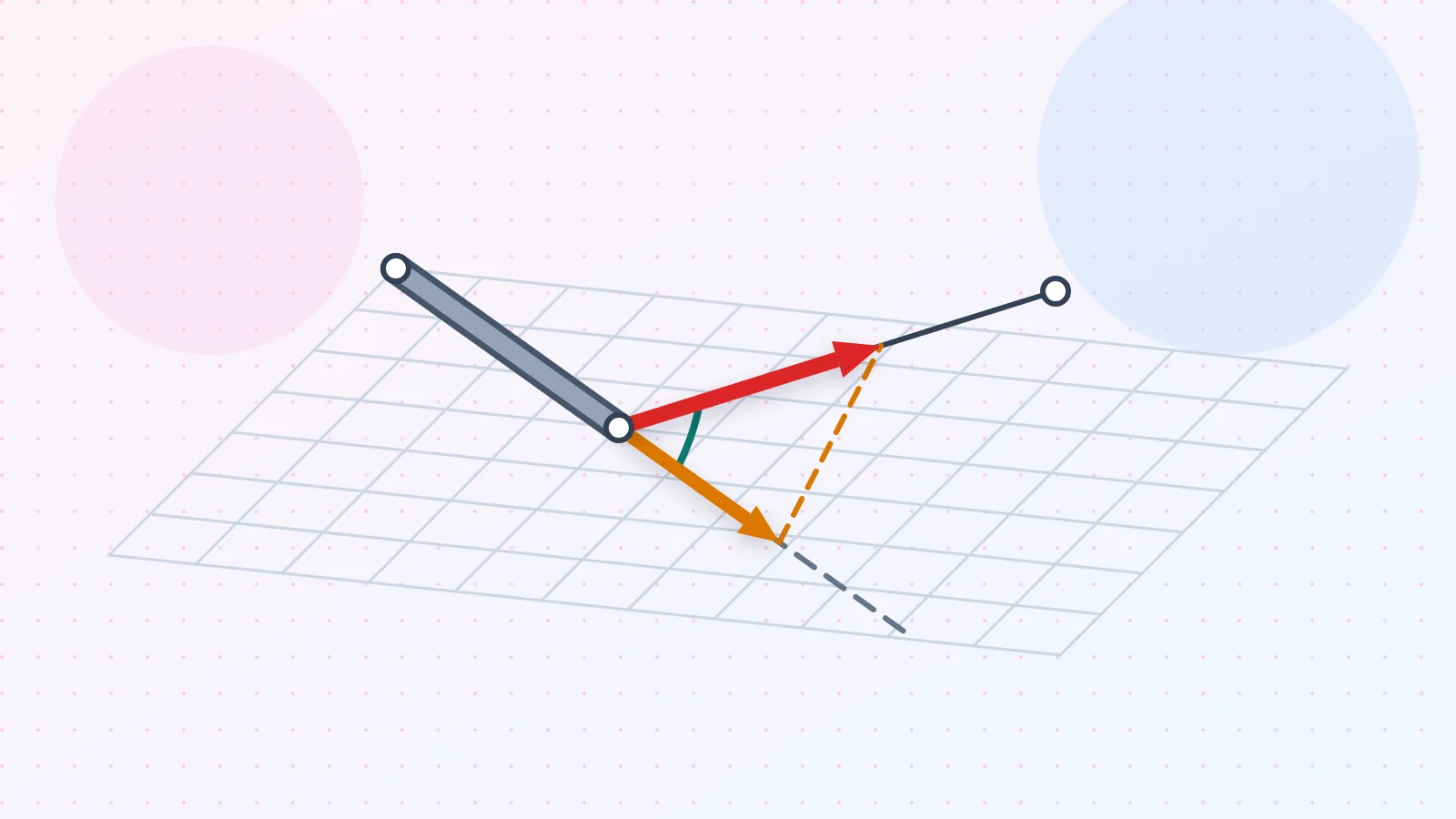
Dot Product Visualizer shows what the dot product means in statics: the angle between two directions and the part of a force along a line. Each result is drawn in 3D, with the parallel part, the perpendicular part and a right-angle mark.
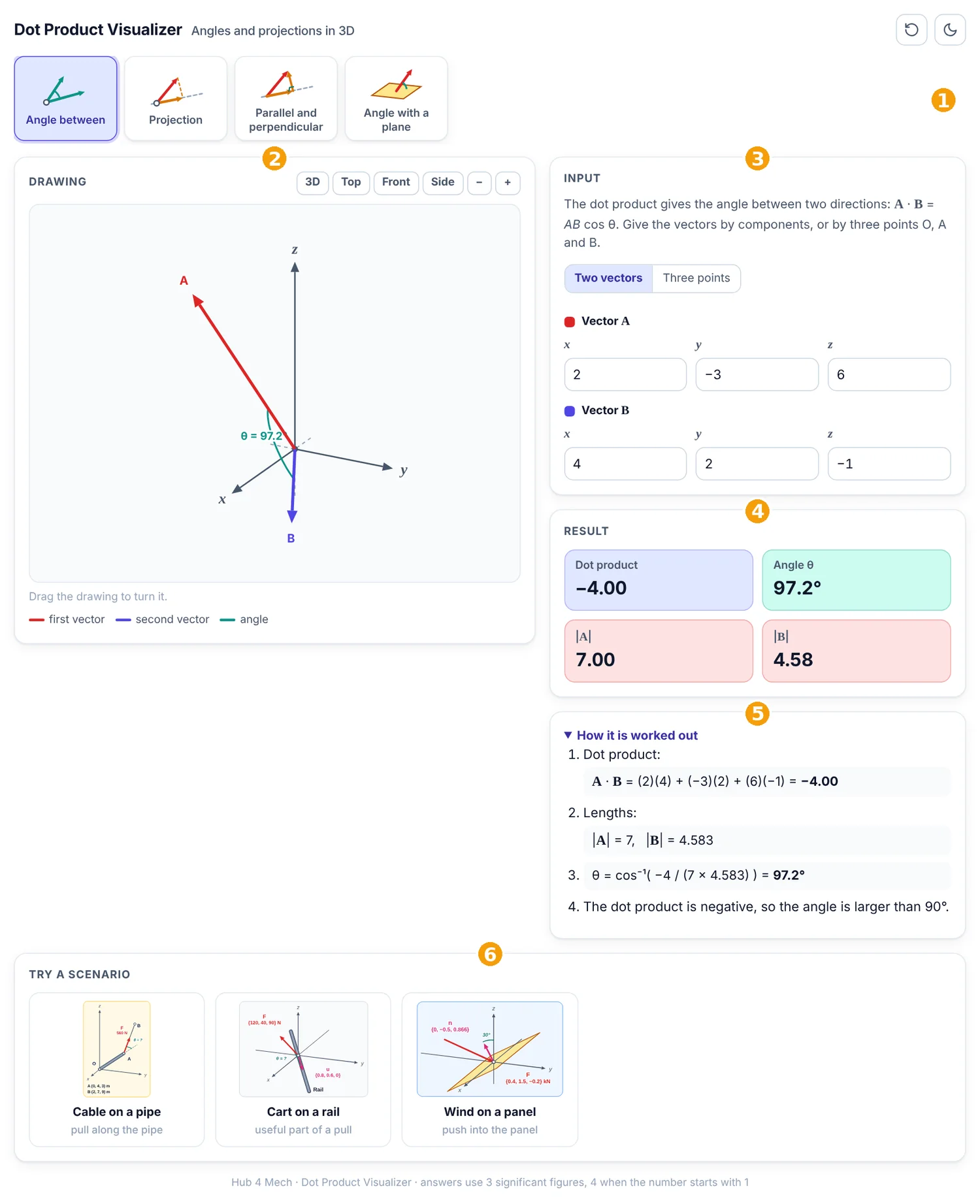
The numbered parts in Figure 1 are:
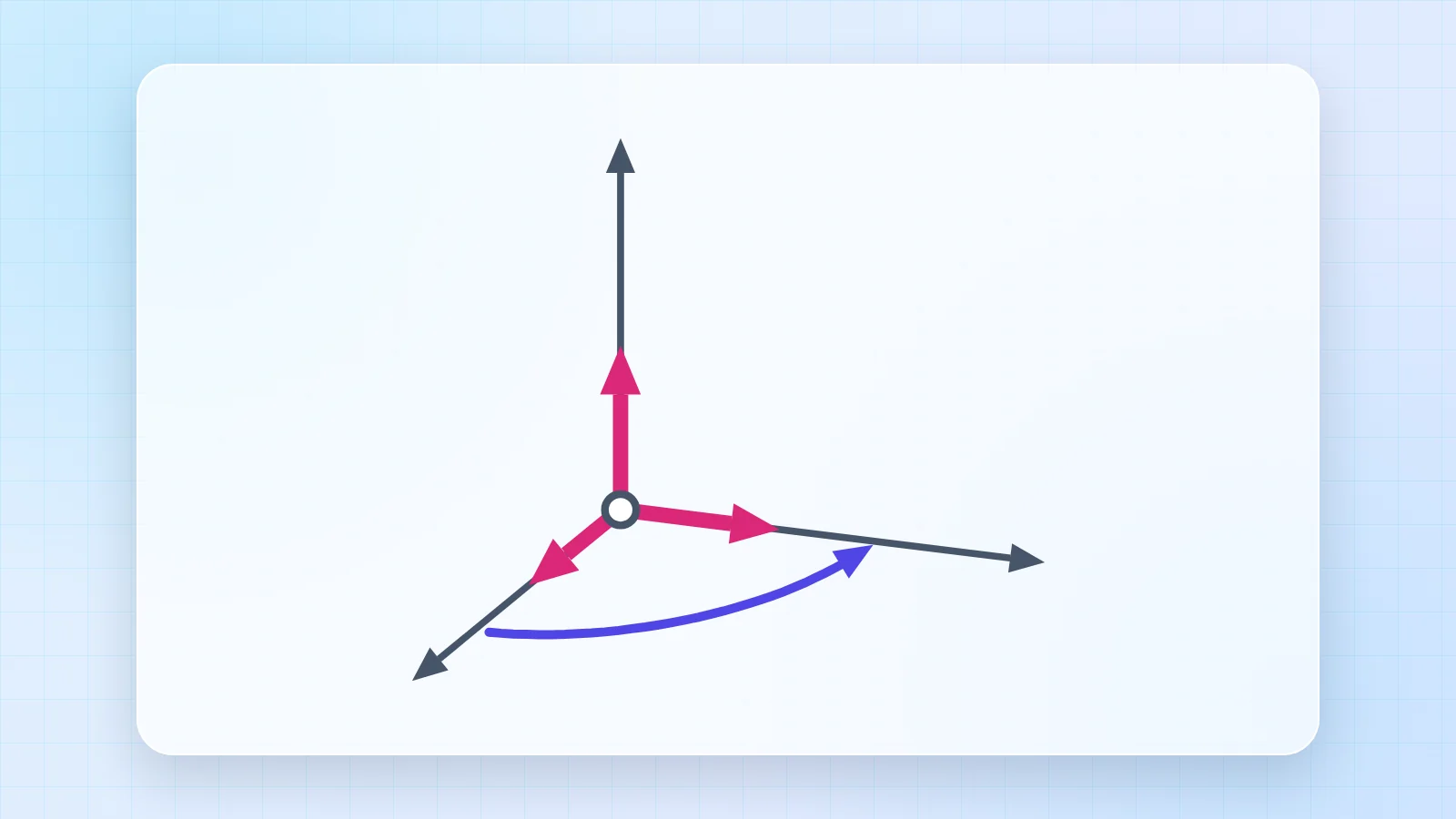
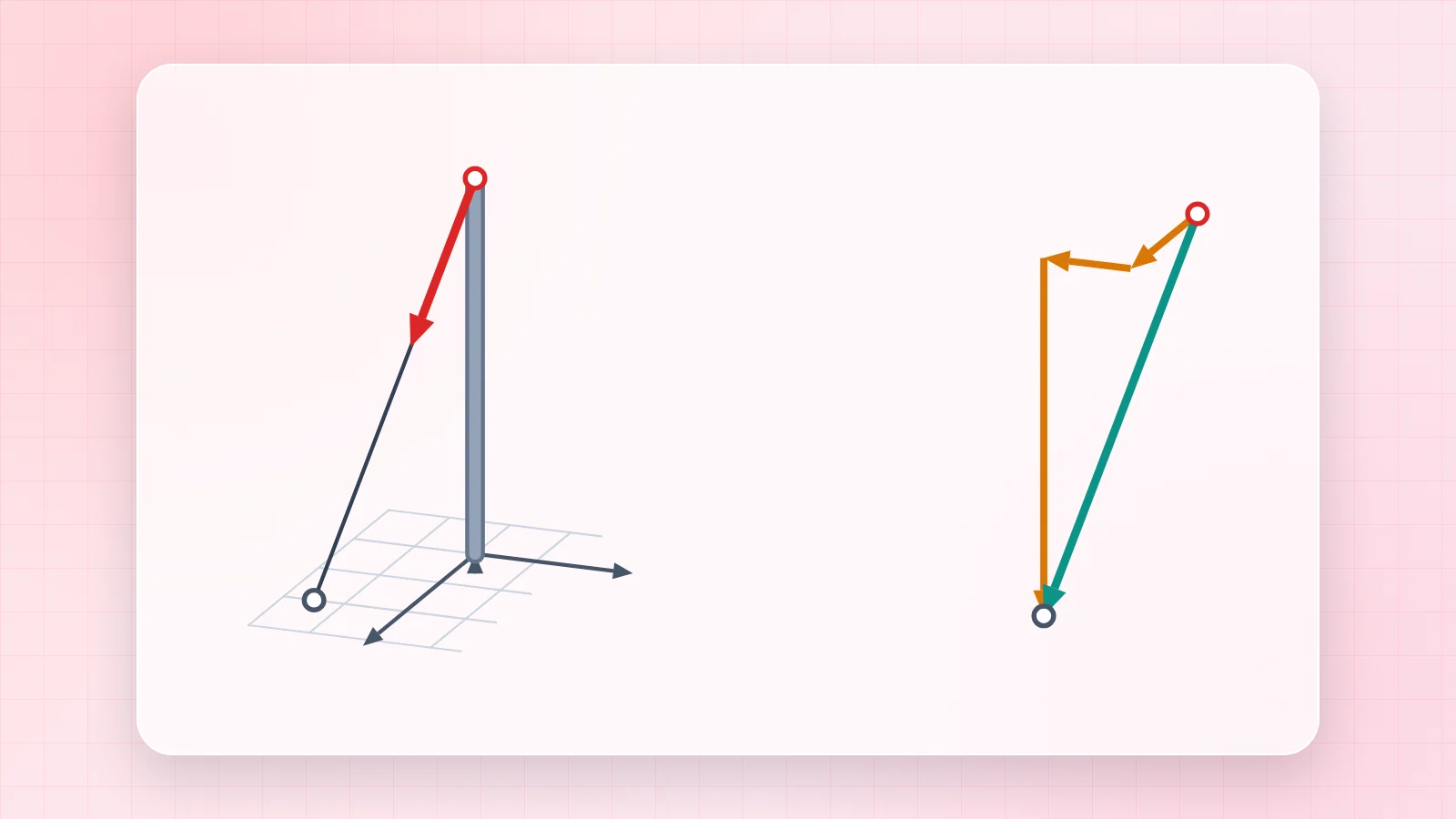
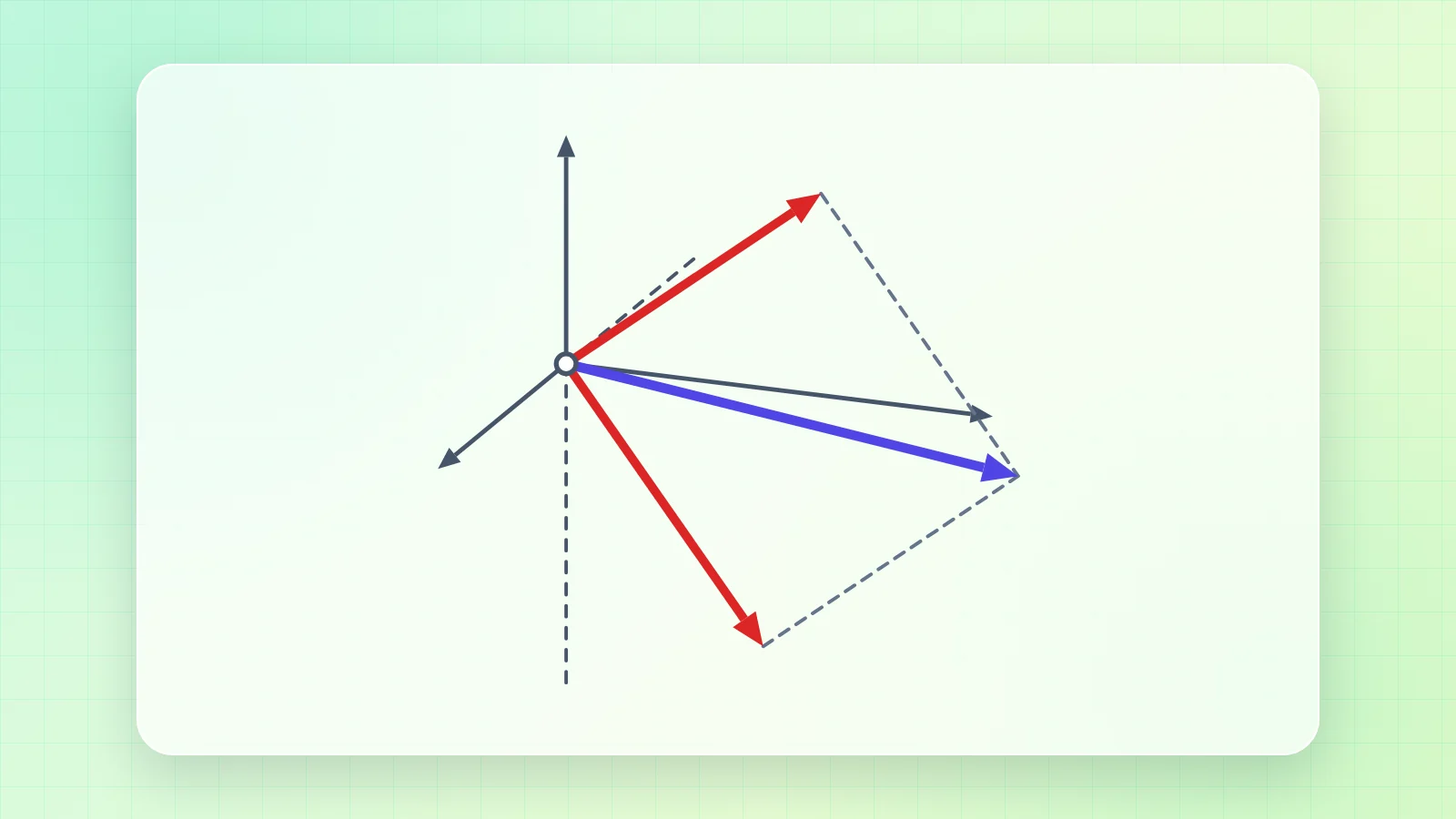
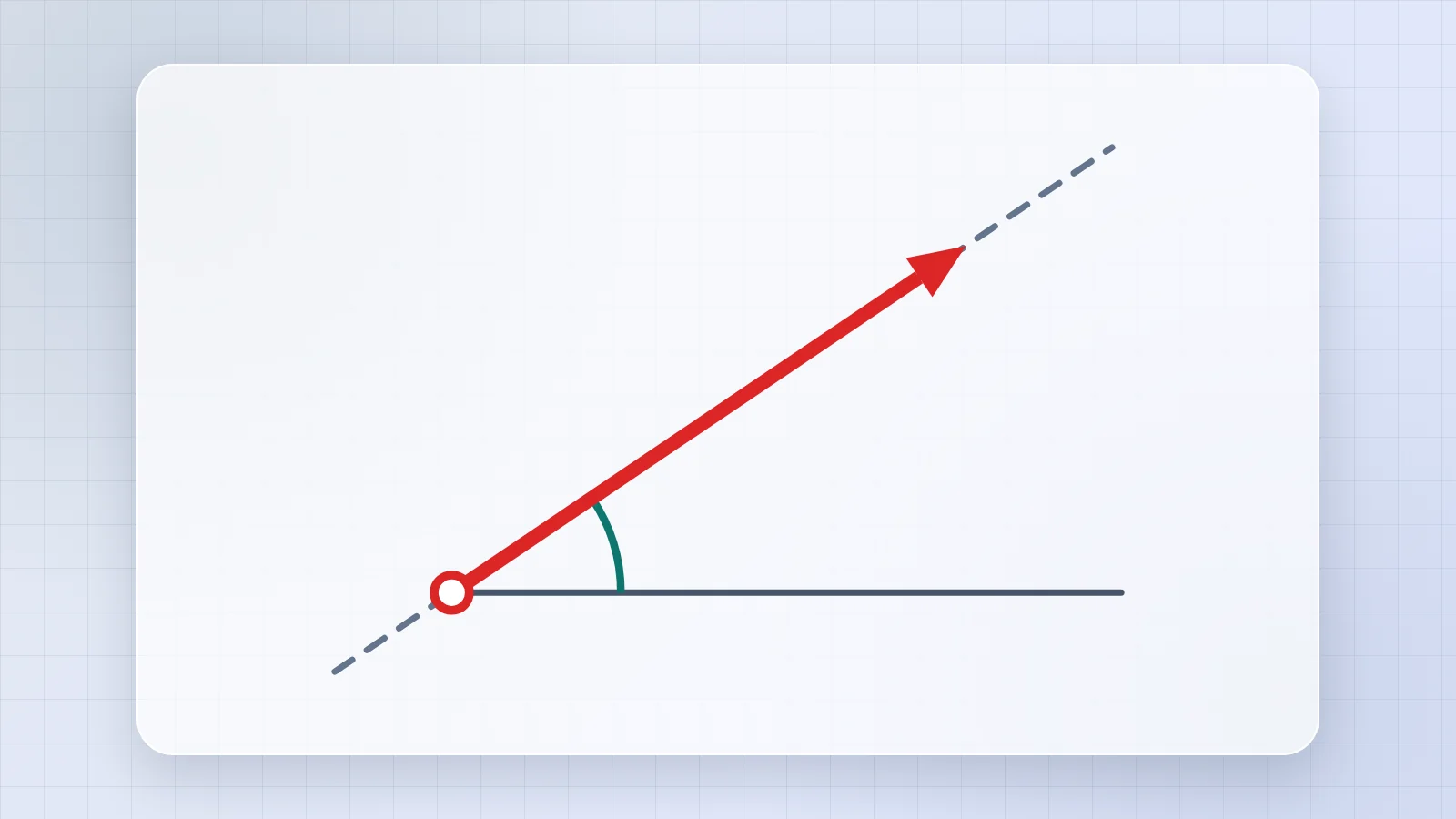
- Picture tabs: each tab is one task; the picture on it shows what the task draws.
- Drawing: the forces, drawn to scale and updated as you type.
- Input: the values of the task. Units can be N, kN or lb.
- Result: the answers, rounded to three significant figures (four when the number starts with 1).
- How it is worked out: every step of the calculation with your numbers.
- Scenarios: ready-made real situations; one click fills in the values.
1. Angle between
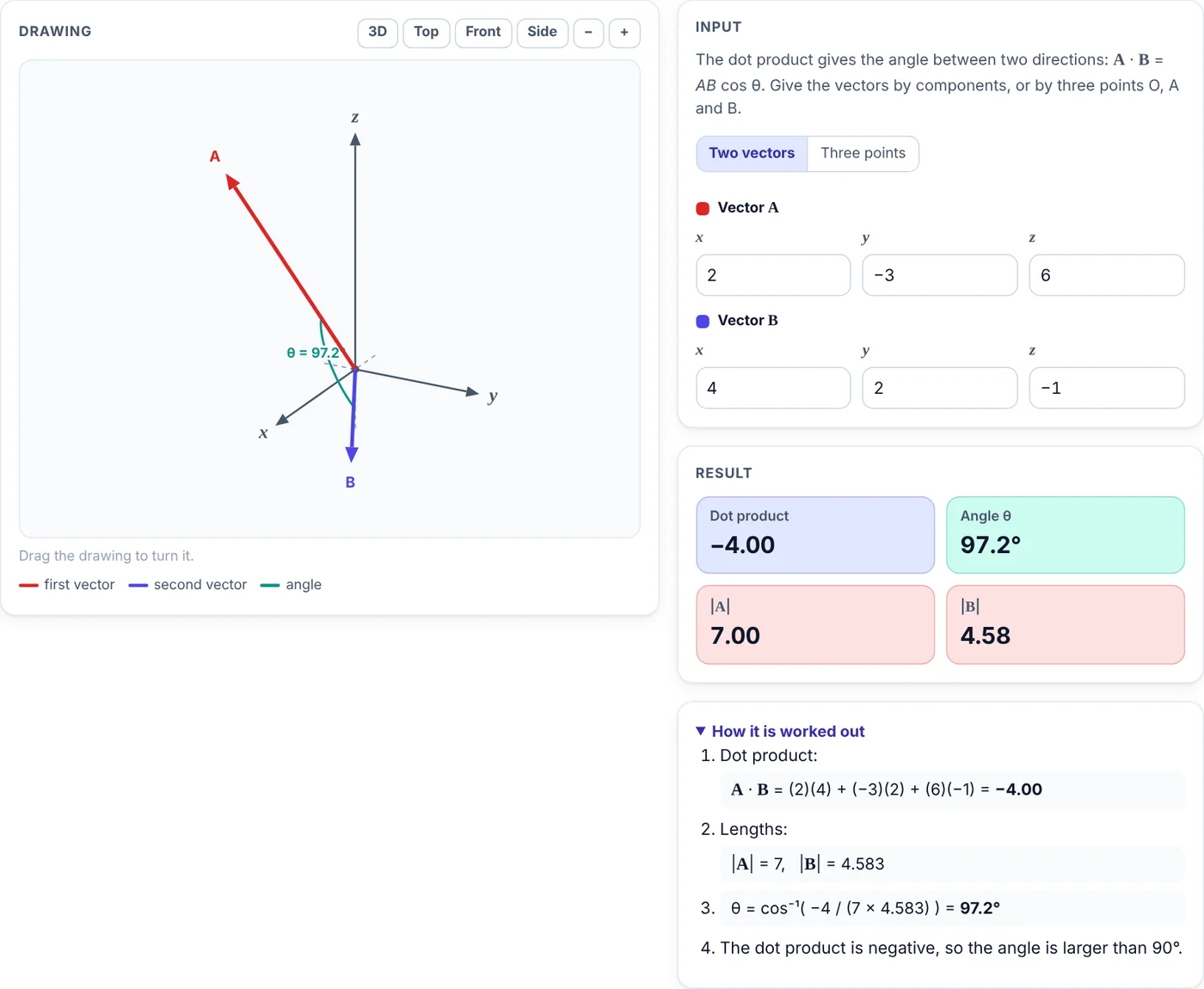
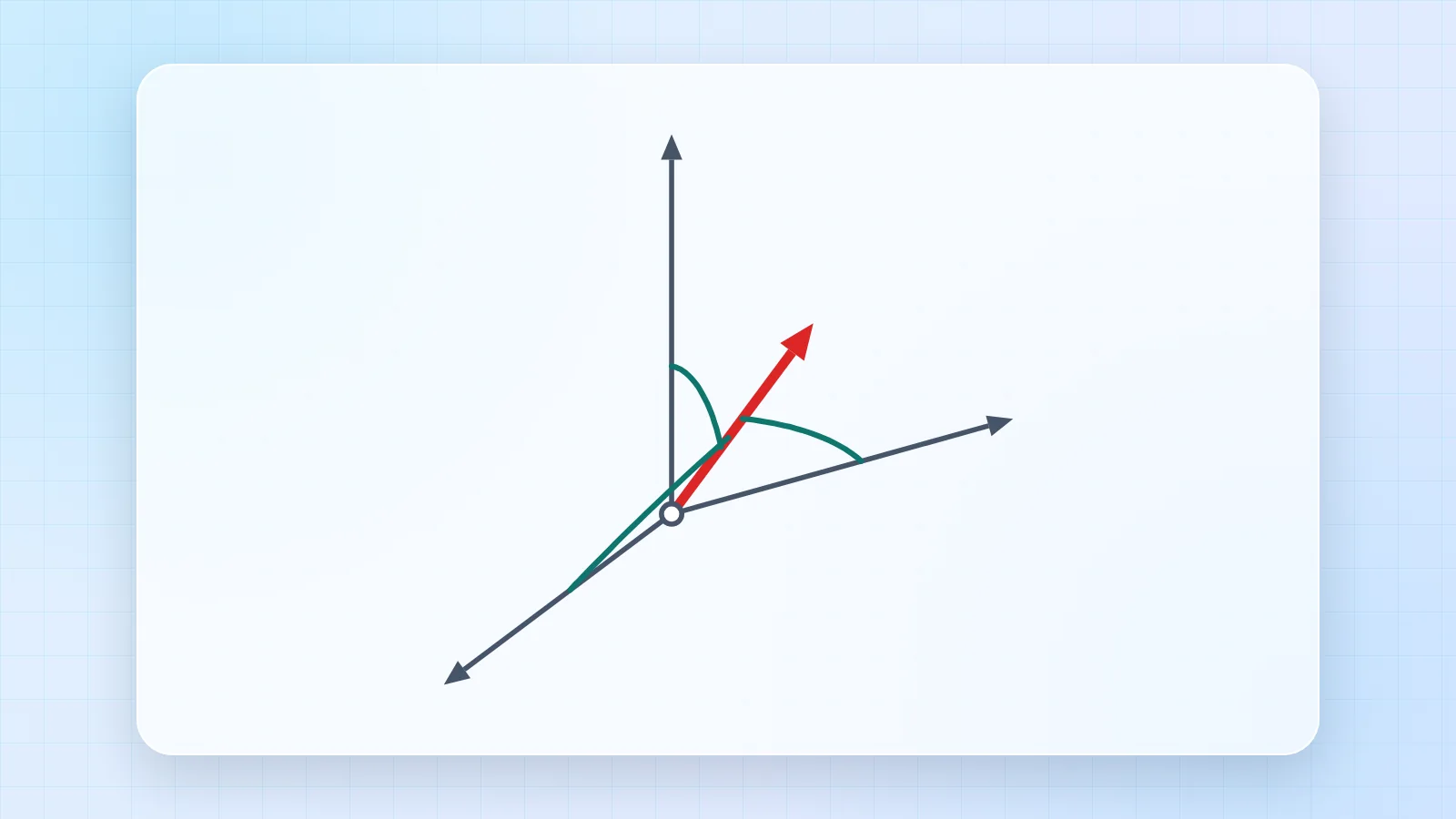
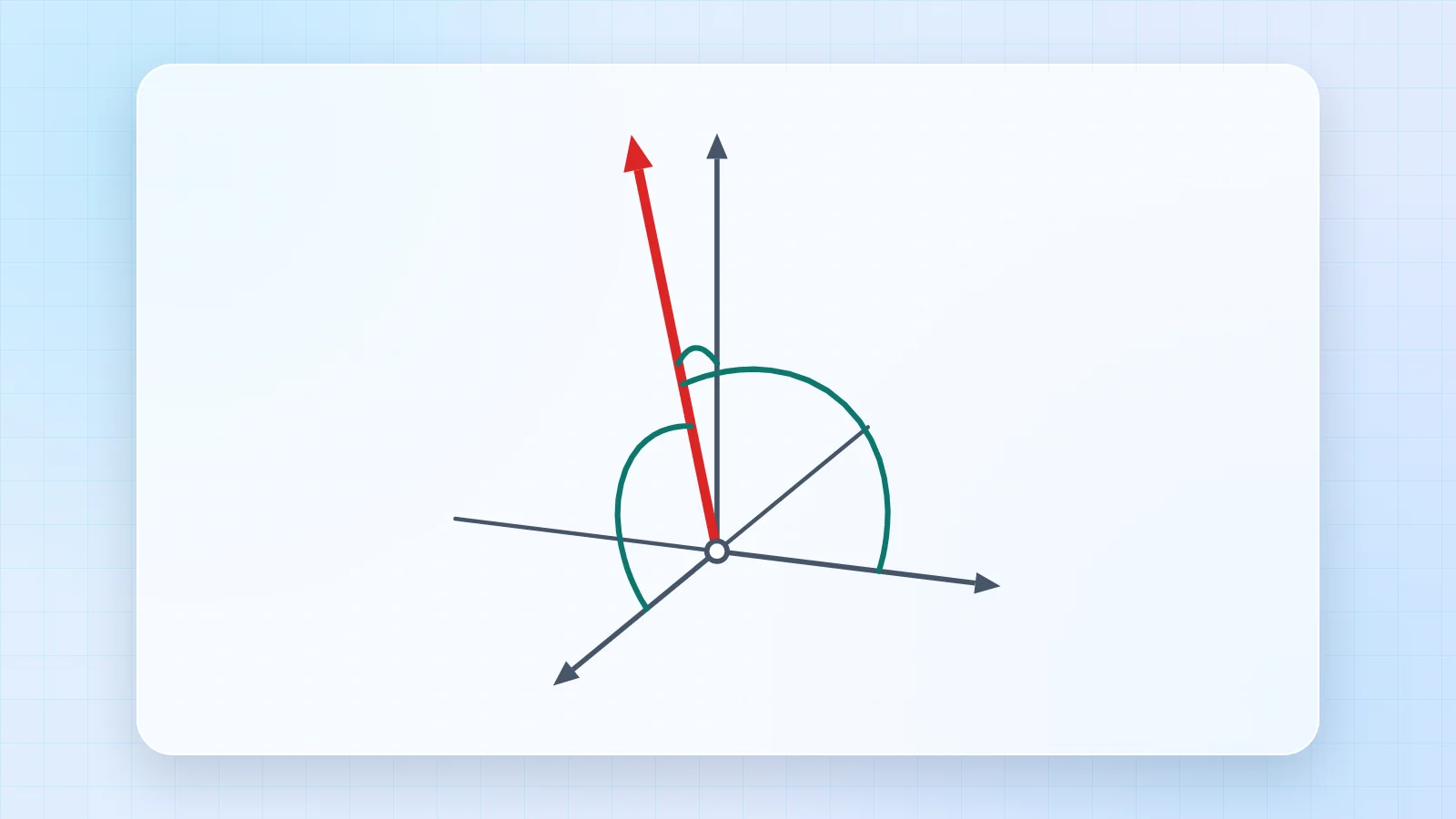
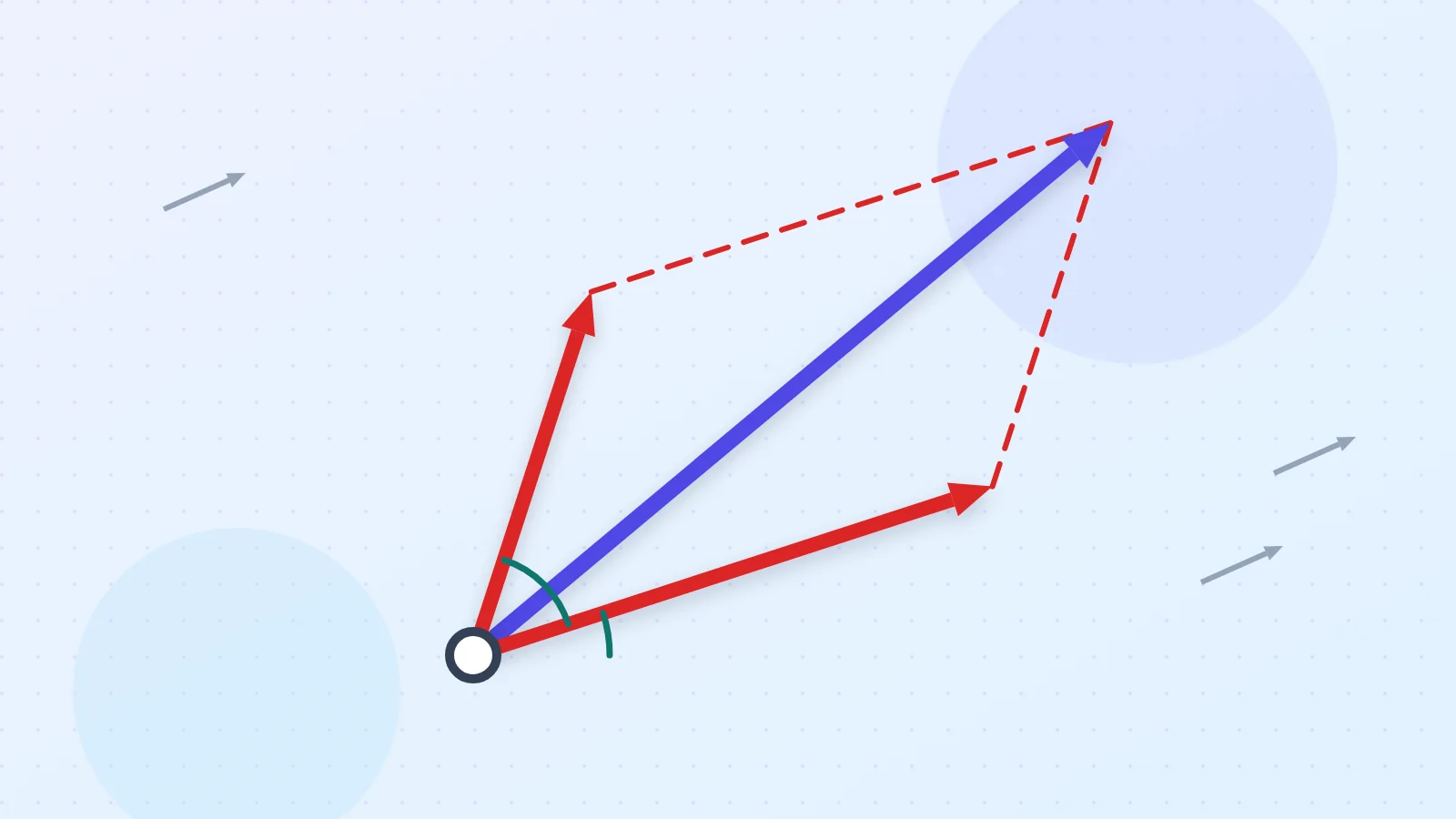
A · B = AB cos θ gives the angle between two vectors, or between two lines that meet at a point.
- Choose Two vectors and type their components, or Three points and type O, A and B.
- Read the dot product and the angle θ.
- A negative dot product means an angle larger than 90°.
2. Projection
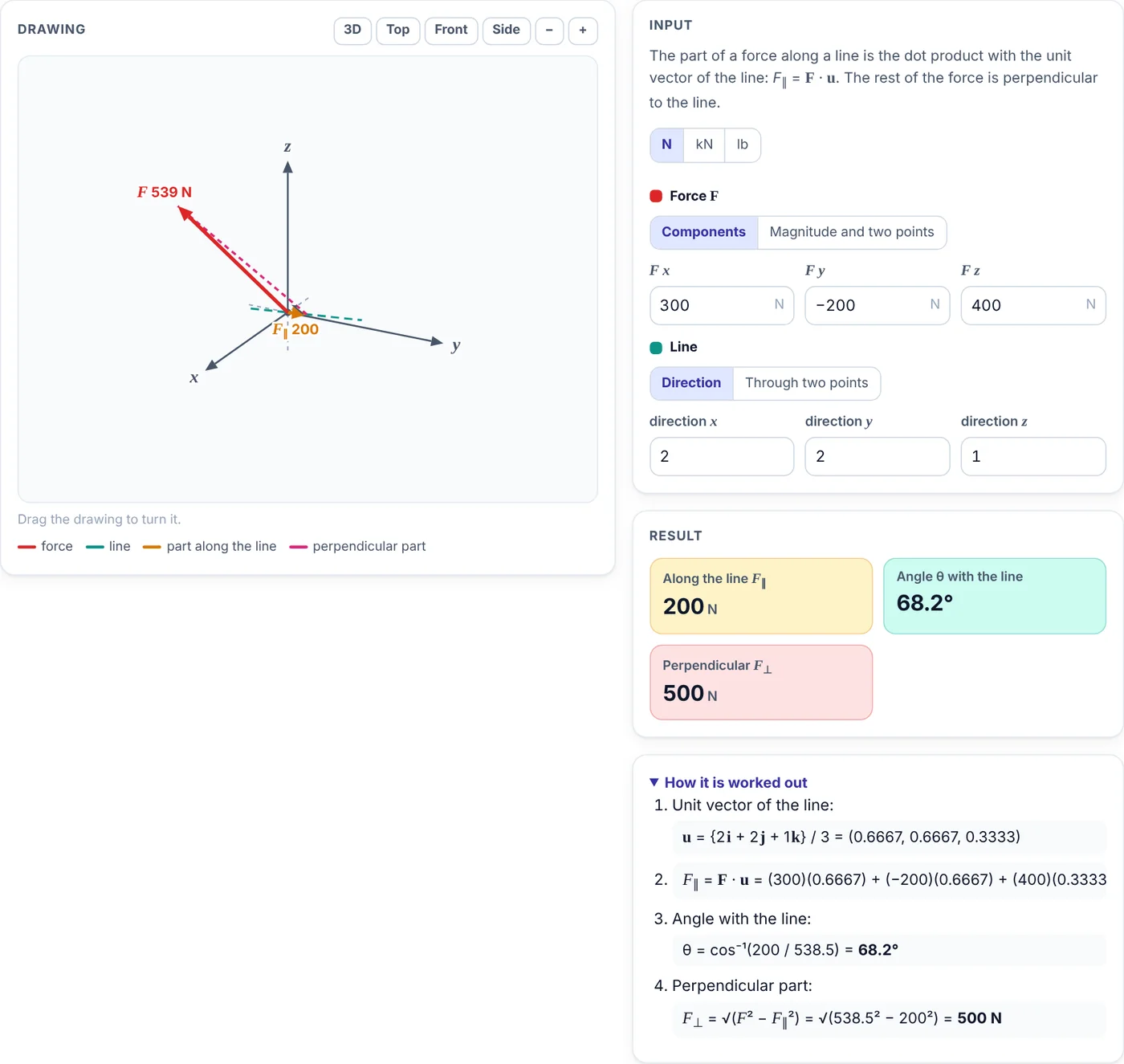
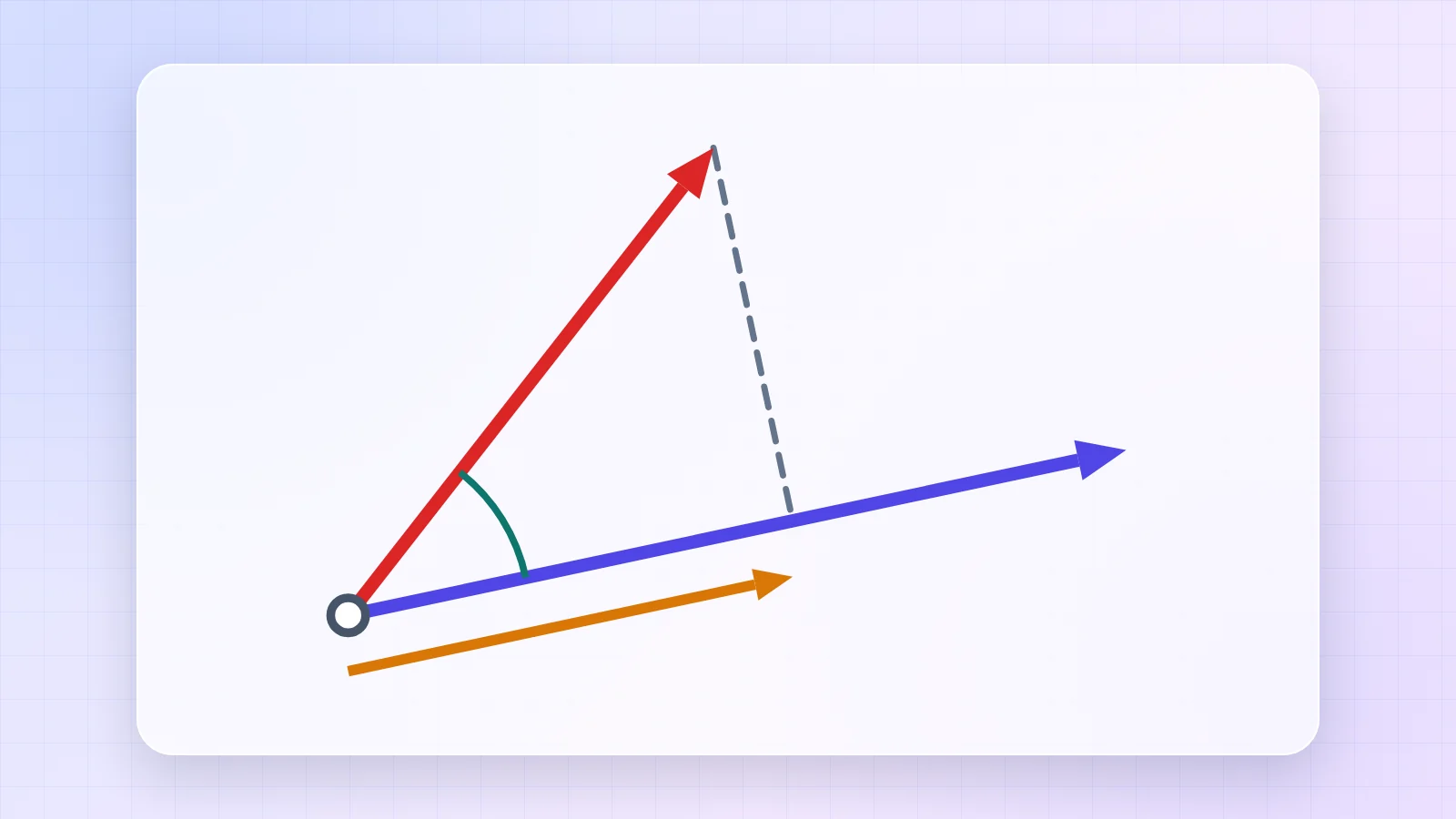
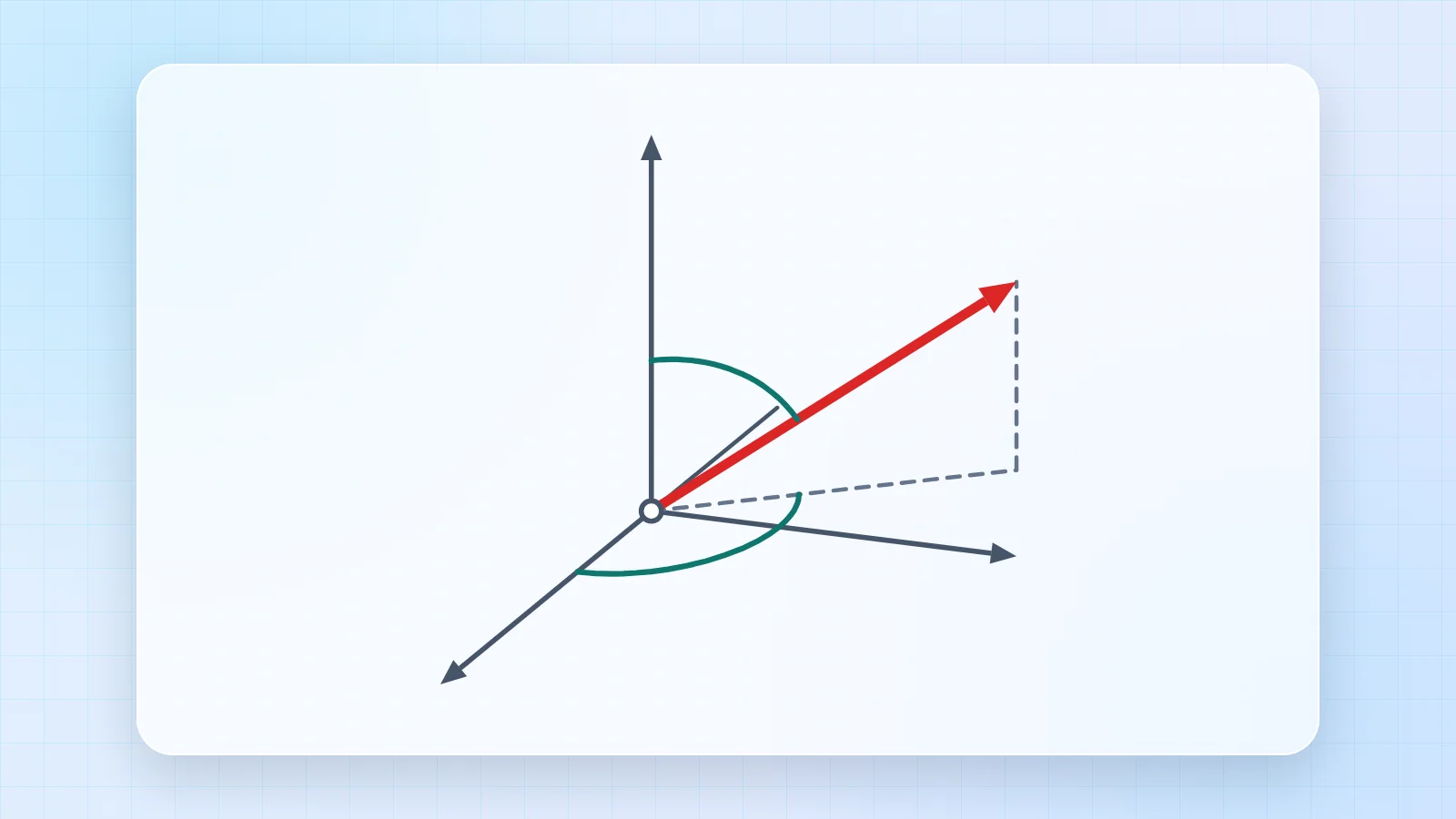
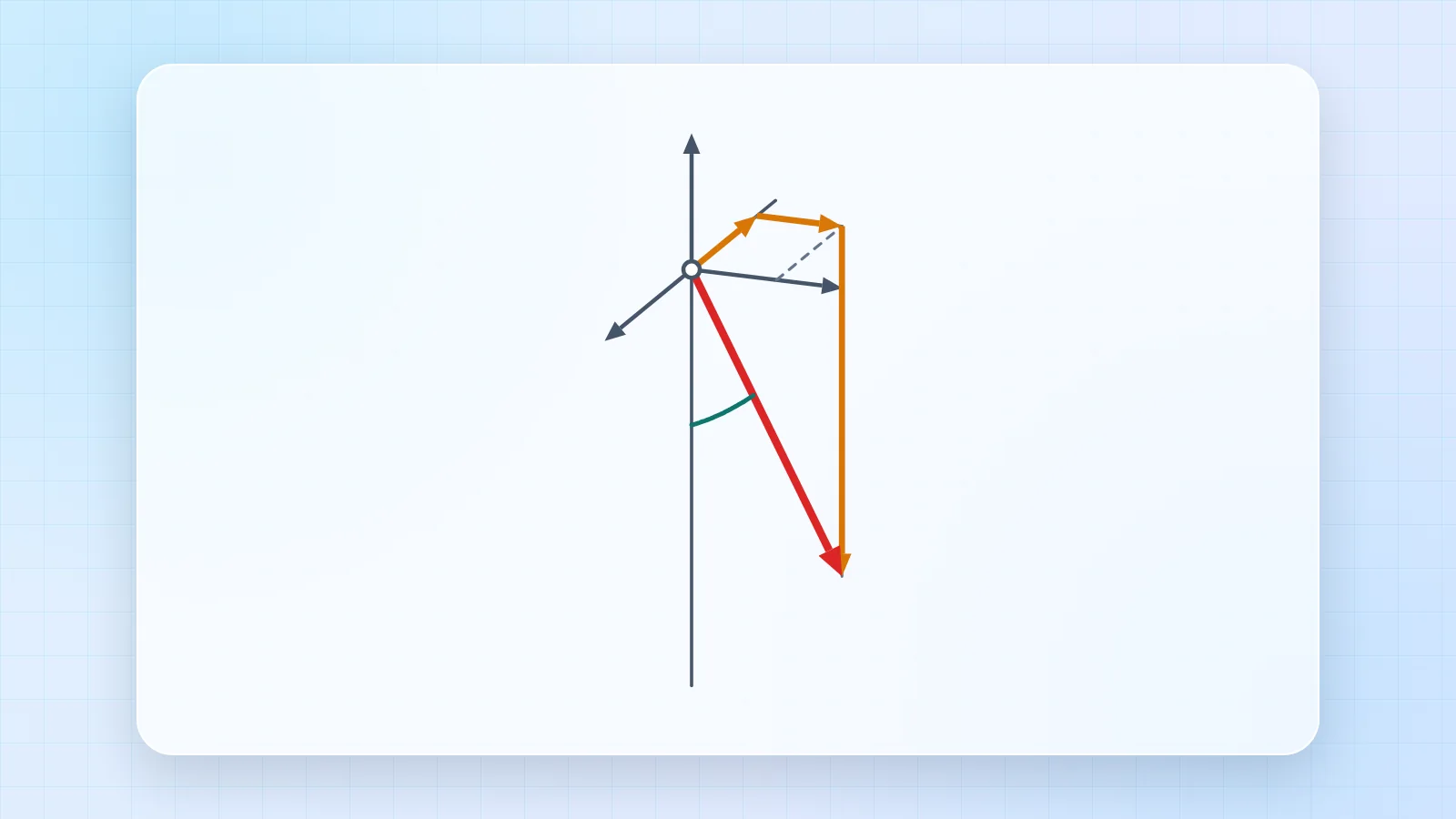
The part of a force along a line is F · u, where u is the unit vector of the line.
- Give the force by its components or by its magnitude and two points.
- Give the line by a direction or by two points.
- Read F∥, the angle with the line and F⊥.
3. Parallel and perpendicular
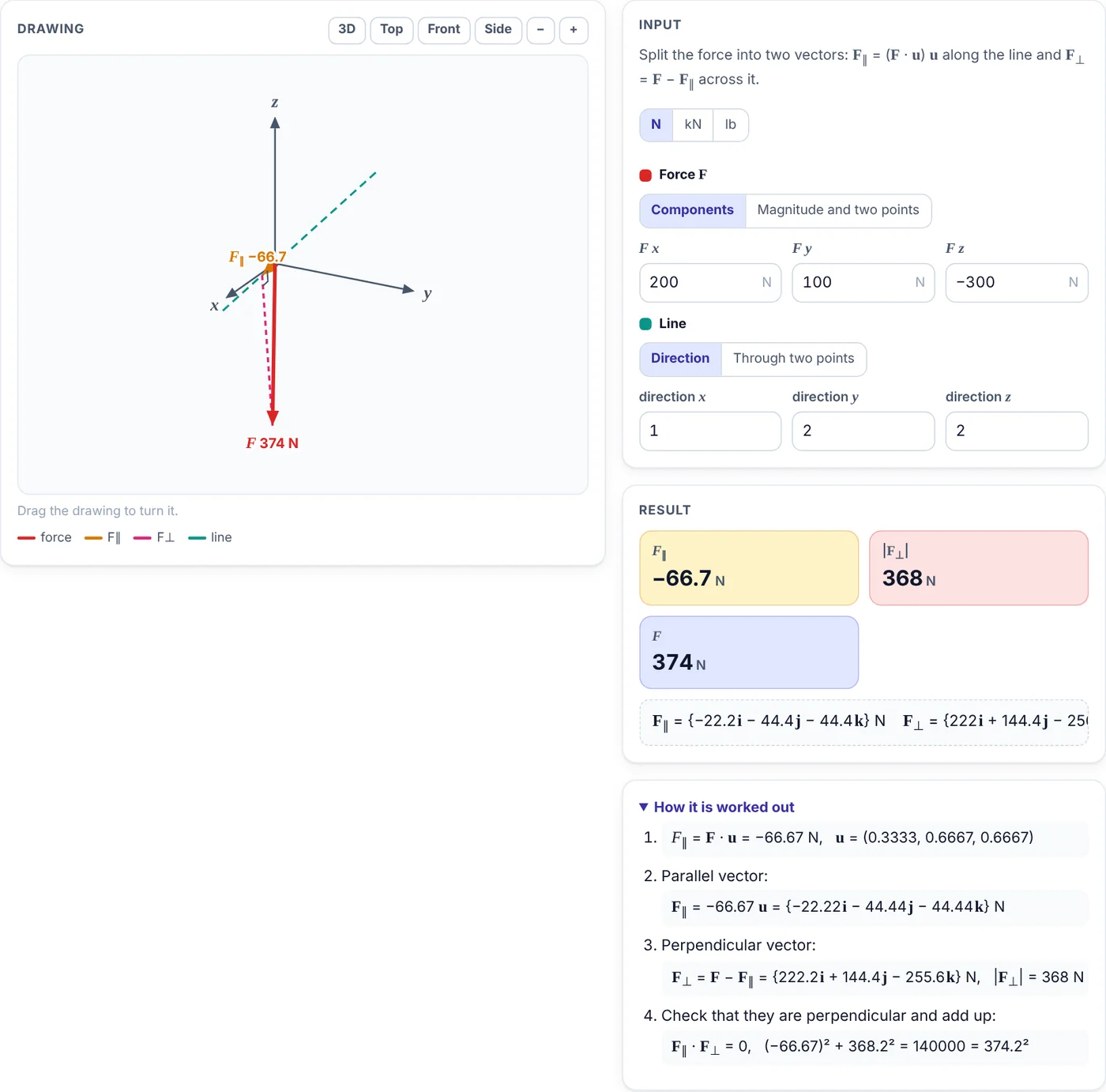
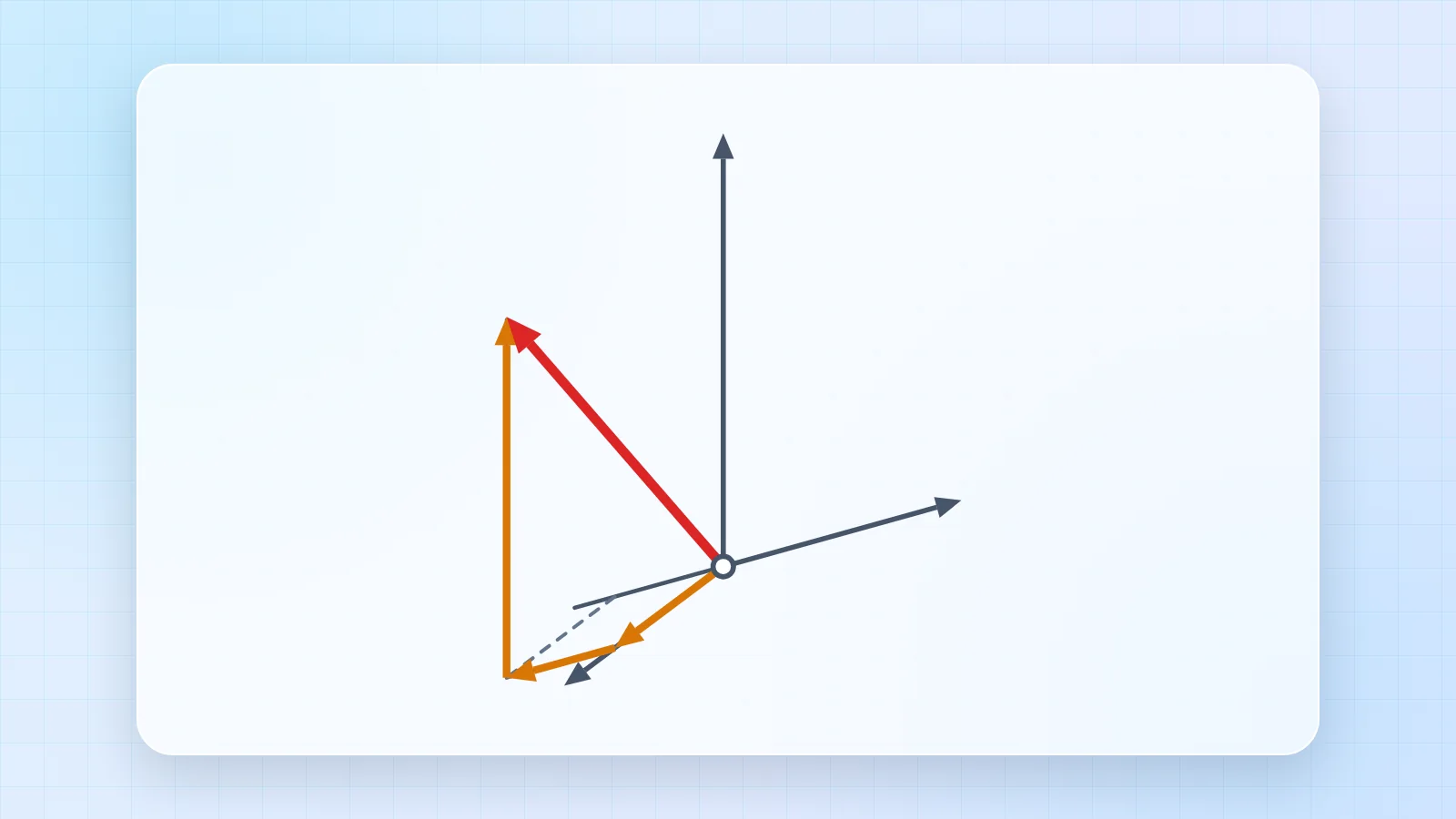
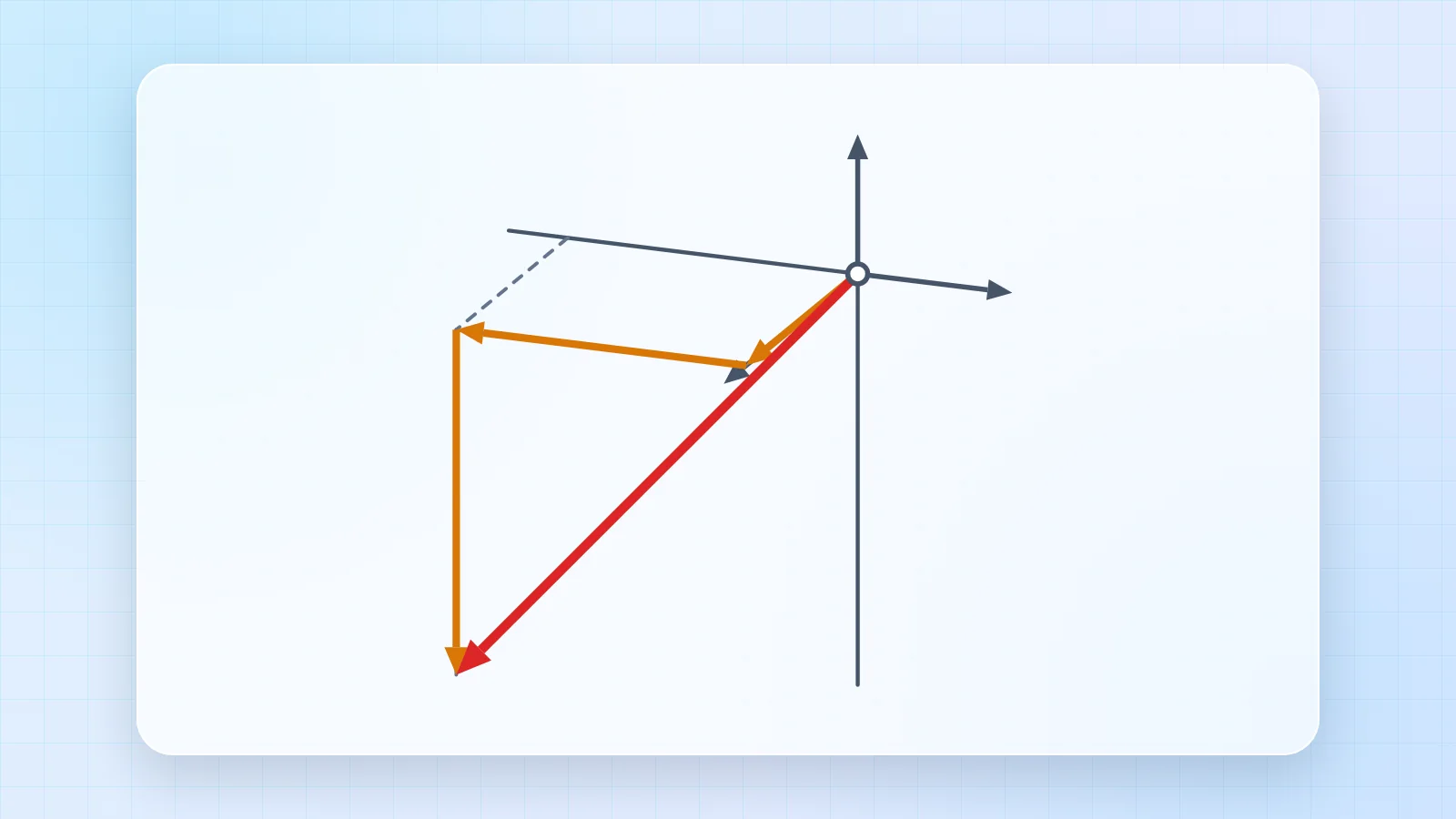
The force is split into two vectors: F∥ along the line and F⊥ across it.
- Enter the force and the line as in the projection tab.
- Read both vectors in Cartesian form.
- The last step checks that they are perpendicular and that their squares add up to F².
4. Angle with a plane
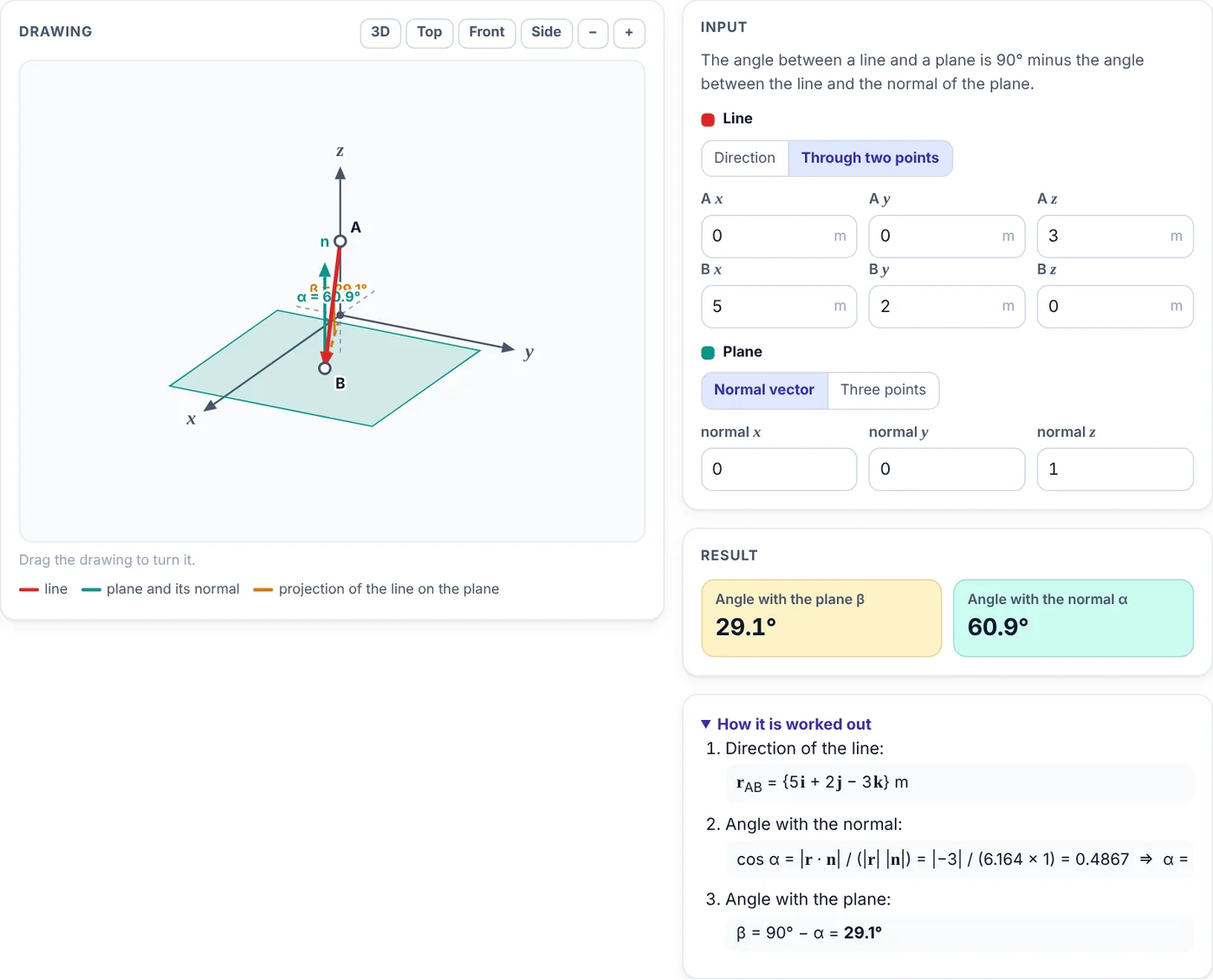
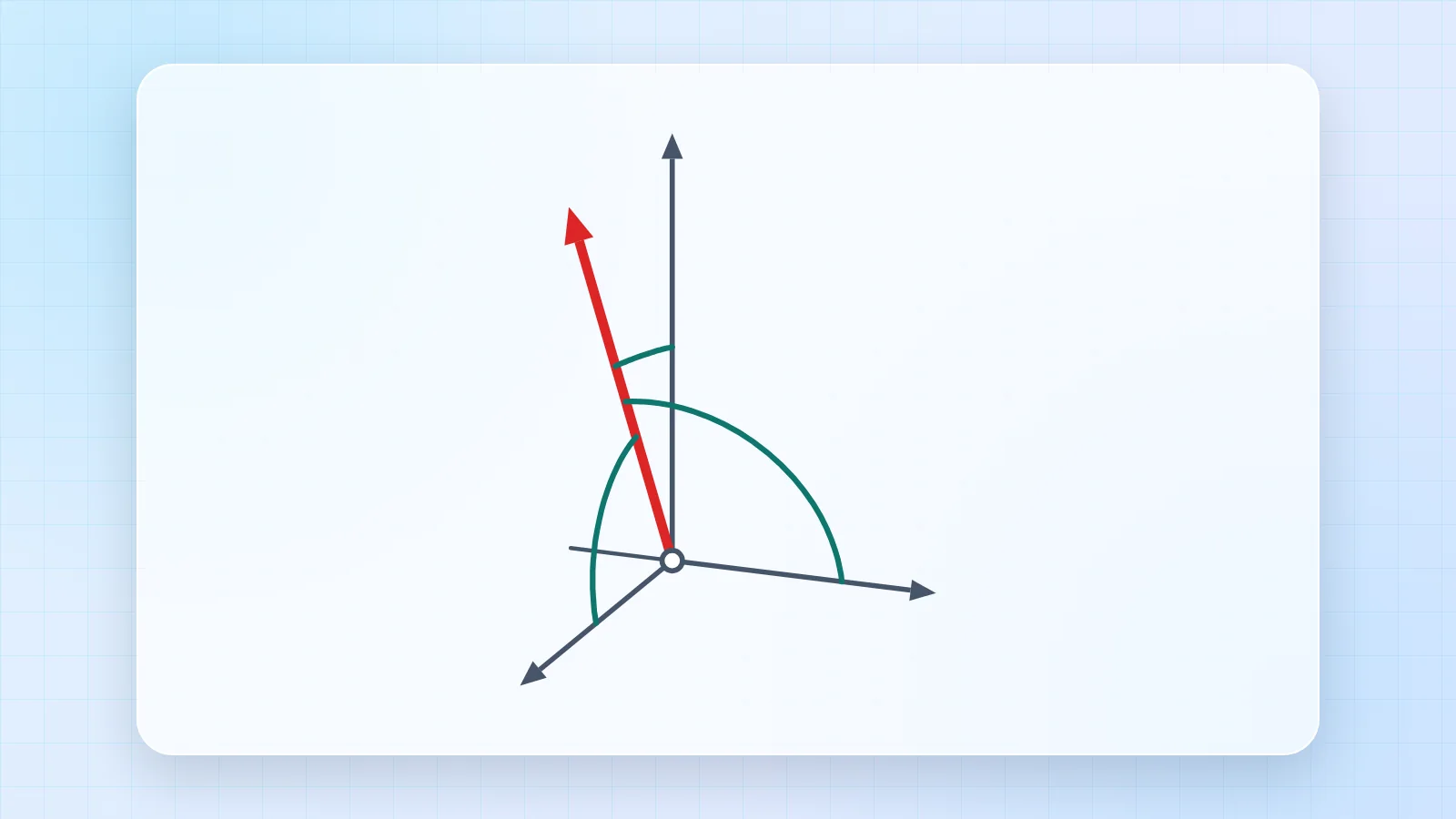
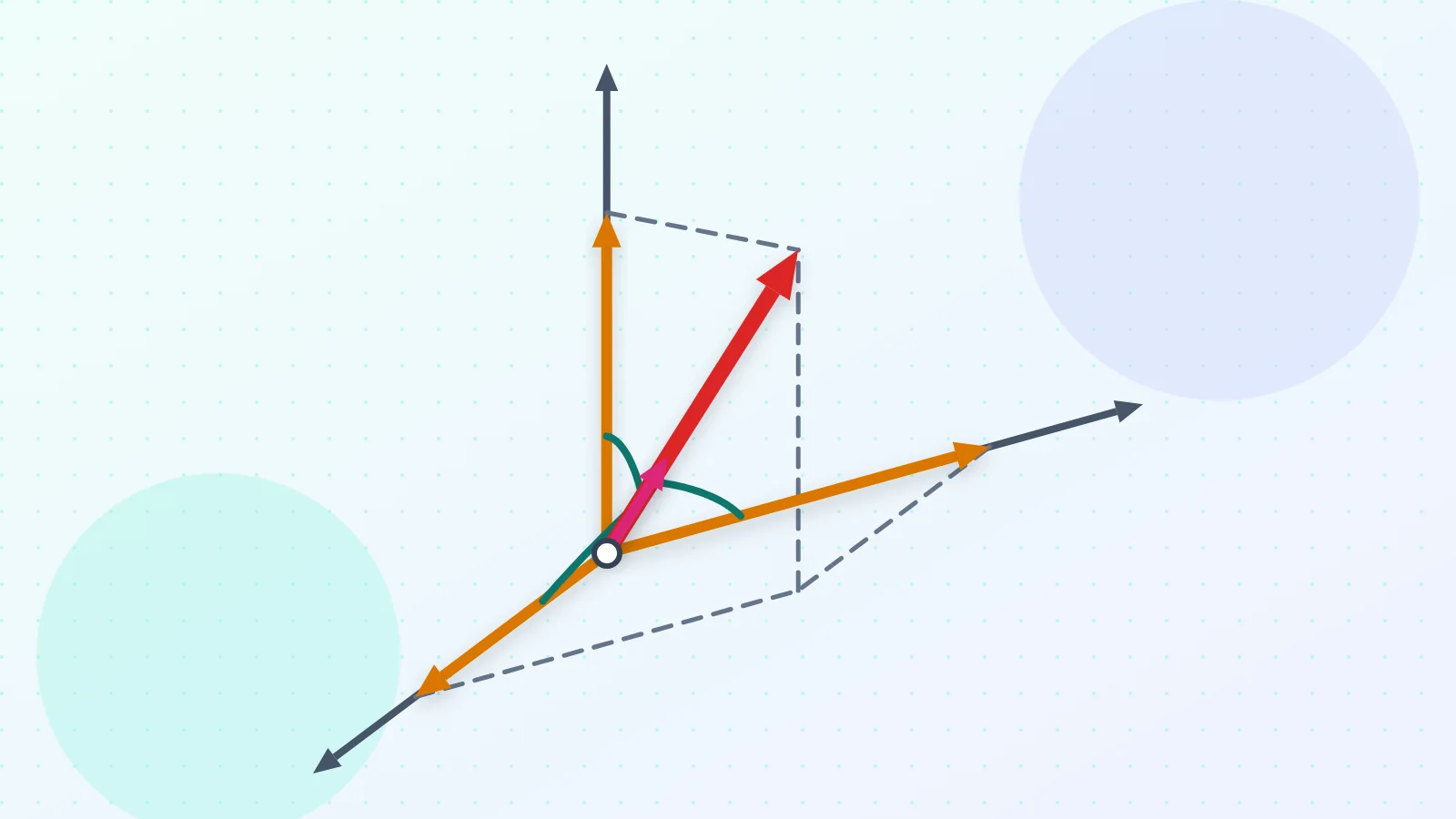
The angle between a line and a plane is 90° minus the angle between the line and the plane normal.
- Give the line by a direction or by two points.
- Give the plane by its normal or by three points on it.
- Read β, the angle with the plane, and α, the angle with the normal.
5. Scenarios and phones
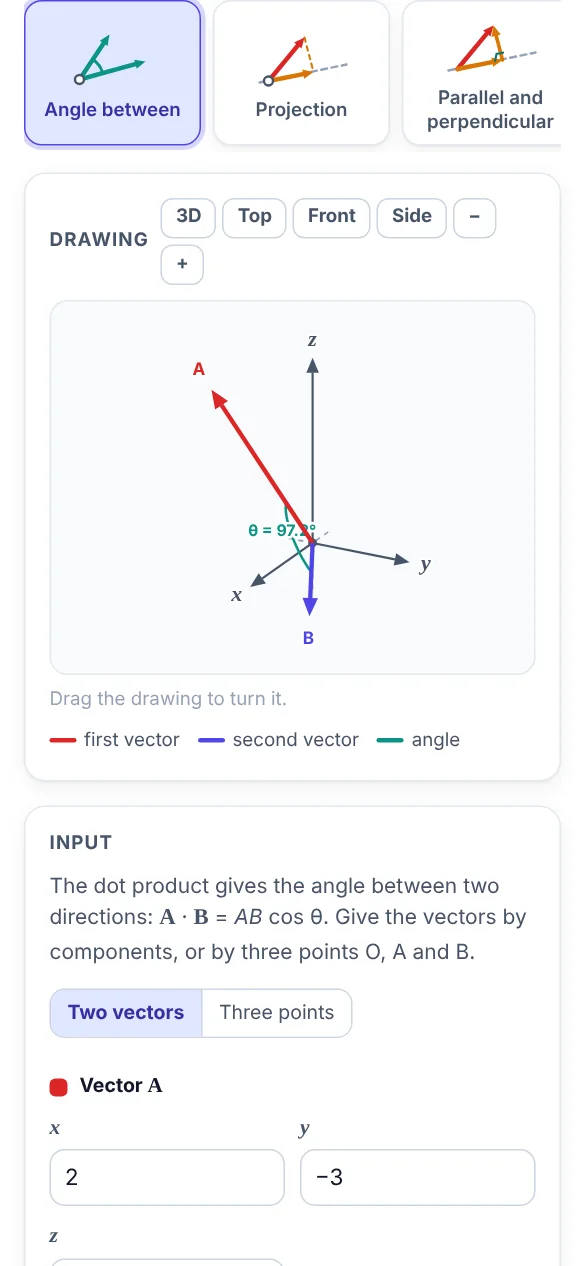
The scenarios load a cable pulling on a pipe, a rope pulling a cart along a rail and wind pressing on a tilted solar panel. Each scenario opens the right tab and fills in the values, so you can change them and see what happens.
On a phone the drawing comes first and the input, result and steps follow below it. Swipe the picture tabs sideways to see all of them.
6. Tips
- The button with the circular arrow resets the open tab to its starting values; the moon or sun button switches between the light and dark themes.
- Your last values stay in the browser, so the app opens where you left it.
- Angles are measured counterclockwise from +x unless a tab says otherwise.












Comments 0
Ask how to use this app, report an issue or suggest an improvement.
Join the discussion
Log in to comment, reply and vote. It is free.
No comments yet
Ask a question, share a tip or say thanks. Be the first!